Build daily routes
- On this page
- What a route includes
- Create a route
- During the day
- Good practices
- Build the delivery with issued invoices
- Deliver and collect at each stop
- Settlement at the end
Routes organize visits for sales, delivery or collections. In EzDIS, you can create daily or recurring routes and assign them to employees.
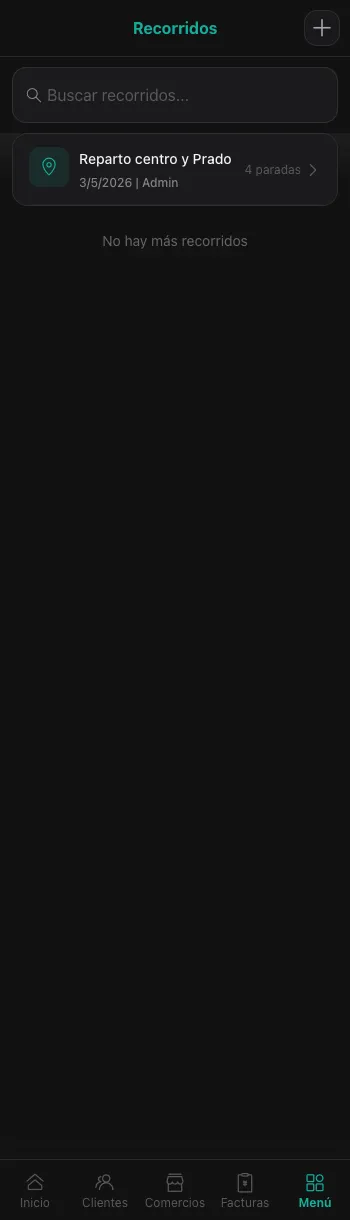
What a route includes
- route name;
- assigned employee;
- visit date;
- ordered stops;
- stores or clients to visit;
- status of each stop;
- address and navigation links when available.
Create a route
- Open Routes.
- Create a new route.
- Choose date and employee.
- Add stores or clients.
- Order stops according to the planned day.
- Save.
During the day
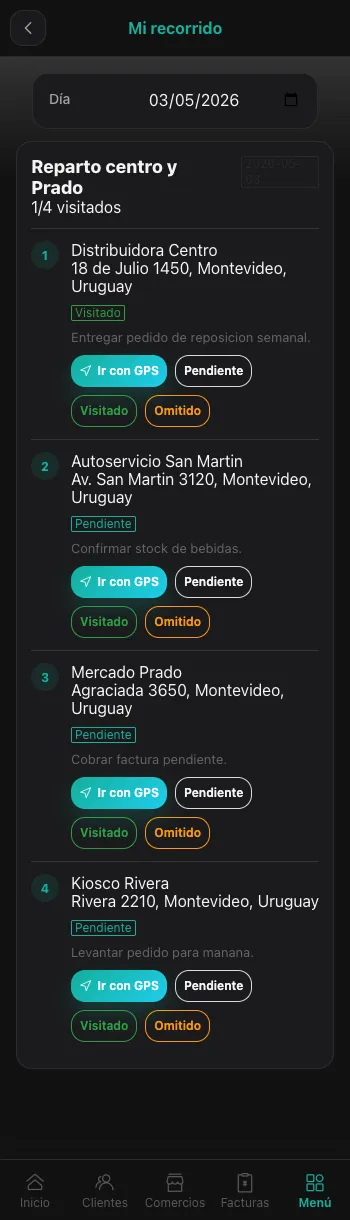
The employee uses My route from the phone:
- Opens the assigned route.
- Reviews each stop.
- Opens navigation if needed.
- Marks the visit as pending, visited or skipped.
- Registers invoices or collections if the role allows it.
Good practices
- Load addresses with enough detail before creating routes.
- Assign only the routes the employee needs to see.
- Review skipped stops at the end of the day.
- Use permissions to control who can invoice or collect during the route.
Build the delivery with issued invoices
Once invoices are issued, assign them to a driver and their route is built:
- Go to Invoices and tap Select.
- Mark the invoices going out and tap Build delivery. Invoices already in another delivery, already delivered or credit notes are left out.
- Choose the driver and the date. Keep Order by real streets on so the route comes out in the best order with its estimated time. If a business has no address, the delivery is still built in the order of the invoices and you are told.
- A route is created with one stop per client or business, even if it has several invoices.
Invoices show the In delivery tag and, once delivered, Delivered.
Deliver and collect at each stop
In My route, each stop lists the invoices to deliver:
- Delivered marks the invoice as delivered, with its time. When all of a stop's invoices are delivered, the stop is considered visited. Undo fixes a mistake.
- Collect opens the payment for that invoice, starting on cash; transfer can also be chosen.
- Whoever manages routes can remove an invoice from the delivery (if it was not delivered yet) and mark deliveries on the driver's behalf.
Settlement at the end
When the route is done, open Settlement: it shows the cash to hand in, transfers, the detail of each payment and the invoices left unpaid. It can be printed with lines for the signature of who hands in and who receives, or downloaded in Excel. Each payment stays under the name of whoever registered it.