Demo and guided tour
Access the demo
Enter the demo application directly:
| URL | https://demo.ezdis.net |
| demo@ezdis.net | |
| Password | demodemo |
The demo is shared. Use fictional data — do not upload IDs, phone numbers, or real company information.
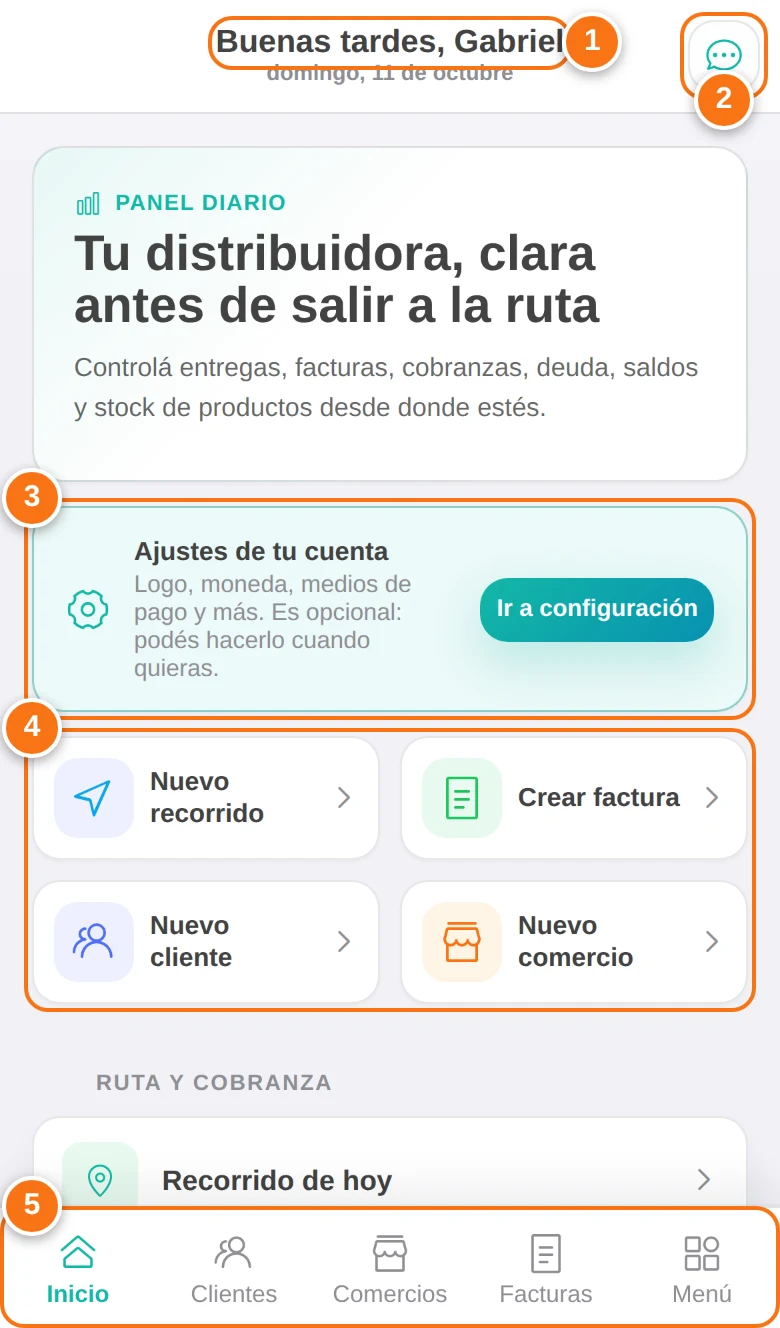
- Greeting with today’s date.
- AI Assistant: opens the chat to ask about clients, invoices or reports.
- Account settings: takes you to configuration (logo, currency, payment methods). It’s optional and you can do it anytime.
- Quick shortcuts: new route, create invoice, new client and new store, among others.
- Bottom bar: Home, Clients, Businesses, Invoices and Menu, always at hand.
What you can try
The demo helps you understand the flow without loading real data:
- Businesses and clients;
- Rates and recurrence;
- Products and categories;
- Product templates;
- Invoices and receipts;
- Payments and balances;
- Routes and stops;
- Dashboard;
- Users and roles.
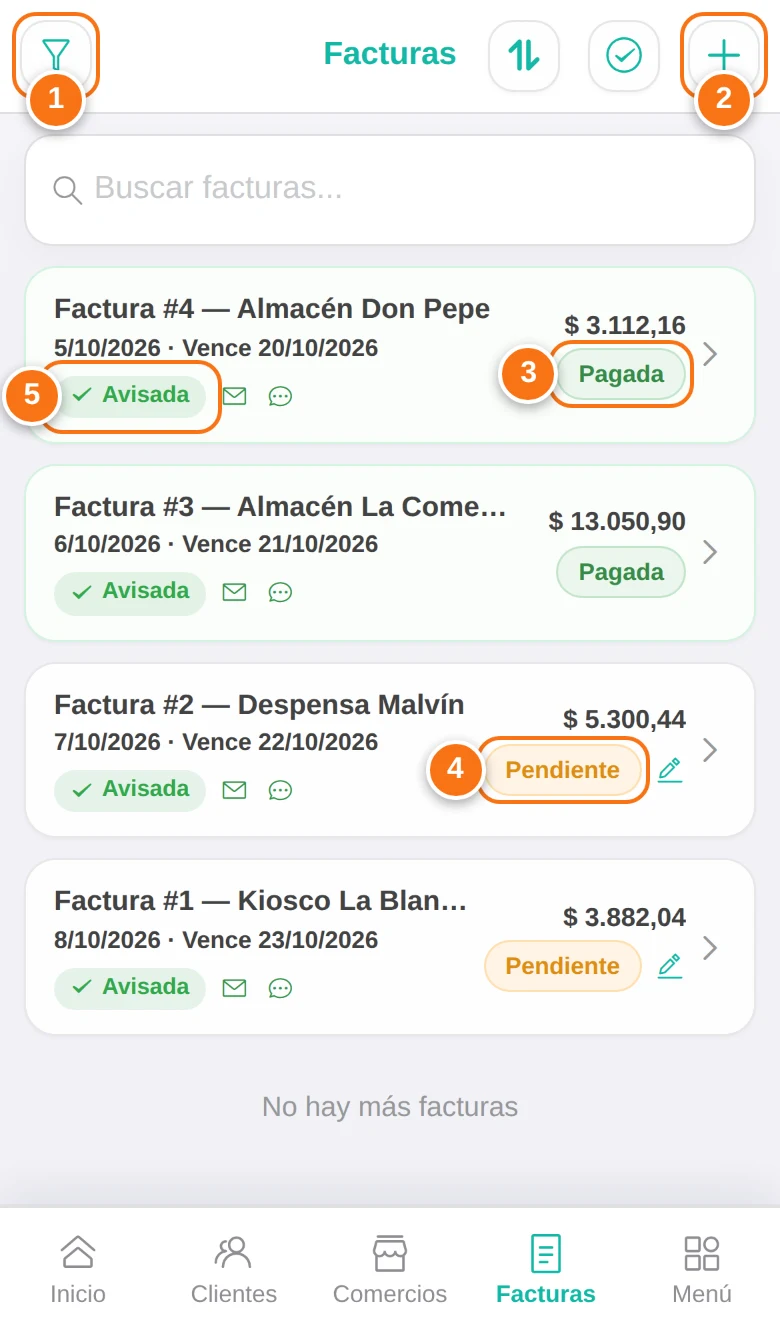
- Filters of the list.
- New invoice.
- Paid.
- Pending: still needs to be collected. The pencil icon next to it lets you edit it.
- Notified: the notice has already been sent. The envelope and balloon icons indicate whether it was by email or WhatsApp.
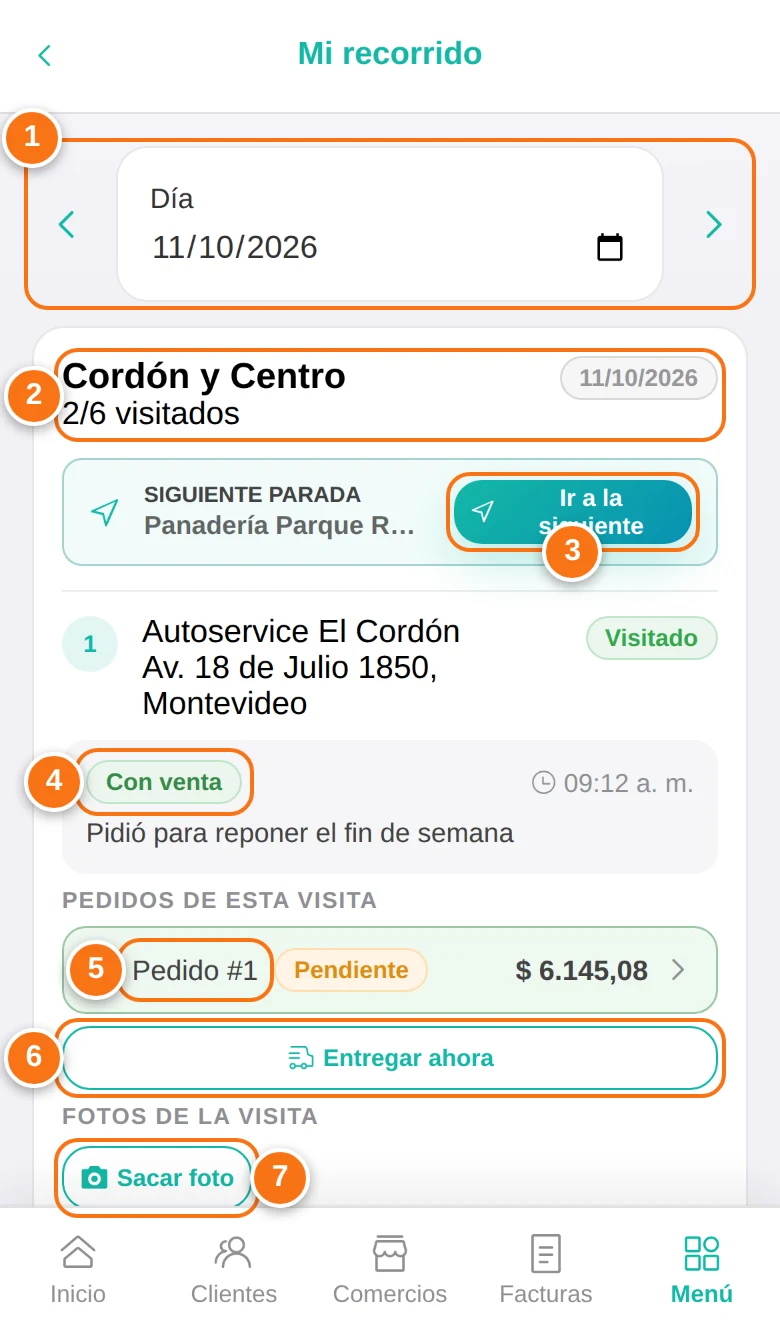
- Day: use the arrows to go to the previous or next.
- Route and progress (how many stops you visited).
- Go to the next pending stop.
- Visit result: with sale or without sale, the time and a note.
- Order taken on this visit, with its status and total.
- Deliver now what the store has invoiced.
- Take photo as proof of the visit.
What to look at
- Enter the dashboard and review receivables and upcoming due dates.
- Open a store and view its balance, invoices and templates.
- Create an invoice from a product template.
- Try recording a payment.
- Check the map on a store’s record.
- Simulate a stop on a route.
Next step
When you understand the flow, create your own application from Get your app.