Fleet map
- On this page
- What you need
- The live map
- A device’s card
- Share the location with a customer
- History: trail, trips, stops and events
- Zones and alerts
- Working hours: use outside working hours
- Engine idling
- Also alert by WhatsApp
- When each alert arrives
- Zones
- Latest alerts
- Arrival notice to the customer
- Remote engine cut-off
- Cargo temperature
- Fleet summary by email
- Driving score
- Service by mileage
- Vehicle expiry dates
- FAQ
In Fleet map you see live where every vehicle and every driver with GPS is, what they are doing, where they went on any day, and you get alerts when something happens. It is what a professional tracking platform offers, but inside EzDIS and free: it works with the driver’s phone (free Traccar Client app) or with the vehicle’s GPS, and EzDIS is compatible with over 2,100 models.
What you need
- GPS devices: a vehicle GPS connected on the vehicle page, or a driver’s phone with Share my location turned on. How to connect each one is in GPS tracking for deliveries.
- The “Fleet map · View” permission: the administrator, route supervisor and administration roles have it by default. You can give it to another role in Roles.
Which GPS devices work? Look up your brand and model in the compatible GPS list.
The live map
Go to Menu → Fleet map (on mobile: tap the Menu tab at the bottom right and look under Operations; on desktop: it is on the left sidebar).
If you do not see it in the menu, make sure your user has the Fleet map · View permission (managed under Menu → Roles).
You can also view the live location of a specific route by opening today's route in Menu → Routes (under the Live section with the Show route history button), or a vehicle's GPS history from its page in Menu → Vehicles (GPS History button).
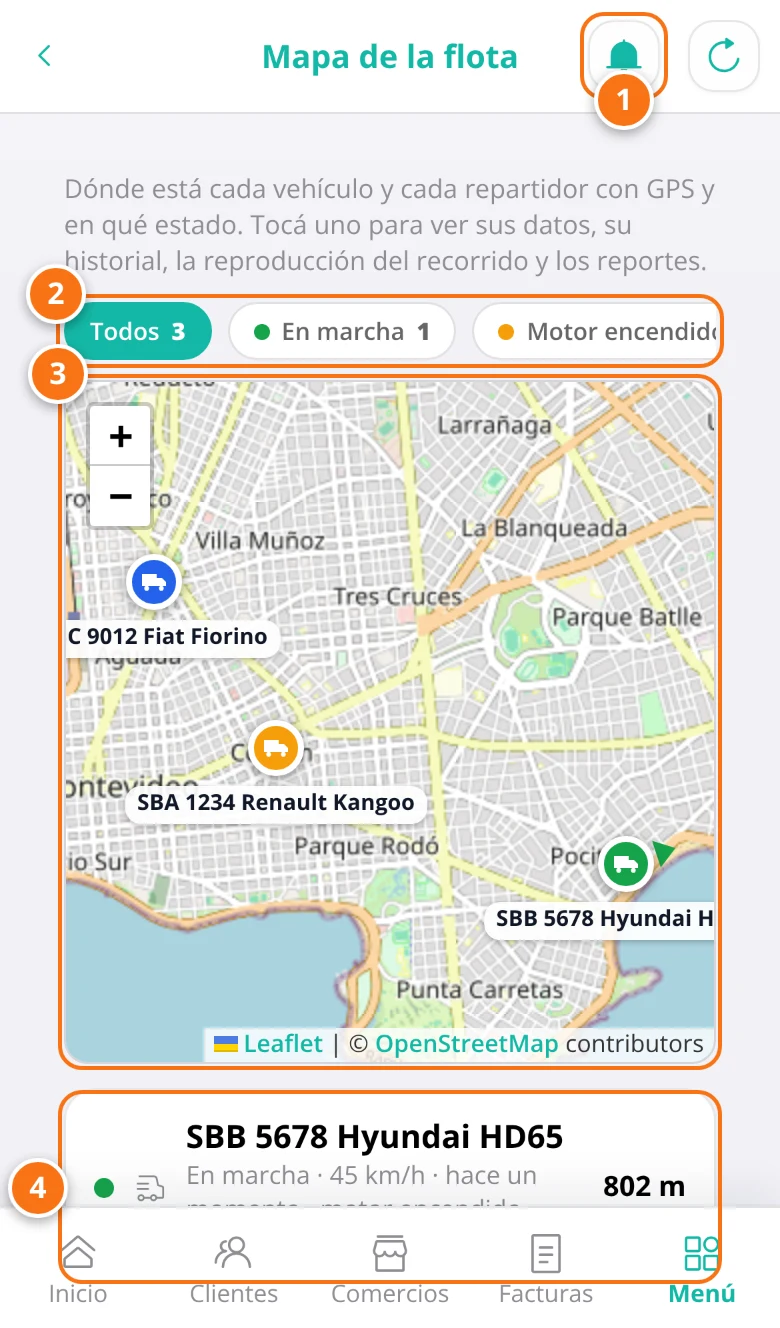
- Zones and alerts: what EzDIS should alert you about and the zones on the map.
- Status filters: all, moving, engine on, stopped or no signal, with how many are in each.
- The map: every device in the color of its status; moving ones carry an arrow with their heading.
- The list: each device with its status, last signal, engine, battery, address and today’s km.
| Color | Status |
|---|---|
| Green | Moving. |
| Orange | Engine on: still with the engine running (for example, waiting at a delivery). |
| Blue | Stopped: still with the engine off. |
| Gray | No signal: no positions for over 30 minutes, or a newly connected GPS that has not sent its first one. |
The map refreshes every minute while the screen is open. Refresh does it right away.
A device’s card
Tap a device on the map or in the list.
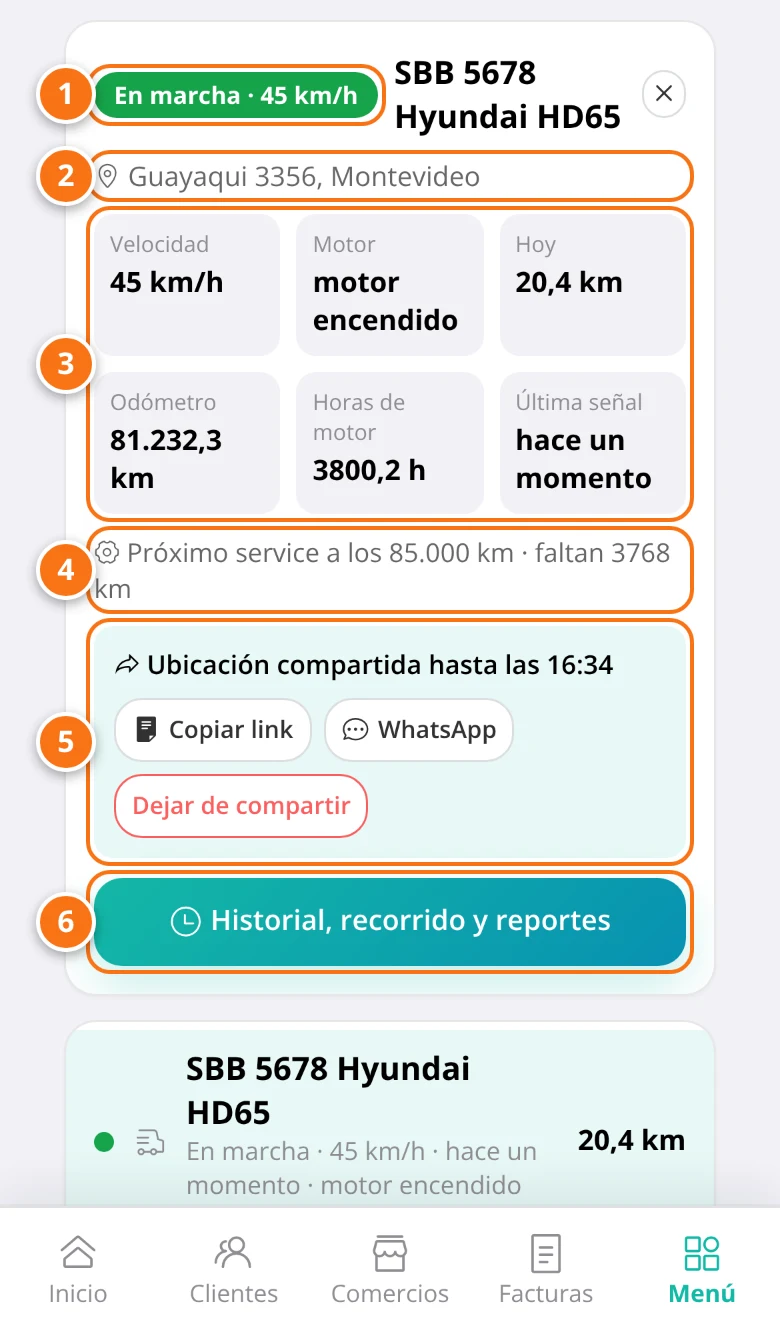
- Status: moving (with the speed), engine on, stopped or no signal.
- Where it is: street and number.
- Device data: speed, engine, today’s km, odometer, engine hours, battery and last signal (whatever the GPS sends).
- Next service: if the vehicle has service by mileage, at what km it is due and how many are left.
- Shared location: the active link, to copy it, send it on WhatsApp or stop sharing.
- History, playback and reports: opens the device history.
{info} The battery depends on the GPS: it only appears if your device reports it. Many send it every few minutes, so it can take a while to appear. If you do not see it after a while, your model probably does not report it (more in the FAQ at the end).
If the GPS sent an alarm (panic button, power cut, crash, tampering), it shows in red on the card.
Share the location with a customer
From the card, Share location creates a link so someone without an account can see where the vehicle is: for example, the customer waiting for an order. Choose for how long (1, 4, 8 or 24 hours); the link is copied and you can send it on WhatsApp.
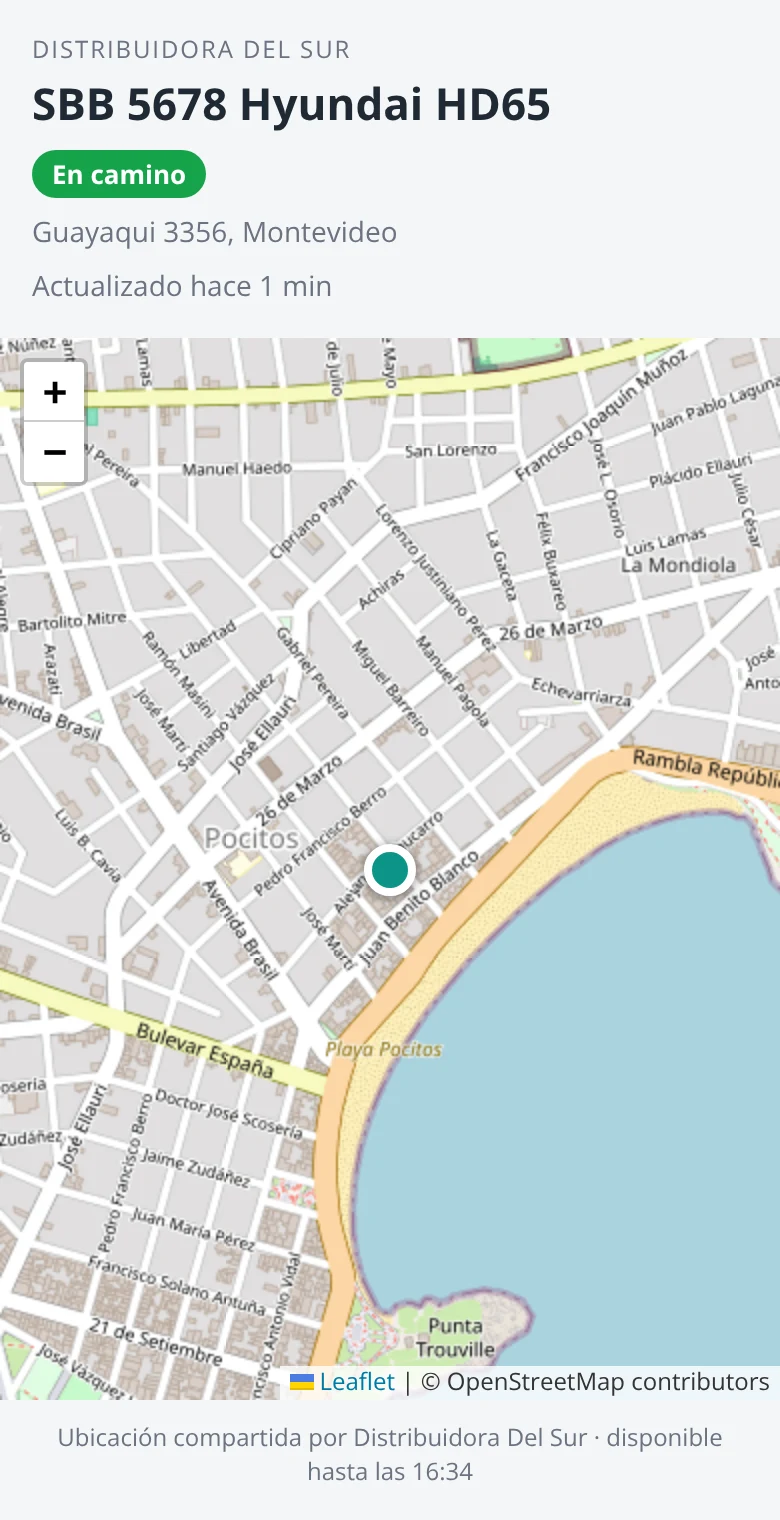
They see the vehicle on the map, whether it is on the way or stopped, the address and when it was updated. Nothing else: no IMEI, odometer or other vehicles. When it expires, or if you tap Stop sharing, the link stops working.
History: trail, trips, stops and events
From the card, History, playback and reports, or from the vehicle page.
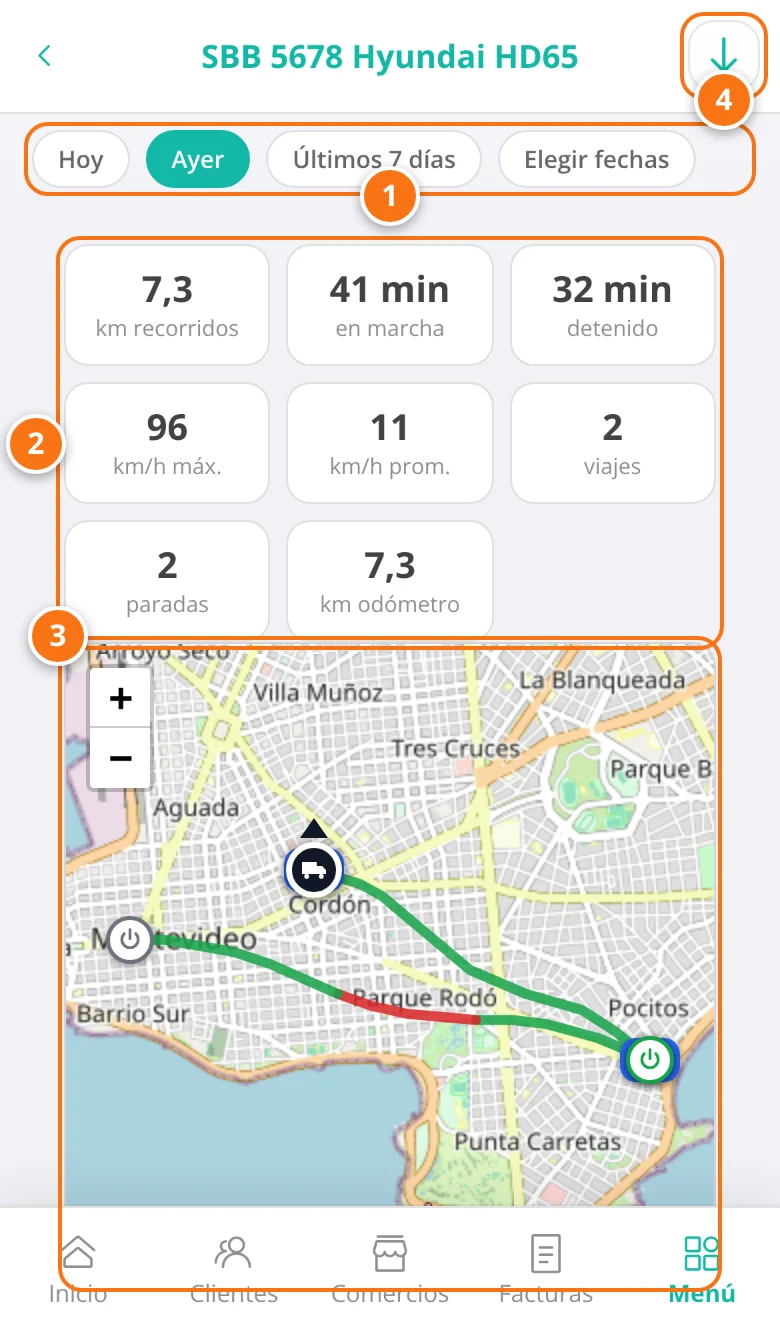
- Period: today, yesterday, the last 7 days or the dates you choose (up to 7 days at a time, within the last 90).
- Summary: km driven, time moving and stopped, max and average speed, trips, stops and odometer.
- The trail on the map: colored by speed (green up to 60 km/h, orange up to 90, red above), with stops and events marked.
- Download Excel: the summary and every trip and stop in a spreadsheet.
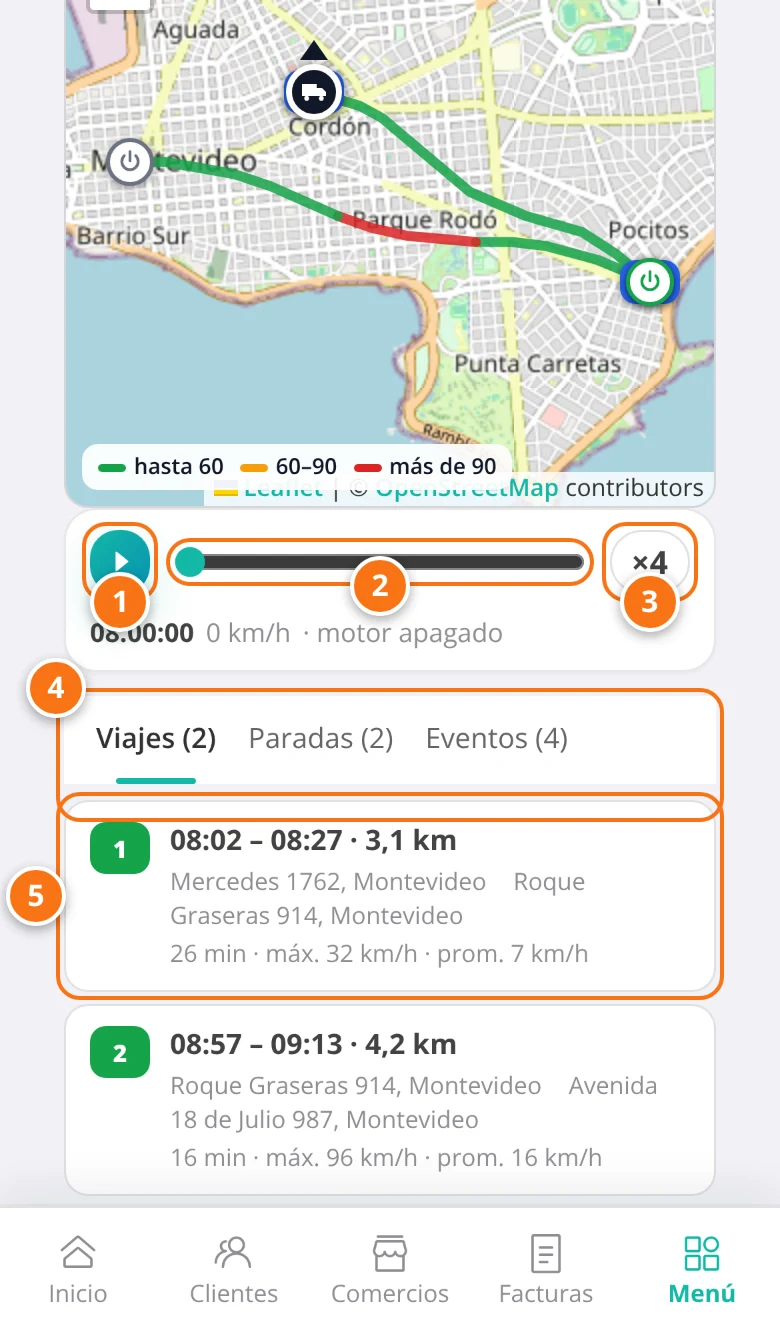
- Play the trip: the vehicle drives the route on the map, with time, speed and engine at each moment.
- Point of the trip: drag to go anywhere.
- Playback speed: ×1, ×4 or ×16.
- Trips, Stops and Events: the three lists of the period.
- A trip: from where to where, at what time, km, duration and max and average speed. Tap it to go there on the map.
- Trips: every time the vehicle started and arrived somewhere.
- Stops: where it was stopped, for how long and whether the engine was on.
- Events: engine on and off, overspeed, zone entries and exits, GPS alarms and signal lost or back.
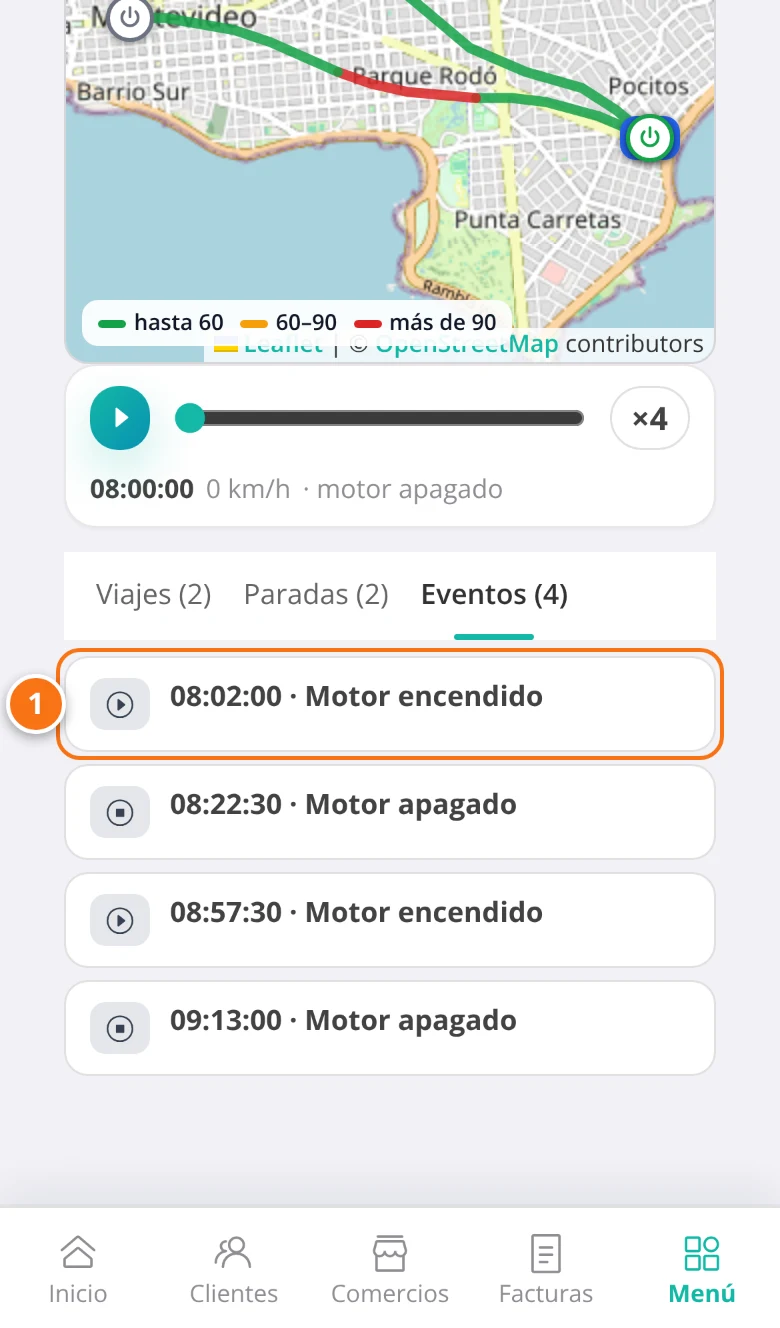
- An event: the time and what happened. Tap it to go to the place.
If the vehicle or person had delivery routes that day, there is a link to each one.
Zones and alerts
On the fleet map, tap the bell (Zones and alerts).
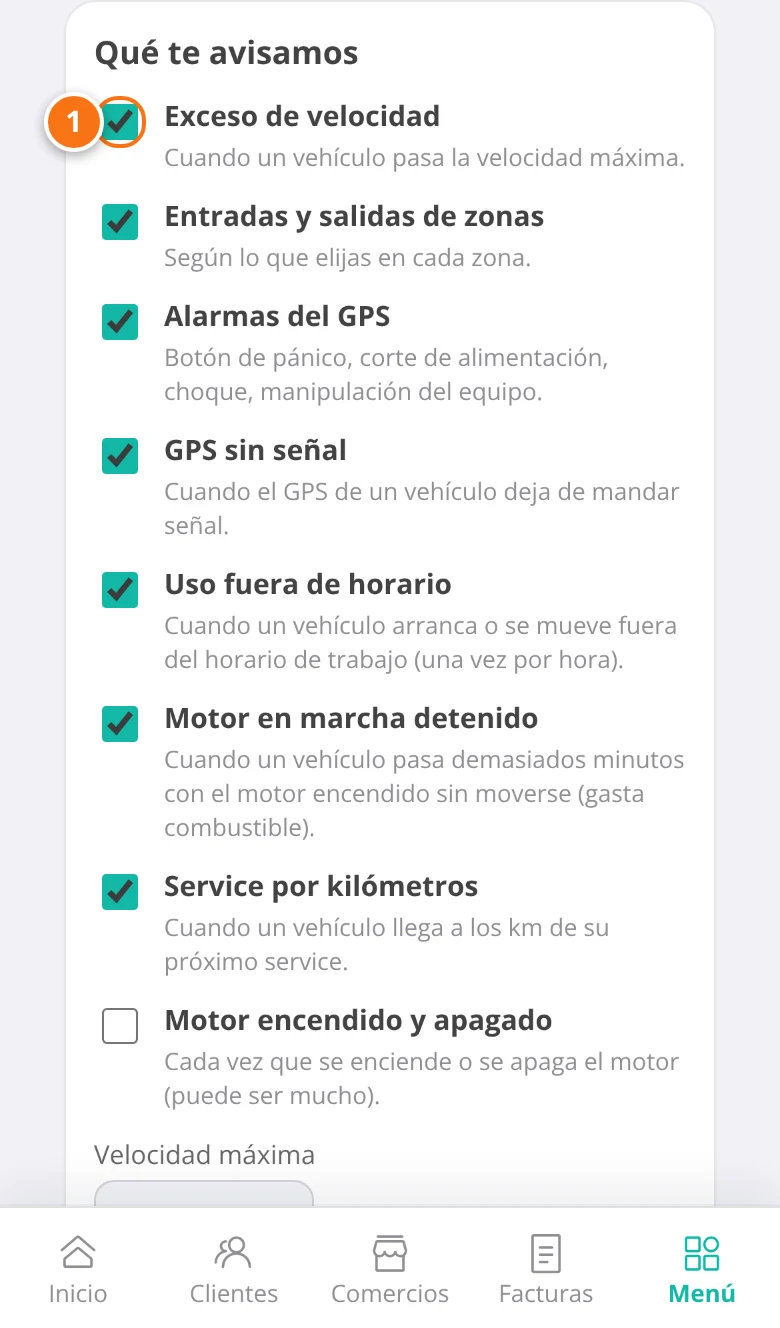
- The alerts: overspeed, zone entries and exits, GPS alarms, GPS without signal, service by mileage and engine on and off.
Tap Save to apply. The same alert of the same vehicle is not emailed again within 10 minutes.
Working hours: use outside working hours
Tick Use outside working hours and set the working hours of each day, with up to 3 ranges per day (for example, 8 to 12 and 14 to 18). Copy Monday to Tuesday–Friday saves you typing it five times. A day without ranges is a day off, such as Saturday or Sunday.
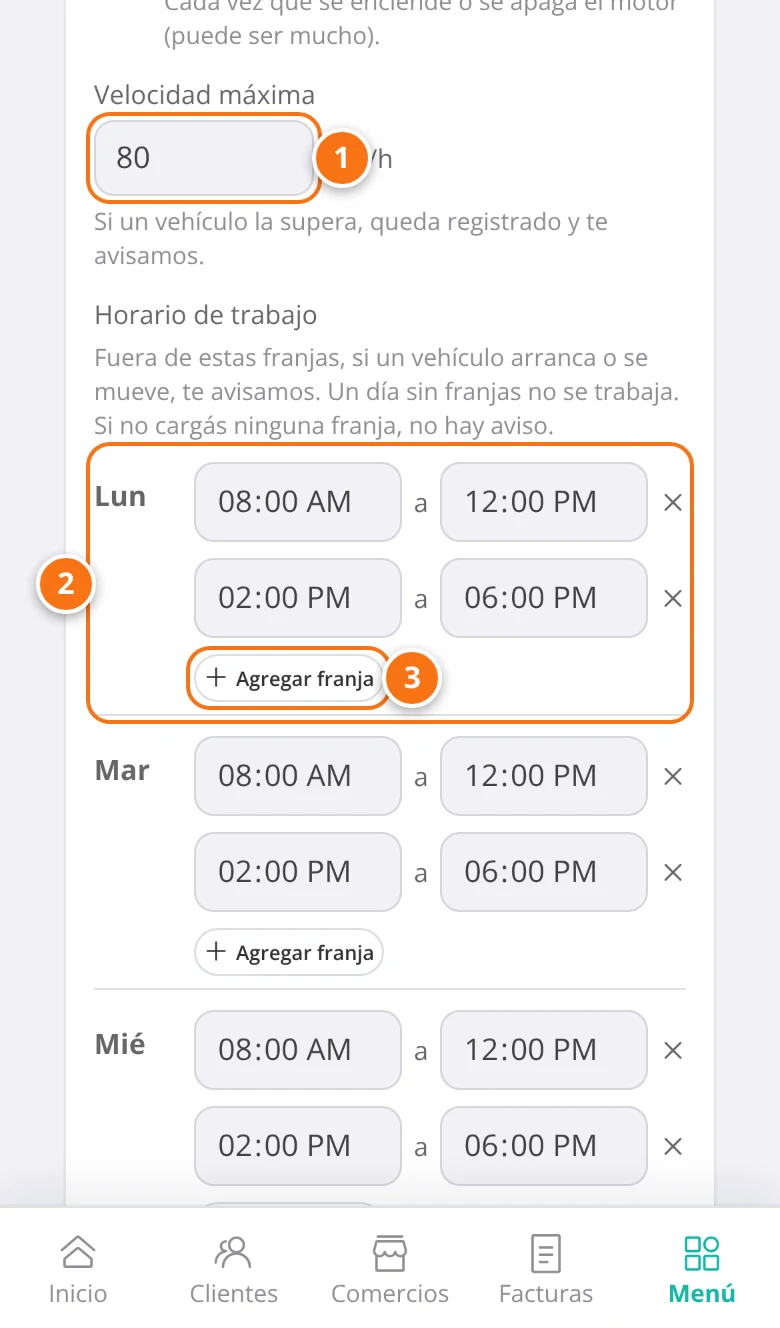
- Speed limit: if a vehicle goes over it, it is recorded and you get an alert. Empty means no limit.
- A day’s time slots: up to 3; the cross removes one.
- Add time slot: adds another slot to that day.
If a vehicle starts or moves outside those ranges, we let you know. You get one alert per hour and per vehicle, so a night trip does not send you ten. It only applies to vehicles: a person’s phone never triggers this alert.
Engine idling
Tick Engine idling and choose after how many minutes to alert (3 to 240). When a vehicle stands still that long with the engine on, burning fuel, we let you know once per stop. It needs a GPS wired to the vehicle ignition (the ACC wire): without it, the GPS cannot tell whether the engine is on.
Also alert by WhatsApp
Besides email, you can get the same alerts by WhatsApp on up to 3 numbers (comma-separated). Each message counts toward your monthly usage.
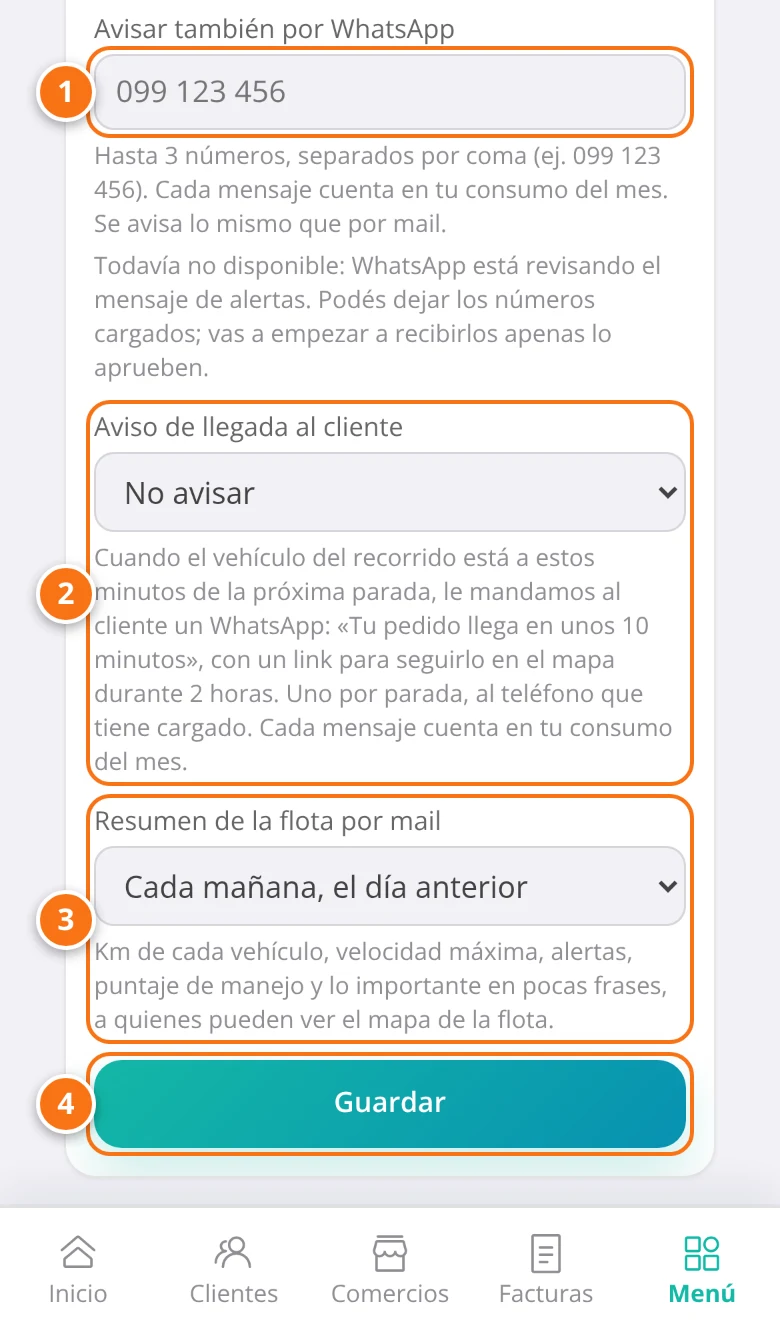
- WhatsApp: up to 3 numbers that get the same alerts.
- Arrival notice to the customer: how many minutes before the stop we message the customer.
- Fleet summary by email: every morning or on Mondays.
- Save: applies all changes.
When each alert arrives
| Alert | When it arrives |
|---|---|
| Speed, zones, alarms, ignition and use outside working hours | As soon as the GPS reports it. While driving, the GPS sends its position every few seconds; the email takes one or two more minutes. |
| Engine idling | We check every 5 minutes: it arrives between the minutes you chose and 5 minutes later. |
| GPS without signal | When a vehicle’s GPS has not reported for 1 hour with the engine on (or if it does not report the engine), or for 24 hours if it was parked with the engine off. At most one alert per vehicle per day. When it reports again, the same recipients get “signal back”. |
| A newly connected GPS | Gets the zones, speed limit and working hours right away; alerts start with its first signal. |
Zones
A zone is a place on the map: your warehouse, a big customer, a delivery area. EzDIS alerts you when a vehicle enters or leaves. It can be a circle (tap the center and pick the radius) or a free shape: choose Free shape and tap the map at each corner, at least 3 and up to 50. Undo last point fixes an extra tap. A free shape fits a neighborhood, a port or a long warehouse that a circle does not cover well.
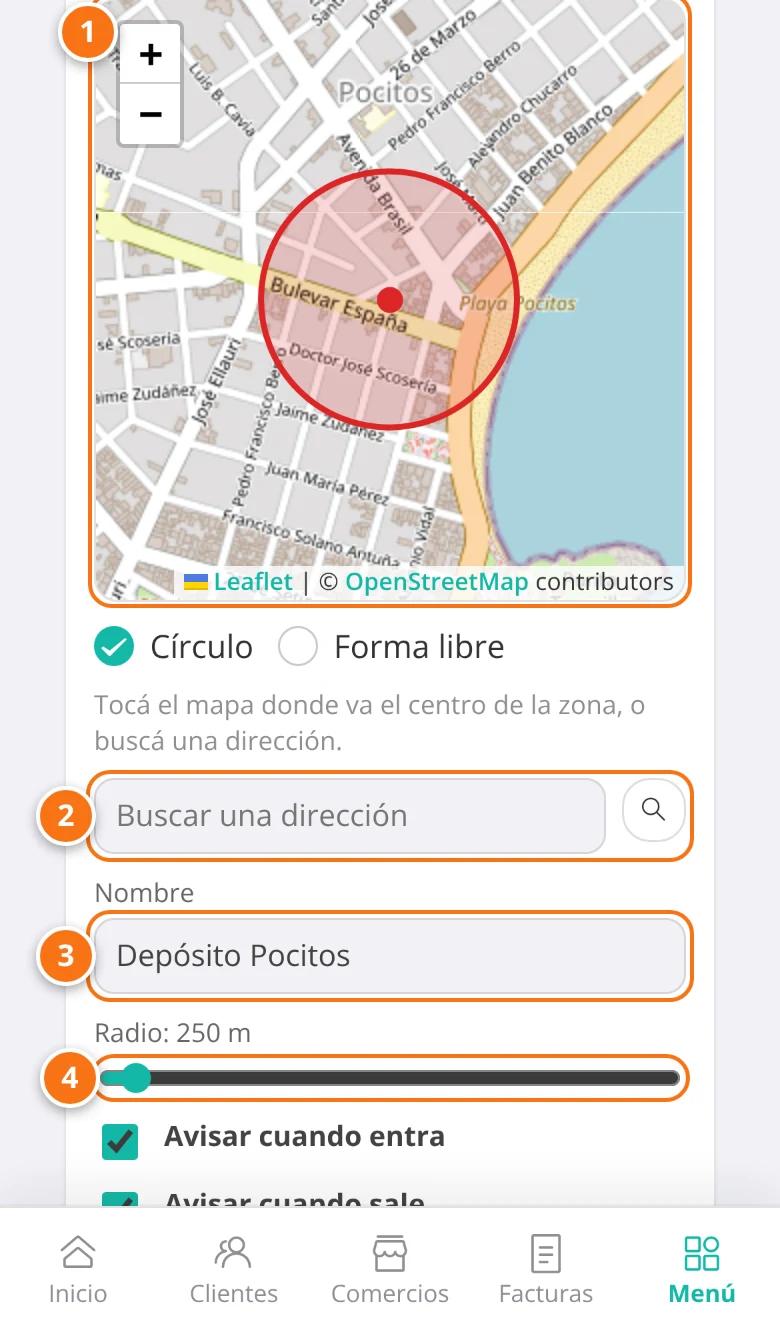
- The map: tap where the center of the zone goes.
- Search an address: or type the address and the map goes there.
- Name: for example “Main warehouse”.
- Radius: from 50 meters to 5 km.
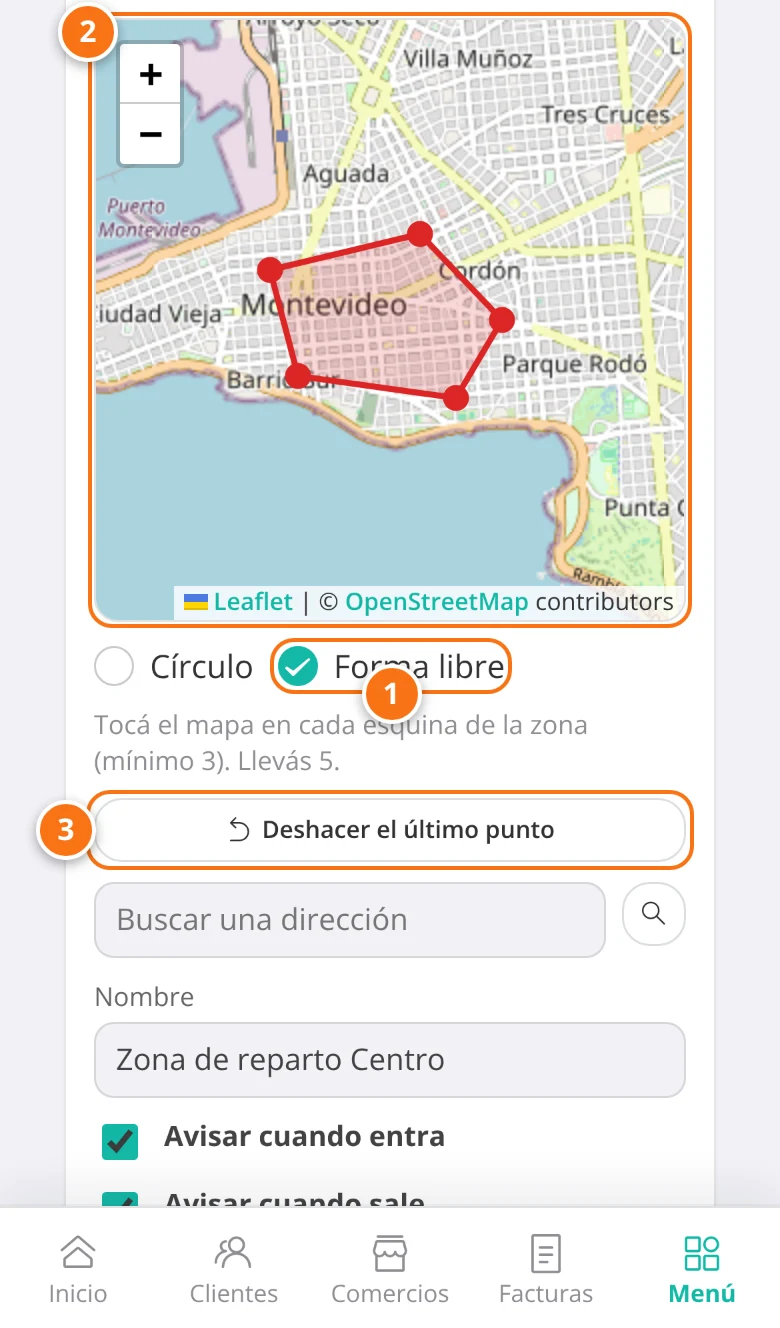
- Free form: instead of a circle, a zone with the shape you draw.
- The map: tap each corner of the zone.
- Undo last point: fixes an extra tap.
Choose whether it alerts when it enters, when it leaves or both, and tap Save. To change or delete a zone, tap it in the list.
Latest alerts
At the bottom are the latest alerts, with the vehicle, what happened and when. Tap one to see that vehicle’s trip.
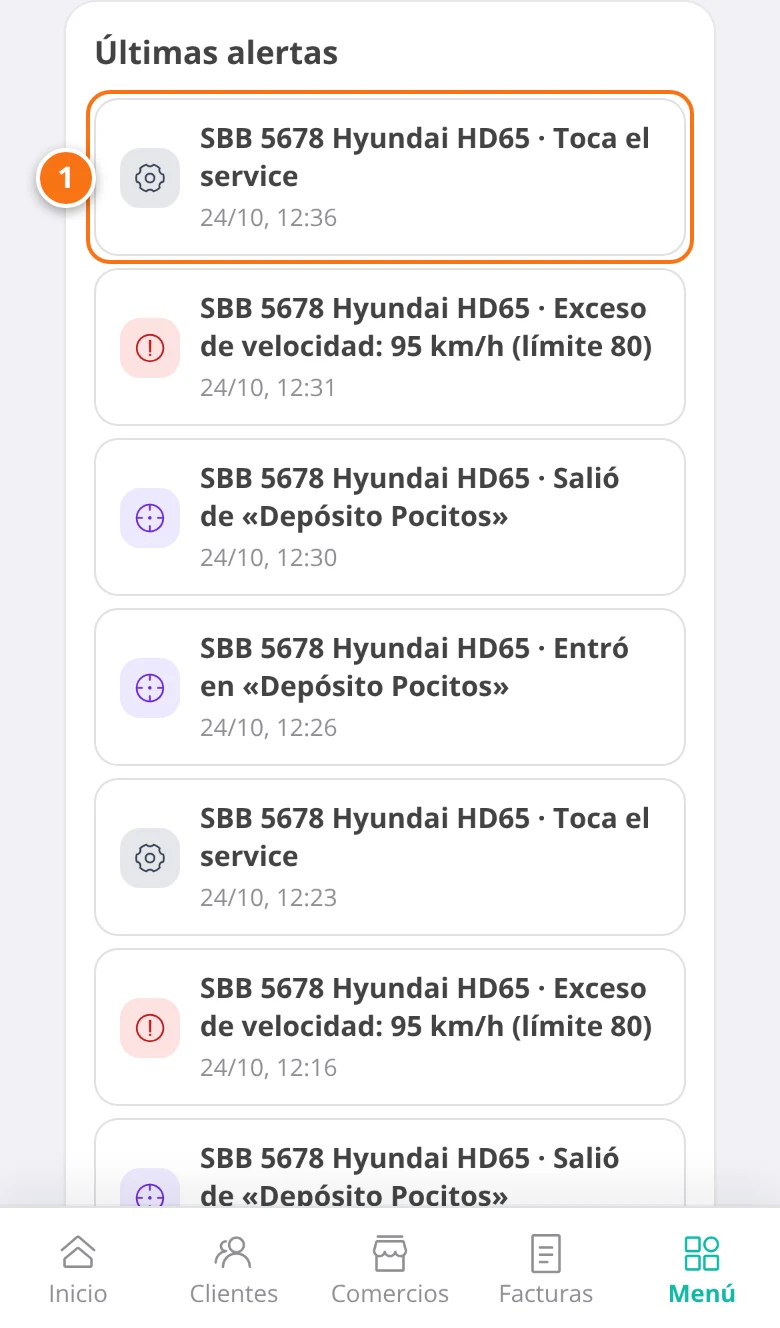
- An alert: the vehicle, what happened (for example “Overspeed: 95 km/h (limit 80)”) and when.
Arrival notice to the customer
In Zones and alerts, under Arrival notice to the customer, choose how many minutes ahead (5, 10, 15, 20 or 30). When the vehicle of one of today’s routes is that far from the next pending stop, the customer gets a WhatsApp message: “Hi, your order from your business arrives in about 10 minutes”, with a link to follow the vehicle on the map for 2 hours.
- The time is calculated by road with our routing server; where no map is loaded, it is estimated from the distance.
- It goes out once per stop, to the phone saved for the customer or store. With no phone, nothing is sent.
- It is recorded in the route history (“we told them by WhatsApp it was arriving in about 10 minutes”).
- Each message counts toward your monthly usage. While WhatsApp reviews the message, the screen says so.
Remote engine cut-off
If the vehicle’s GPS has a cut-off relay installed and its protocol allows it, the vehicle card on the map shows Remote engine control with Cut the engine and Restore the engine.
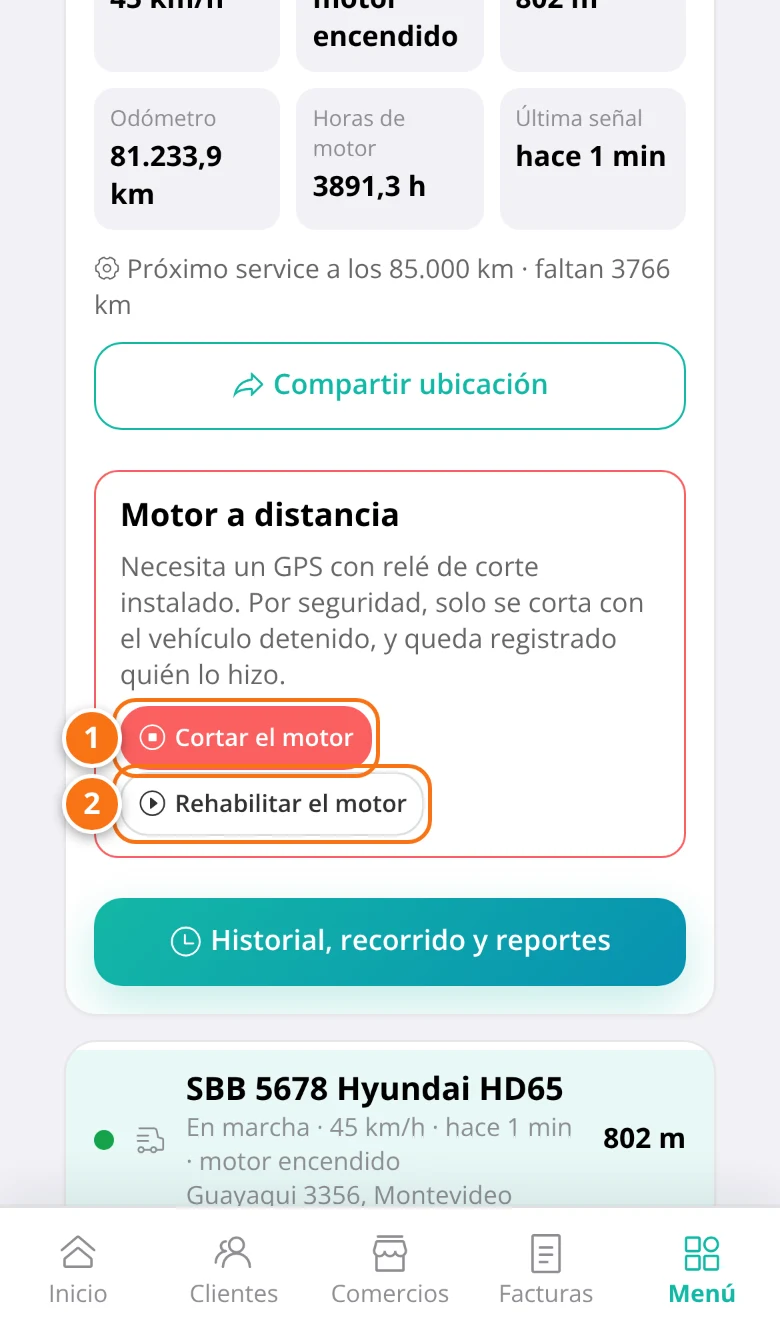
- Cut the engine: only with the vehicle stopped; you must type the vehicle’s name.
- Re-enable the engine: lets it start again.
- For safety, the engine can only be cut with the vehicle stopped (above 5 km/h it is refused).
- To cut it you must type the vehicle’s name exactly, so the wrong one is never cut.
- If the GPS is not connected at that moment, the command waits and goes out as soon as it connects; the app tells you.
- Every command is listed in Latest alerts and in the activity log, with who gave it.
- It requires the Fleet map · Cut and restore the engine permission: by default, only the administrator.
Cargo temperature
If you have a temperature sensor inside the truck (for example, in the cold room), open the sensor in Sensors and pick the Vehicle. From then on:
- On the fleet map, the vehicle card shows the cargo temperature (in red if out of range).
- Every time the GPS marks the arrival at a route stop, the temperature at that moment is recorded (“arrived (GPS) · cargo at 4.2 °C”): the cold-chain record of each delivery.
- Readings from the last 30 minutes count; if the sensor stopped sending, nothing is recorded.
Fleet summary by email
In Zones and alerts, under Fleet summary by email, choose Every morning (the previous day) or On Mondays (the previous week). It goes to everyone who can see the fleet map, with each vehicle’s mileage, top speed, alerts, driver score and the highlights in a few lines: who drove most, which driving to review, after-hours use and vehicles that did not move.
Driving score
In Zones and alerts, the Driving score lists each vehicle over the last 7 or 30 days, worst first. 100 means flawless driving. Every 100 km we take off points:
| Event | Points per 100 km |
|---|---|
| Speeding | 5 |
| Harsh braking | 3 |
| Harsh acceleration | 2 |
| Harsh cornering | 2 |
Speeding counts once you set a speed limit. Harsh braking, acceleration and cornering depend on the GPS reporting them, and not every model does. With fewer than 20 km in the period there is no score ("Few km"). Tap a vehicle to see its trail.
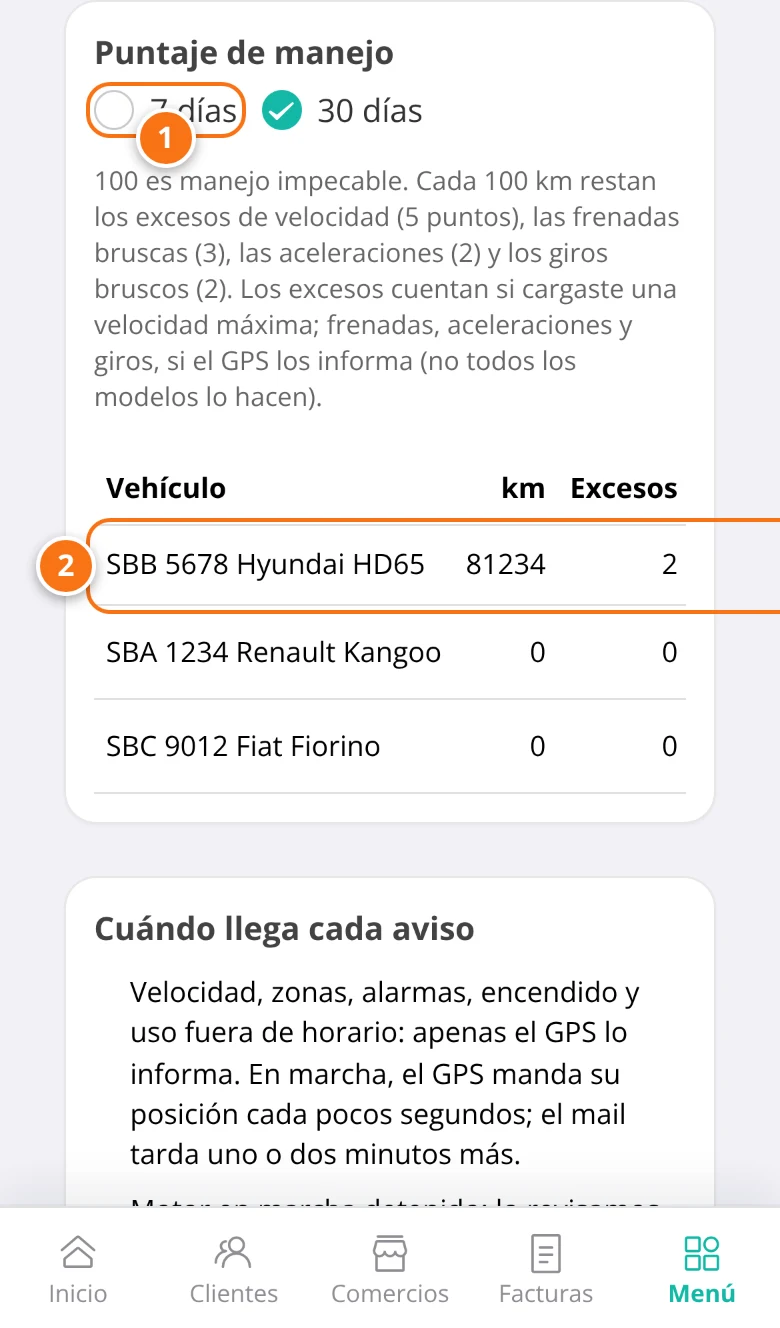
- Period: last 7 or 30 days.
- Each vehicle: km, speeding events and score, worst first.
Service by mileage
On the vehicle page, under Vehicle GPS, set the service: every how many km and at what km the last one was done. EzDIS alerts you when the odometer reaches the next one.
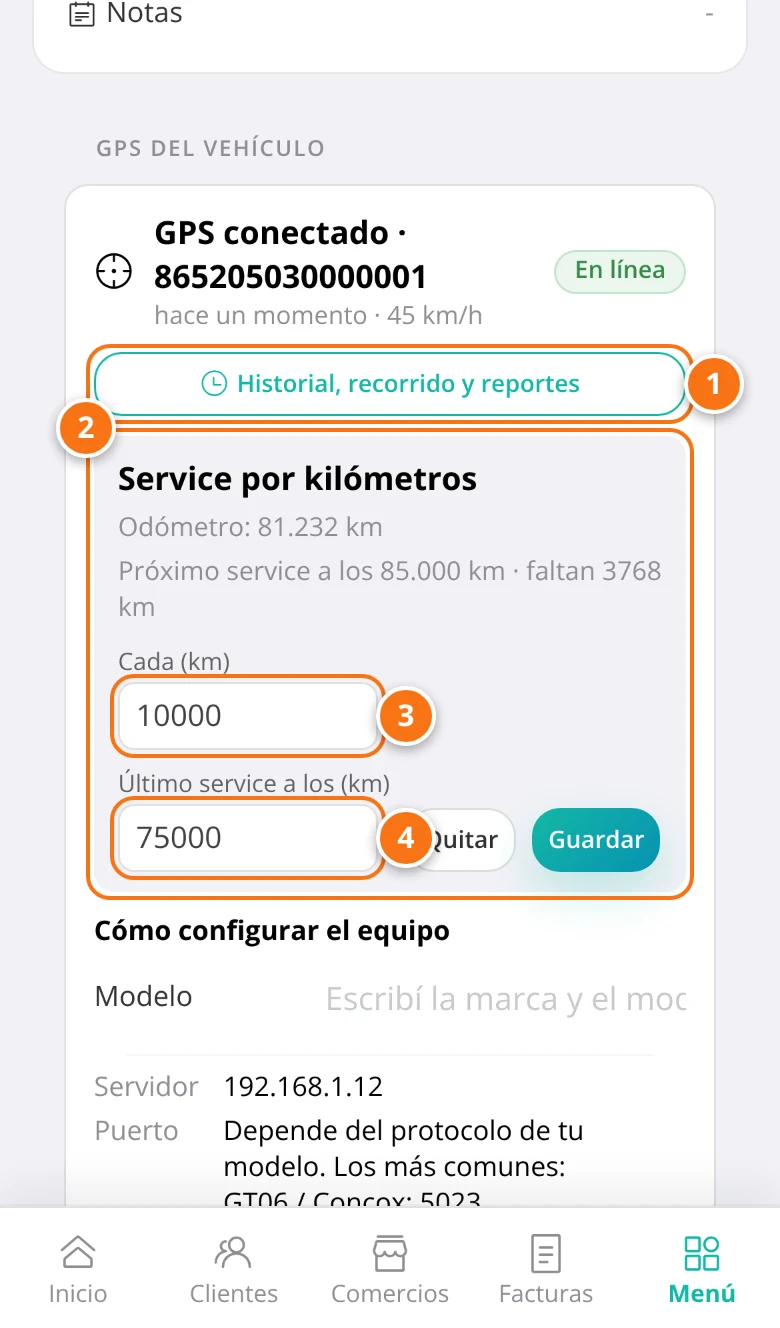
- History, playback and reports: this vehicle’s history.
- Service by mileage: the odometer, at what km the next service is due and how many are left.
- Every (km): for example 10000.
- Last service at (km): the odometer when the last one was done.
The GPS keeps the odometer since it was connected. To match the dashboard, enter the real km of the last service.
Vehicle expiry dates
On the vehicle page, under Expiry dates, add the insurance, the registration, the roadworthiness inspection or any other expiry with its name (for example, a food transport permit), the date and how many days in advance you want the reminder (15 by default).
Every morning EzDIS checks the expiry dates and, when that many days are left, emails whoever sees the fleet map, with a button to open the vehicle. It reminds once per expiry date; if you change the date (for example, because you renewed the insurance), it reminds again when due. On the vehicle page, expired items show in red and those expiring soon in orange.
FAQ
Does it cost anything? No. The fleet map, history, zones, alerts and location sharing are included in EzDIS. You only pay for the GPS, if you buy one, and its SIM data.
Do alerts arrive on WhatsApp? Yes, on up to 3 numbers you choose in Zones and alerts. They always arrive by email too and stay in Zones and alerts.
A vehicle does not appear. Only vehicles with a GPS connected on their page appear.
It appears but not on the map. It has not sent any position yet. Check the device setup in GPS tracking for deliveries.
I don’t see the engine, battery or engine hours. The GPS sends them: it depends on the model and how it is installed. Battery (%): shown by GPS trackers that have their own battery and report its level. Many send it only now and then, in a separate message from the position (every few minutes), so it can take a while to appear; after that the last value received is kept. Vehicle battery (V): the supply voltage, reported by some GPS trackers wired to the vehicle’s power. Engine and engine hours: they need the ignition wire connected. A phone sends the battery but not the engine. To see them: Fleet map, tap the device and look at Device data. If it does not appear after a while, your model probably does not report it: write to us with the brand and model and we will check.
The history of a period is empty. The device sent no positions those days, or more than 90 days have passed.
Everything EzDIS GPS tracking does, on one page: Free GPS tracking platform.