Routes and navigation
- On this page
- What a route contains
- Statuses
- Permissions
- Vehicles and fleet schedule
- Recurrence
- Navigation
- Automatic stop optimization
- Result of each visit
- Supervision: correction, history, location and estimated time
- Take an order at the stop
- Visit photos
- Add invoices to an existing route
- Routes on the same day
Routes organize the daily delivery or collection work.
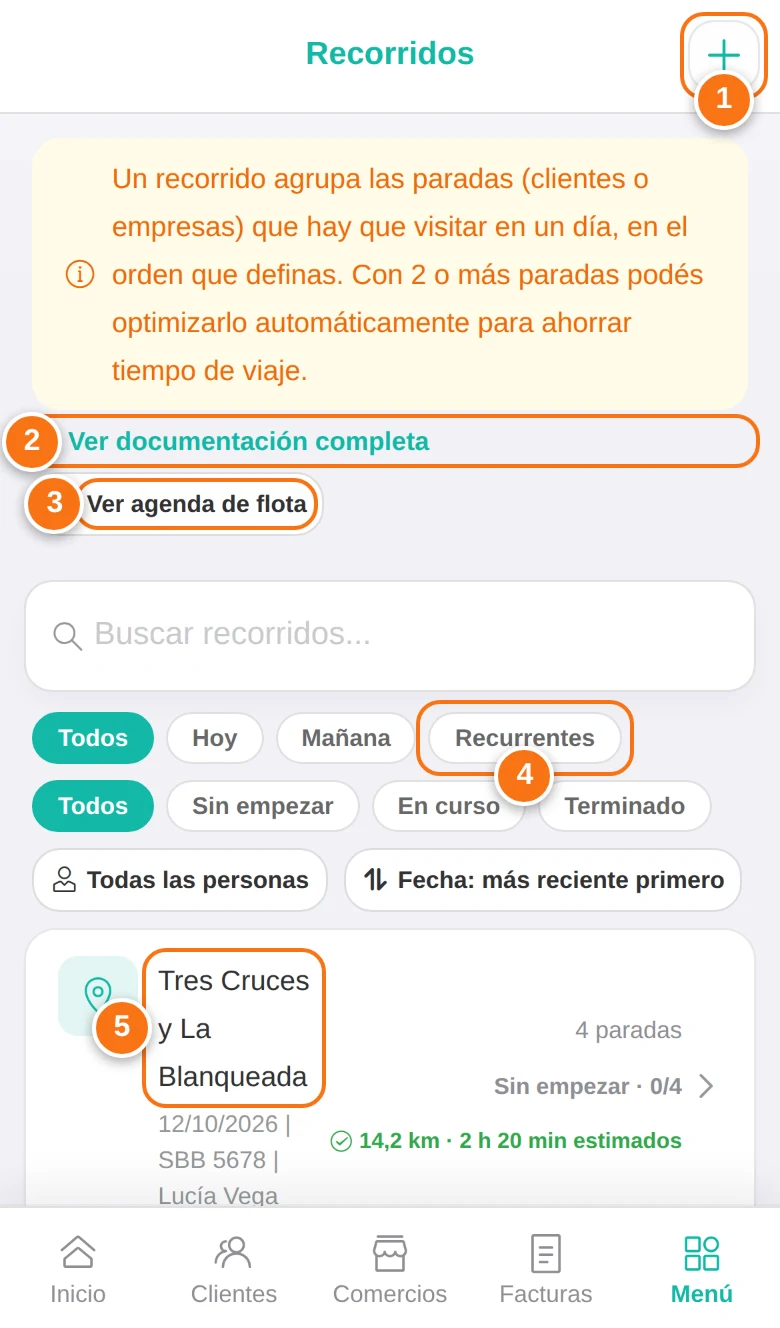
- New route.
- View full documentation of routes.
- View fleet schedule: the day's routes grouped by vehicle.
- Filters: today, tomorrow, recurring, by progress and by person.
- Route with its date, the assigned person, the vehicle and the progress.
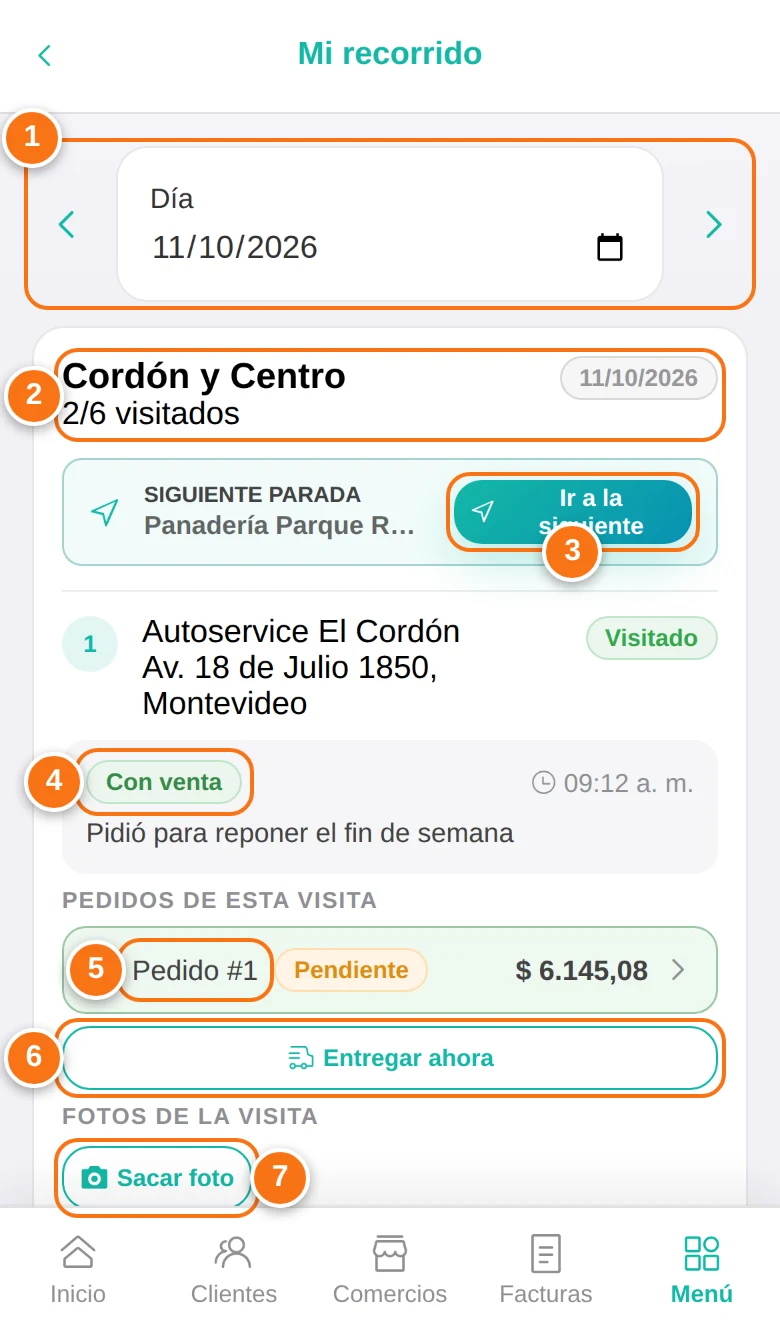
- Day: use the arrows to go to the previous or next.
- Route and progress (how many stops you visited).
- Go to the next pending stop.
- Visit result: with sale or without sale, the time and a note.
- Order taken on this visit, with its status and total.
- Deliver now what the store has invoiced.
- Take photo as proof of the visit.
What a route contains
- name;
- date;
- assigned employees;
- recurrence;
- ordered list of stops;
- status of each stop;
- navigation address.
Statuses
- pending;
- visited;
- skipped.
Permissions
Only the assigned person can mark the progress of their stops. An administrator can create, edit and review according to permissions.
Vehicles and fleet schedule
The fleet is used to know which vehicle does each route and to detect in time if the same vehicle was assigned to two overlapping routes. Specifically, EzDIS offers:
- Fleet vehicles with license plate, make, model, year, color, maximum load capacity and whether it is operational.
- One vehicle per route, with a warning when saving if that vehicle is already occupied in an overlapping time slot or if it is out of service.
- Fleet schedule by day: routes grouped by vehicle, with estimated times, overlaps and routes without a vehicle.
What it does not do: it does not show the vehicle’s real-time location, does not calculate load weight or occupancy percentage, and does not record maintenance, fuel or mileage.
In Vehicles you can load your own fleet. In addition to the license plate, make and model, you can indicate the maximum load capacity in kg and whether the vehicle is operational for routes. The capacity is informational: EzDIS still does not calculate the weight of loaded products nor an occupancy percentage.
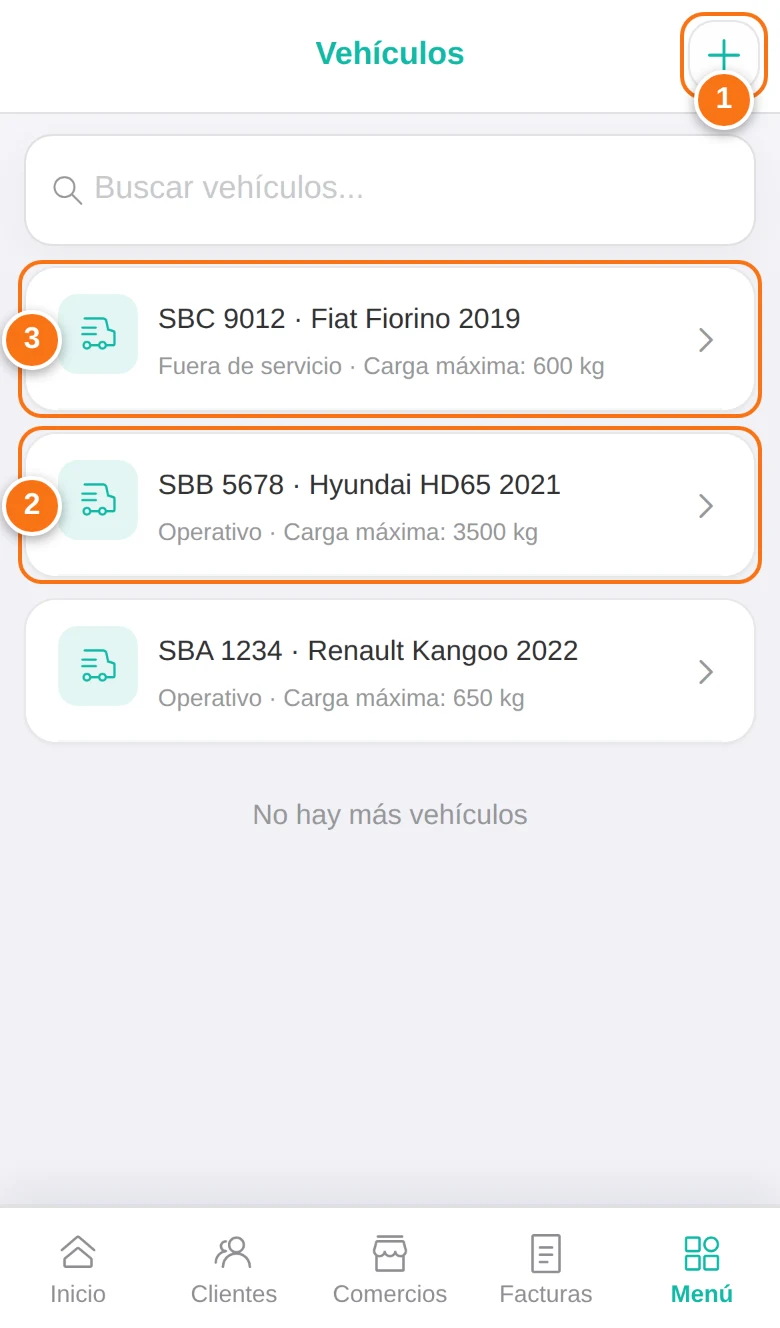
- New vehicle.
- Vehicle operational, with its maximum load capacity.
- Vehicle out of service: remains in the list, but the app warns if you assign it to a route.
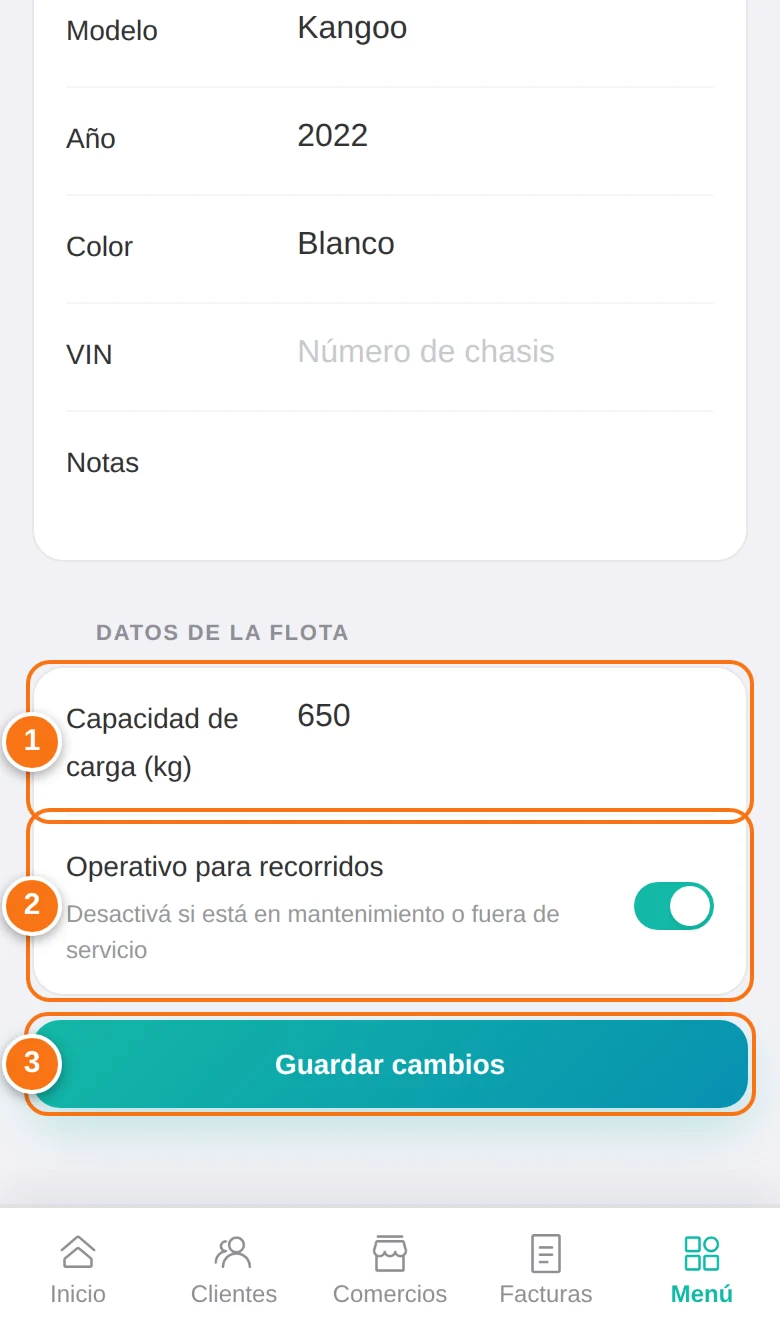
- Load capacity (kg): informational; not compared with order weight.
- Operational for routes: deactivate it if it is under maintenance or out of service.
- Save changes.
When creating or editing a route, choose the vehicle and enter the departure time. With two stops or more, tap Optimize to calculate the estimated duration. If another route uses that vehicle in an overlapping slot, EzDIS shows it before saving; you can cancel or Save anyway. If the time or duration is missing, it indicates that it cannot verify the overlap. It also warns if you choose a vehicle that is out of service.
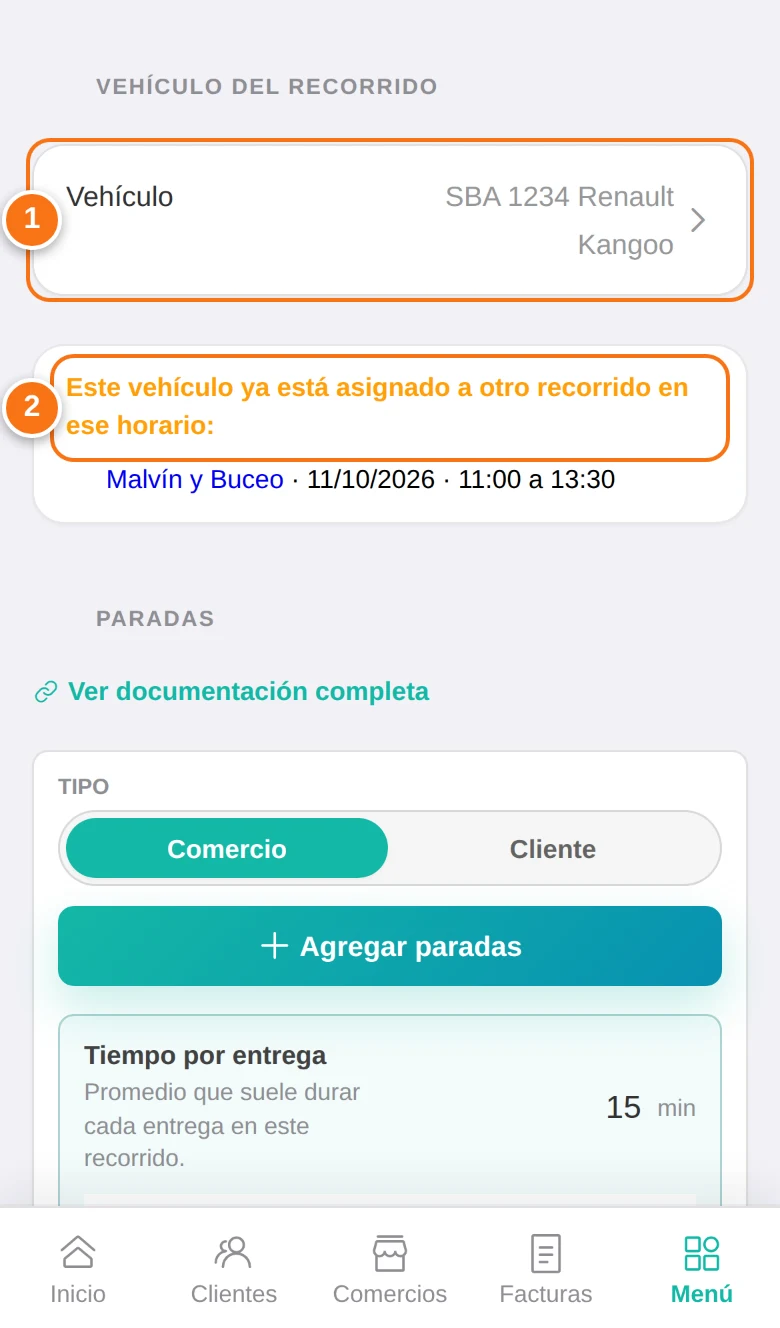
- Vehicle that does the route.
- Warning if that vehicle already has another route in an overlapping time. You can still save.
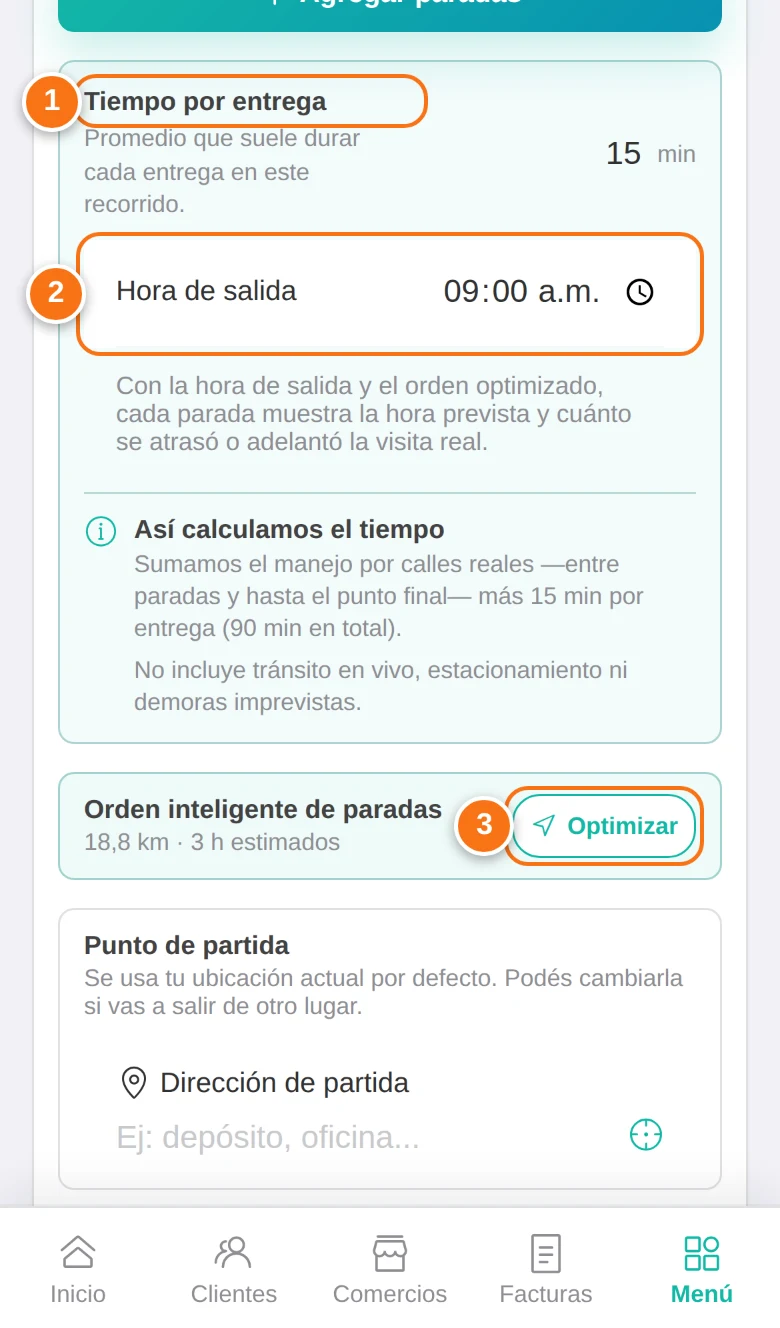
- Time per delivery: how long each stop usually takes.
- Departure time: from there the route end time is calculated.
- Optimize: orders the stops and calculates the duration. Without departure time and duration the overlaps cannot be checked.
From Routes → View fleet schedule (or Fleet schedule in the menu) you can review each day the routes grouped by vehicle, the estimated times, overlaps, out-of-service vehicles with assignments and routes that still have no vehicle. The schedule does not show real-time location.
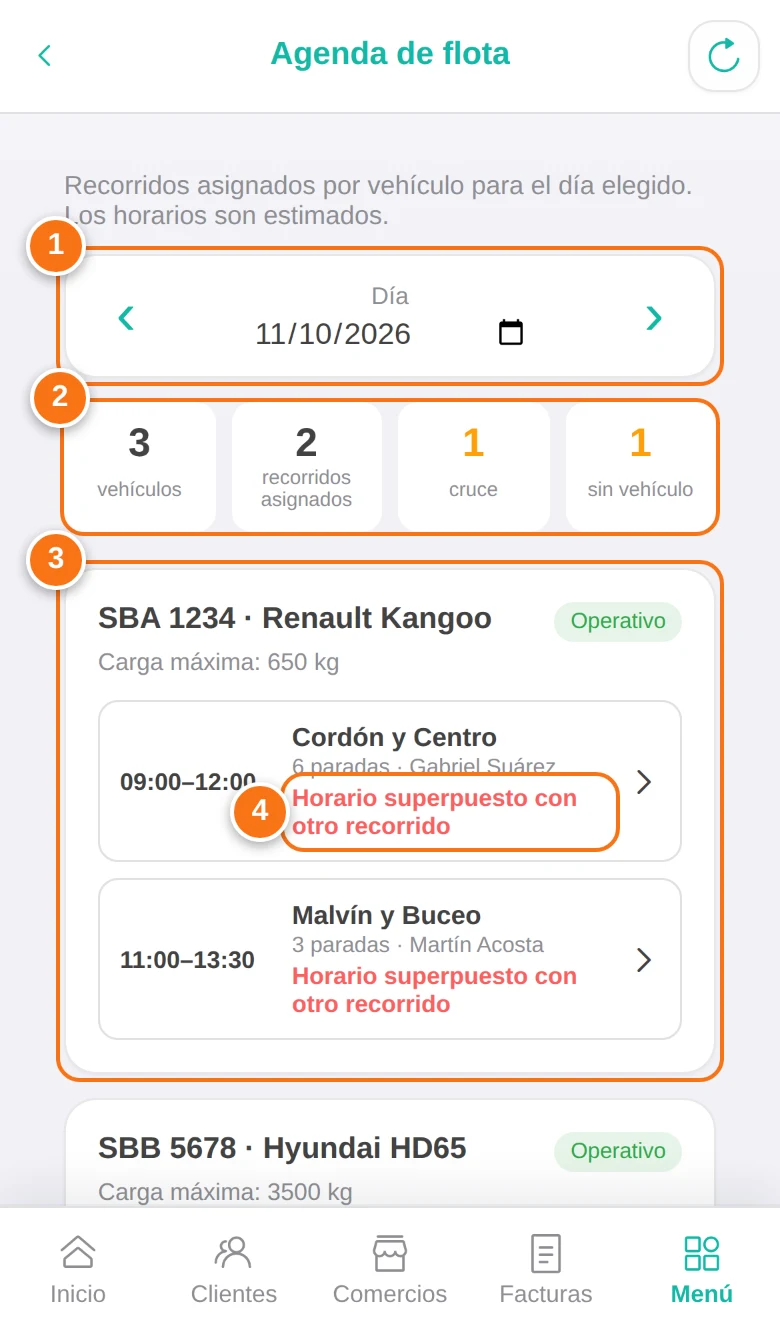
- Day you want to review. Use the arrows to go to the previous or next.
- Summary: vehicles, assigned routes, overlaps and routes without a vehicle.
- Each vehicle with its capacity and its routes for the day, with estimated departure and arrival times.
- Overlapping schedule: the same vehicle has two routes that overlap.
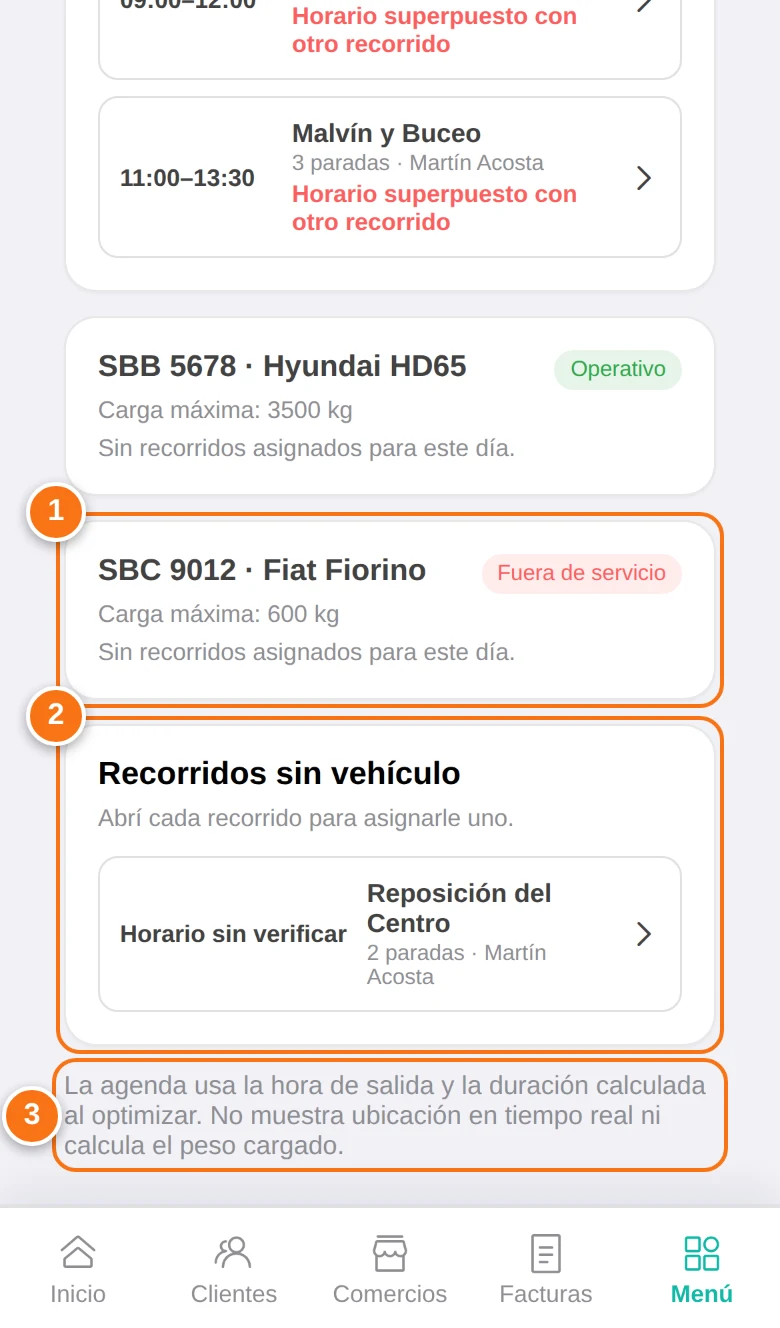
- Vehicle out of service. If it has assigned routes, the schedule marks it.
- Routes without a vehicle: open each one to assign one.
- The schedule uses estimated times: it does not show real-time location nor calculate loaded weight.
Recurrence
A recurring route generates new future routes. What was visited in a previous instance is not overwritten.
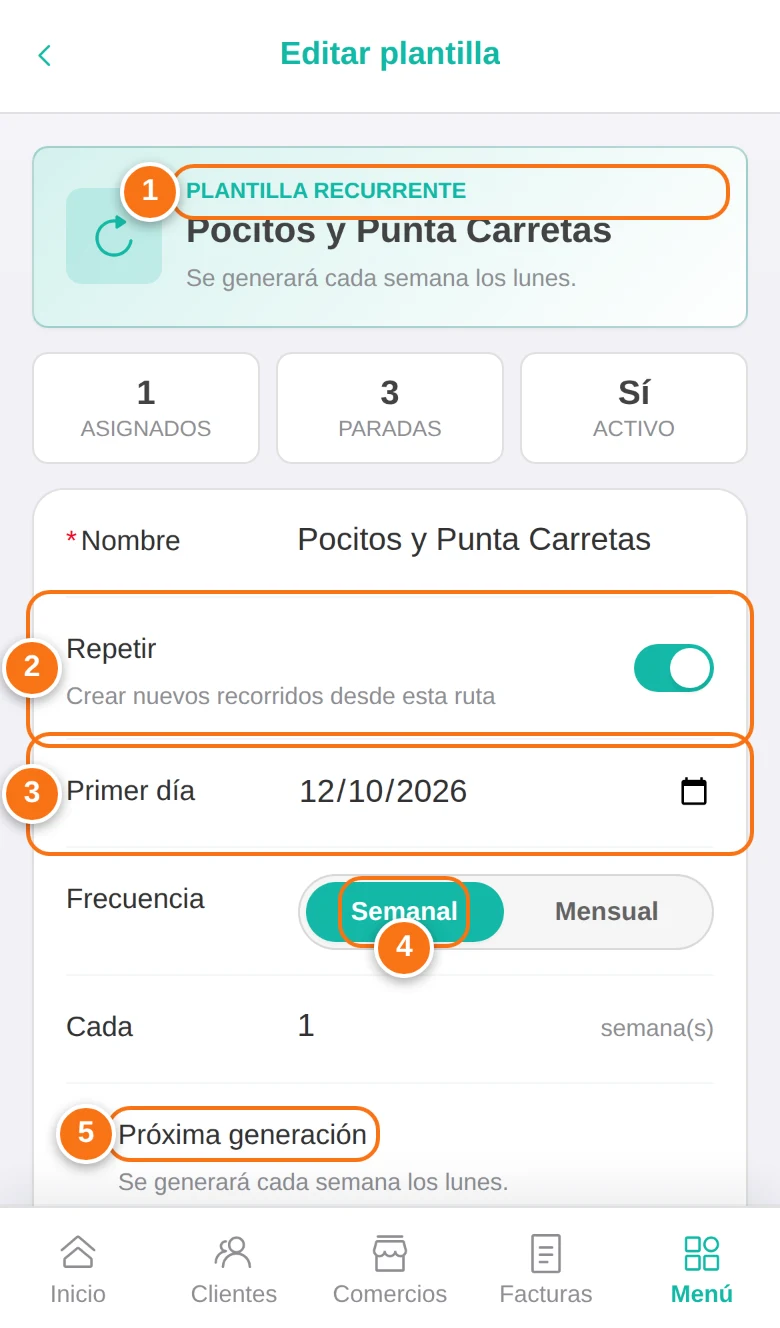
- Recurring template: automatically generates the routes for each week or month.
- Repeat: activates the repetition.
- First day of the route.
- Frequency: weekly or monthly, and every how many weeks or months.
- Next generation: when the next route is created.
Navigation
If the stop has an address, the employee can open navigation from the phone. The app does not track the employee live: it only saves where they were when marking each visit (see Supervision).
Automatic stop optimization
With 2 stops or more, you can optimize the route order: EzDIS calculates the shortest sequence via real streets (not a straight line), not just by map proximity. It shows the distance and total estimated time, draws the path and estimates the arrival time at each stop. Designed for deliveries with many stops (30 or more), where manual ordering becomes impractical. If you edit the stop list after optimizing, you must re-optimize before saving.
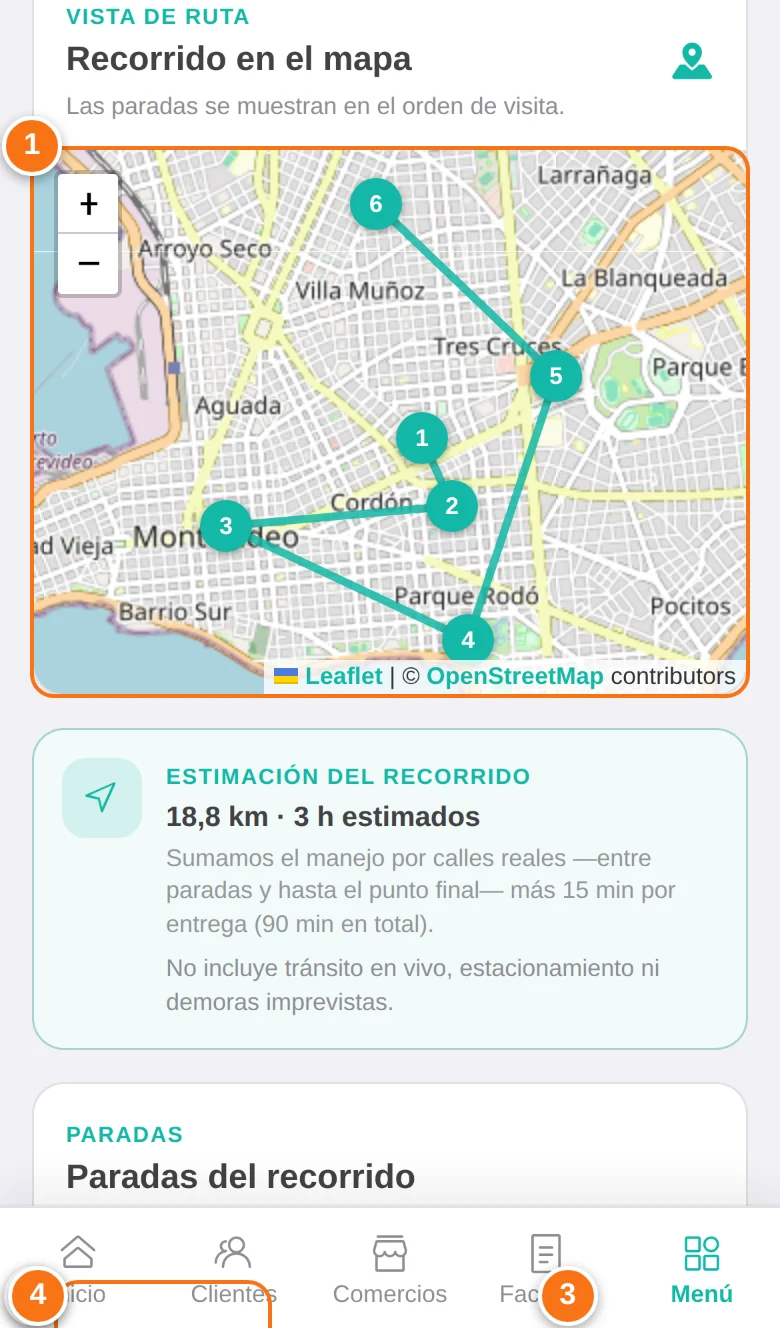
- Map with the stops numbered in visit order.
- Summary: with sale, without sale and skipped.
- Go to the next stop.
- Add deliveries: adds already invoiced orders to the route.
Result of each visit
When marking a stop as Visited or Skipped, a panel opens to note how it went:
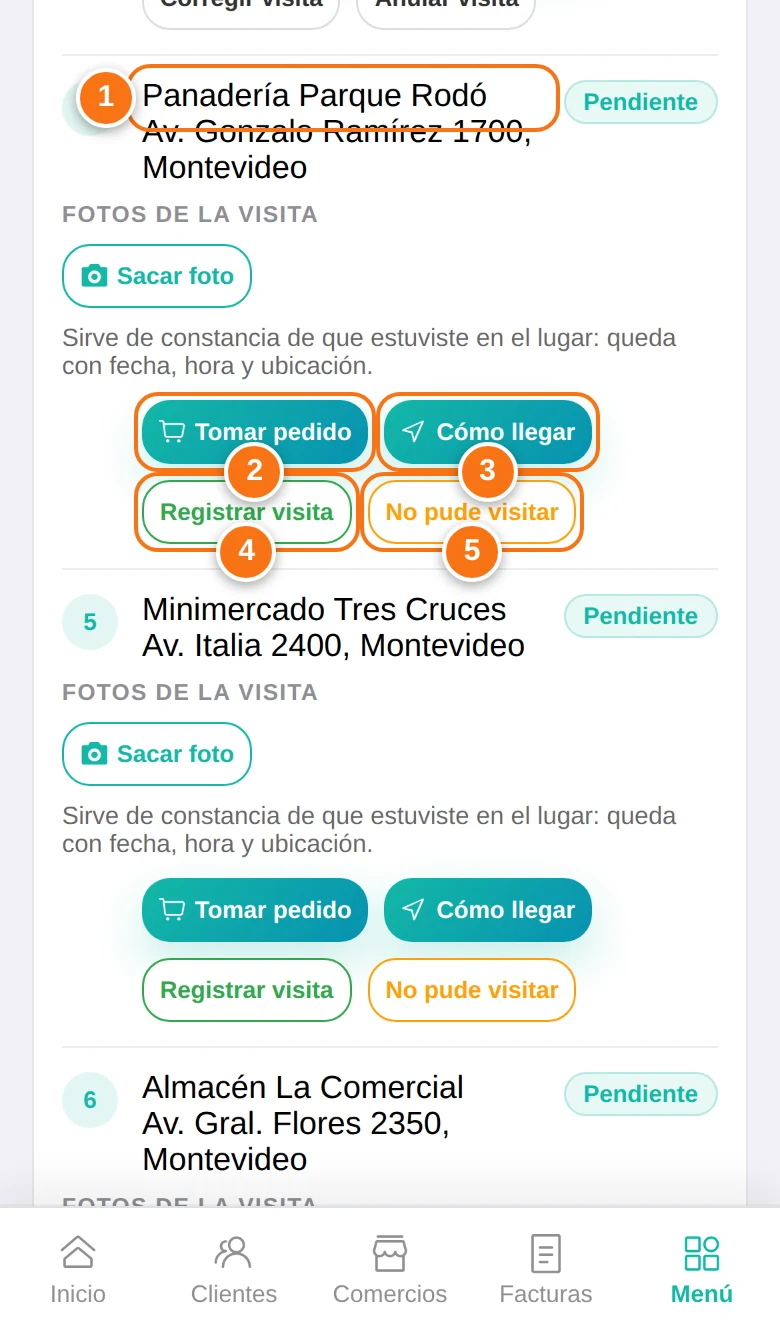
- Pending stop with its address.
- Take order at the stop.
- How to get there: opens the phone’s navigation.
- Record visit: with sale or without sale, and a note.
- Could not visit: closed, no access or another reason.
- Visited: indicate if there was a sale. If there wasn’t, choose the reason (has stock, has pending debt, buys from another supplier, no budget now or other).
- Skipped: choose why the stop could not be visited (was closed, responsible not present, asked to return another day, could not access or other).
- Observation: free-form optional text to note anything you want.
- Time: automatically recorded by the system when marking the stop.
Each stop then shows its result, with the time and observation, and the route manager sees a summary at the top: how many visits were with sale, without sale and how many were skipped. If you revert a stop to Pending, its result is cleared. If an administrator edits the route, the already recorded data is retained.
Supervision: correction, history, location and estimated time
- Correct stops: the route manager can mark or correct another person’s stop. The correction is recorded as such.
- Route history: below the stops, "Route history" lists who marked or corrected each stop and each delivery, and when.
- Location: when marking a visit, the app saves where the person was and shows how many meters from the store. If it exceeds 300 m it is highlighted. If the person does not grant location permission or there is no signal, the visit is still marked without that data. An administrator’s correction does not save their location.
- Departure time and estimated time: if the route has a departure time and was optimized, each stop shows the estimated time and, when visited, how much it was delayed or early.
- Reports: in Reports there are three tabs, all with Excel download: Visits (by period and person, with result, reason, observation, time, distance and delay), Sales (by salesperson and currency: invoiced, credit notes, net, collected and pending) and Unvisited (clients and stores of routes with no visit for X days, or never visited).
Take an order at the stop
In My route, each stop has the Take order button. The form opens with the order’s products and, to go faster:
- Repeat last order loads the lines from the last order of that store or client with today’s prices.
- Load order template loads its order template.
When you tap Save order, the order is linked to the visit: the stop is marked visited with sale and shows Orders from this visit, with View order for each. The order remains pending review and the client does not receive any notice now: they are notified later, from the invoice. More detail in Orders.
If the delivery person picks up the order and drops it off immediately, Deliver now moves it to an invoice (if it wasn’t already), adds it to the delivery and marks it as delivered in the same step.
Visit photos
Each stop has Visit photos with the Take photo button. It serves as proof that you were at the location: it is saved with date, time and location (JPG, PNG or WebP up to 10 MB are accepted). You can Remove photo if you made a mistake. Each added photo appears in the route’s history.
Add invoices to an existing route
When Create delivery from invoices you can choose New delivery or Add to a route. With the latter, the invoices are added to the selected route: if the store is already a stop, it is delivered there; if not, a stop is added at the end. Useful for routes that mix deliveries and new orders.
Routes on the same day
If there is already another route on the same day for the same people, when saving or creating a delivery the system warns you and lets you choose: Merge into «name» (or, when creating a delivery, Add invoices to «name»), or Save anyway and keep them separate. A route that has already started can only receive another that has not yet started; if both have started they cannot be merged. Merging routes requires permission to edit and delete routes. While there are two routes on the same day, the label Same day as another appears.