Employee attendance with a time clock
- On this page
- Which clocks work
- 1. Add your employees
- 2. Connect the clock
- Clocks without a cloud connection: upload the file
- 3. See the day and the month
- Vacation, leave and holidays
- WhatsApp alerts
- 4. Correct
- How hours are counted
Connect your ZKTeco fingerprint or face time clock to EzDIS and see your employees' punches in the app: who came, who was late, overtime, absences and the monthly Excel for payroll. It is free and there is nothing to install: the clock talks to EzDIS directly over the internet. Also known as a punch clock or time and attendance terminal.
{primary} Fingerprints and faces stay on the clock only. EzDIS receives the employee number, the time and how they punched.
Which clocks work
ZKTeco and compatible clocks with the Cloud server option (on some devices ADMS or Cloud Server Setting) in the communication menu: for example the iClock, MB, K, SpeedFace, ProFace, iFace and uFace lines. Devices without network connectivity (offline clocks that only export punches to a USB flash drive) or legacy models lacking the ADMS option that rely solely on local Windows desktop software (pull protocol on port 4370) cannot connect directly to the cloud in real time. With those clocks, and with other brands (Hikvision, Dahua, Anviz…), you can still use EzDIS: upload the punches file.
1. Add your employees
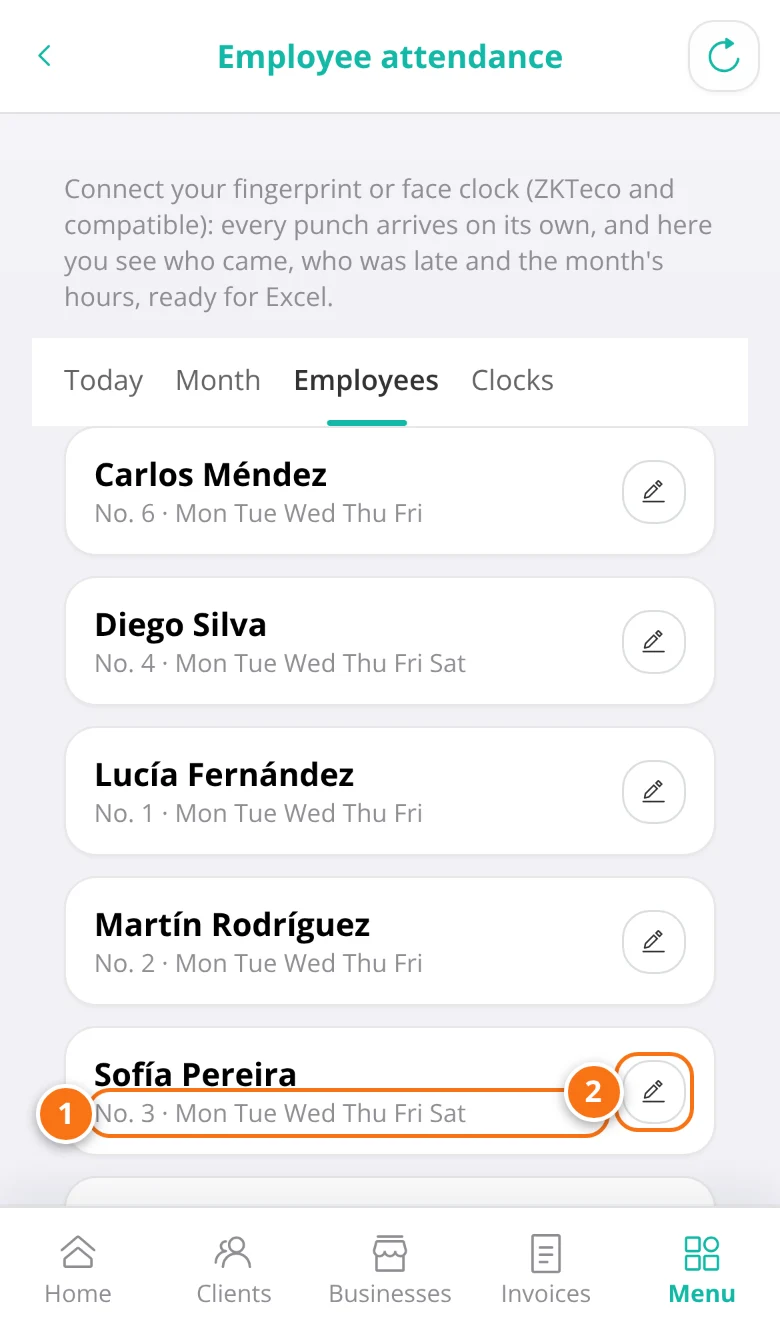
- Number and days: the number they punch with and the days they work
- Edit: change name, number or schedule
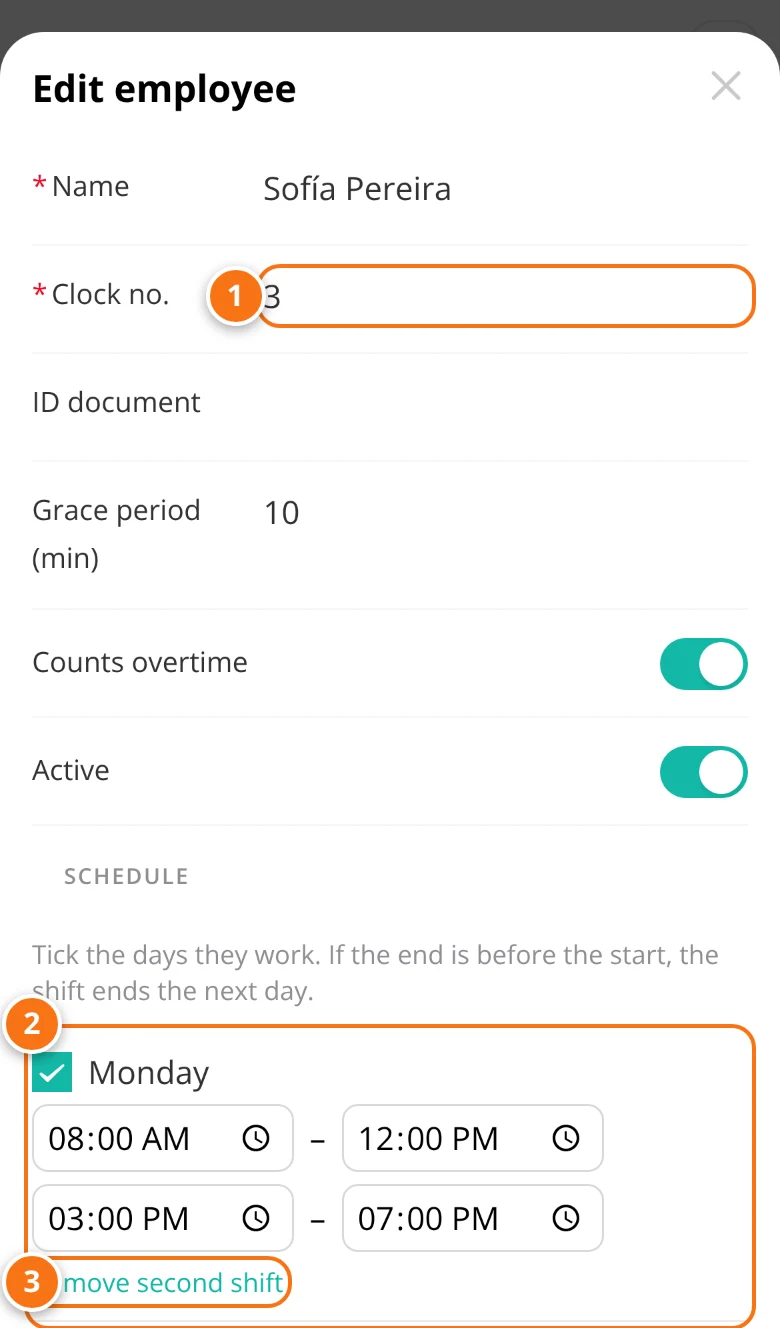
- Clock number: the same one they have on the device
- Days and times: tick each day with its start and end
- Second shift: for a split schedule, for example 8 to 12 and 3 to 7
- In the app, go to Menu → Attendance → Employees and tap Add employee.
- Enter the name and the clock number: the number they punch with. If the employee is already on the clock, use the same number they have there.
- Tick the days they work with their schedule. For a split schedule, tap + Second shift. If the end is before the start (for example 22:00 to 06:00), the shift ends the next day. A new employee starts with the schedule most of your team has; with Copy the schedule of you give them a coworker's. Without a schedule we can't tell you when they are late or absent: the Employees list marks them with “No late or absence alerts”.
- The grace period is the minutes of leeway: arriving up to that many minutes late does not count as late.
- Your own data: to keep more details about each employee (ID numbers, position, area, emergency phone…), create them in Settings → Custom fields choosing Employee. They show in this form and in the Excel and the PDF card.
- Photo: tap Add photo to upload it; it shows on their profile, on the PDF card and on the clock screen when they clock in. If the employee registers their face on the clock, the photo arrives on its own. To bring in those of people already registered, tap Get the photos from the clock under Clocks (they arrive in a few minutes). A photo you uploaded in the app is never replaced by the clock’s.
2. Connect the clock
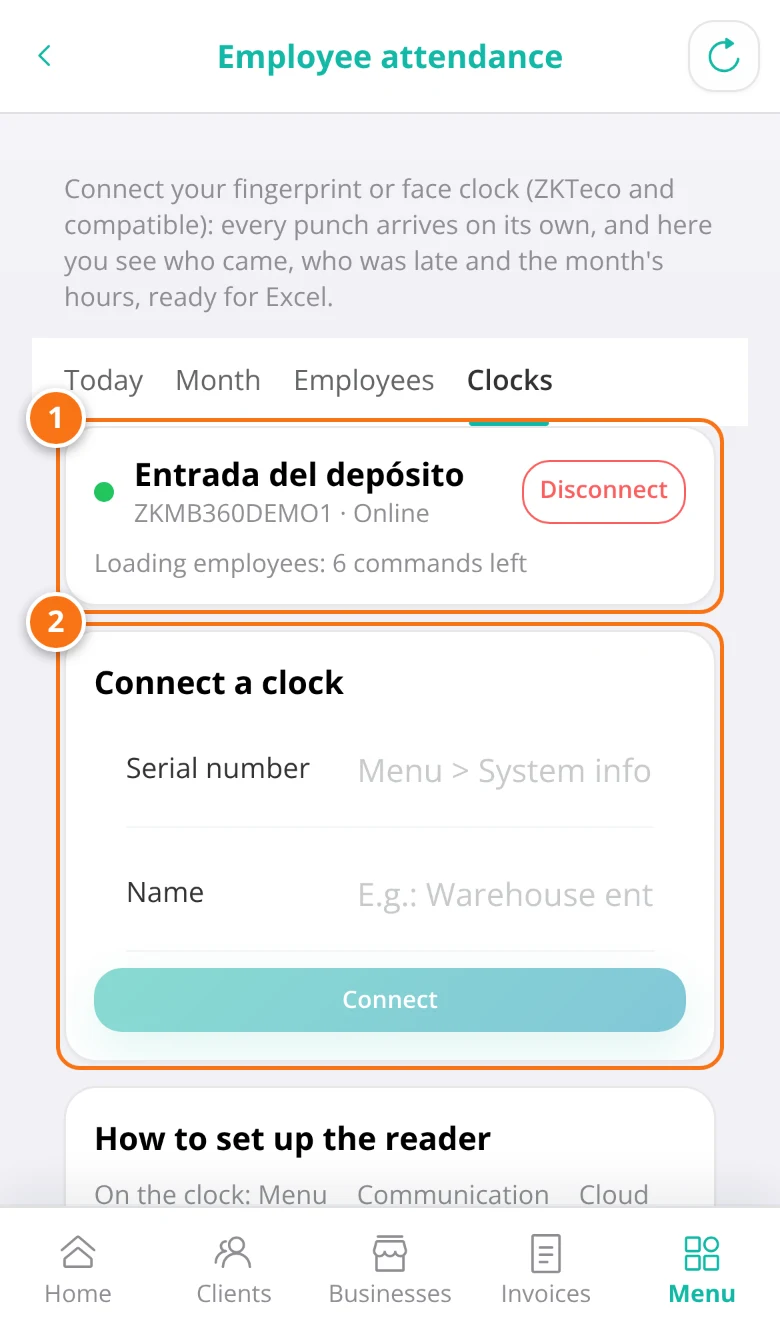
- The clock: online, with how many employees are still loading
- Connect a clock: serial number and a name
- Under Attendance → Clocks, enter the clock's serial number (in Menu → System info or on the label on the back) and tap Connect.
- On the clock, go to Menu → Communication → Cloud server (or ADMS) and configure the connection details:
Option 1: Encrypted connection (recommended)
If your clock supports HTTPS, use this configuration so punch records travel encrypted:
| Option | Value |
|---|---|
| Server address | devices.ezdis.net |
| Port | 443 (or 8443) |
| HTTPS | On |
| Enable domain name | On |
| Proxy server | Off |
Option 2: Standard connection (if your clock does not support HTTPS)
Many classic ZKTeco models do not have HTTPS in their firmware. If your clock lacks that option or fails to connect securely, enter:
| Option | Value |
|---|---|
| Server address | devices.ezdis.net |
| Port | 8081 (or 80) |
| HTTPS | Off |
| Enable domain name | On |
| Proxy server | Off |
{info} If the clock does not connect, check that it has a DNS set (for example
8.8.8.8) under Menu → Communication → Ethernet (or Wi-Fi). The exact steps for each ZKTeco model are on the time clock page.
Save and restart the clock. Within a minute it shows Online and EzDIS loads your employees onto it with their names. Then each employee enrolls their fingerprint or face on the clock, as usual.
{info} The clock has no username or password: EzDIS recognizes it by its serial number. If your clock has no HTTPS option, use Option 2 with port
8081. Devices you already connected withacceso.ezgym.netkeep working as before.
{warning} The clock needs internet access (cable or Wi-Fi) and the correct date and time.
{info} Was the clock already in use? When you connect it, it uploads every punch it has stored, which can take a while. People who were already on the clock are left as they are (they keep their face, fingerprint, card or password). Today shows each number that punched and is not an employee yet, with Add to create the employee with that number: their old punches are assigned automatically and measured against their schedule from the first one.
{info} Clock time and memory: in Clocks, each clock shows whether its time is fast or slow and how many people, faces, fingerprints and punches it has stored. If the time is off, tap Set the time and the clock takes the account's time; if it does not accept it, a notice appears and you have to set it by hand in its menu. Refresh status asks it again for what it has stored. When the punch memory goes over 80% a warning appears: once it is full, the clock may stop storing punches or delete the oldest ones.
{info} Time and faces without touching the clock: if the clock's time drifts 2 minutes or more, EzDIS sets it automatically. To enroll an employee's face or fingerprint, open their page, tap Enroll face or fingerprint and pick the clock: the clock shows the enrollment screen and the employee stands in front of it. Some clocks only enroll fingerprints from the app; faces, from their menu.
Clocks without a cloud connection: upload the file
If your clock has no cloud server option (a Hikvision DS-K1T, a Dahua, an Anviz, a ZKTeco without ADMS or one that only downloads to a USB stick), export the punches and upload them: schedules, late arrivals, overtime and the monthly report work just like with a connected clock.
- Export the punches from the clock or its software:
- Hikvision: on the terminal, Menu → Data → Export (or Attendance → Export) to a USB stick; or in iVMS-4200 / HikCentral, Attendance → Records → Export to Excel.
- ZKTeco via USB: Menu → USB Manager → Download → Attendance records: you get an
attlog.datfile (or an Excel file, depending on the model). - Another clock or a spreadsheet: any Excel or CSV with a column with the employee number or name and another with the date and time (or the date and the time in two columns).
- In Attendance → Clocks, tap Import punches from a file and choose the file.
- EzDIS shows you how many punches will be imported, from which dates and for which employees, before saving anything. If the dates can be read two ways (03/04), it asks whether they are day/month or month/day. Tap Import.
{info} You can upload the same file (or one that overlaps the previous one) as many times as you want: punches that were already there are not repeated. Numbers that do not belong to any employee yet appear under Punches without an employee with the name from the file: add them with their schedule and their punches are assigned automatically.
3. See the day and the month
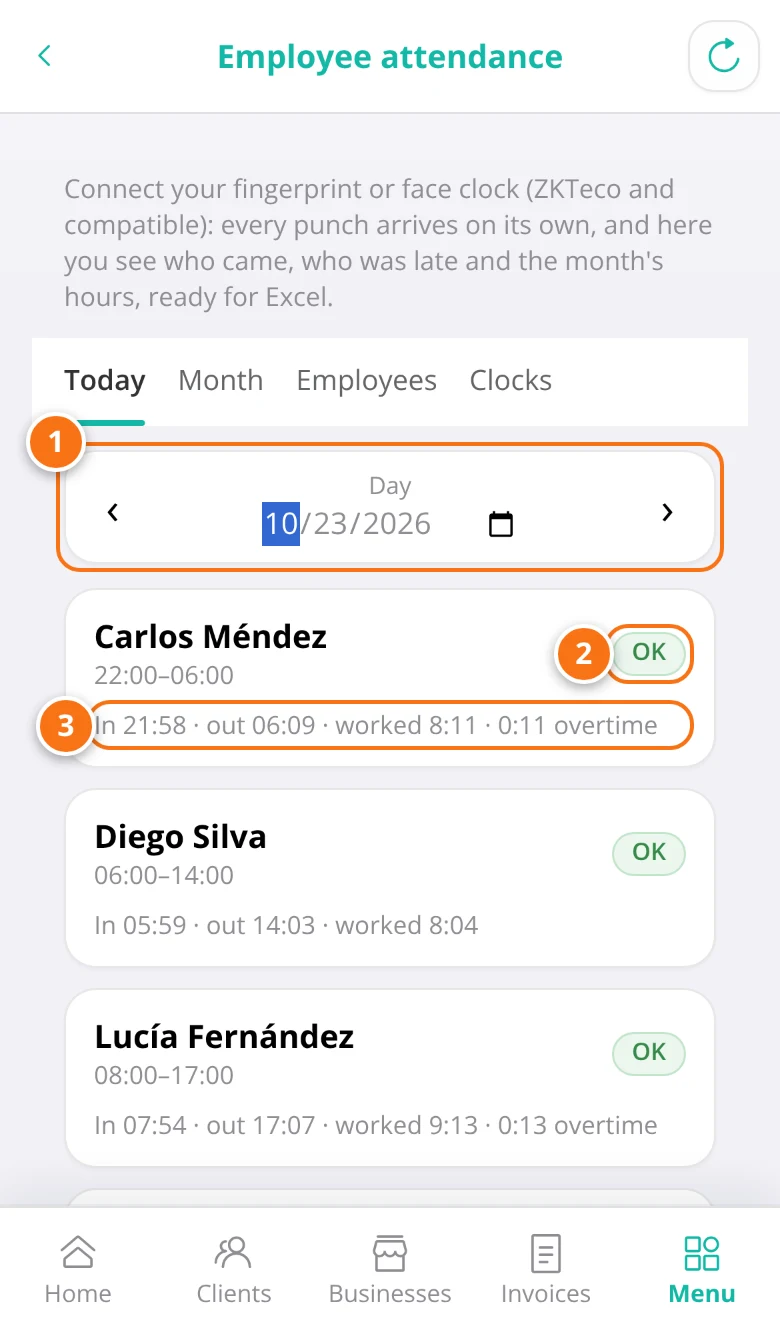
- The day: change it with the arrows or the calendar
- Status: OK, Late, Absent, Working or Missing a punch
- Hours: in, out, worked and overtime
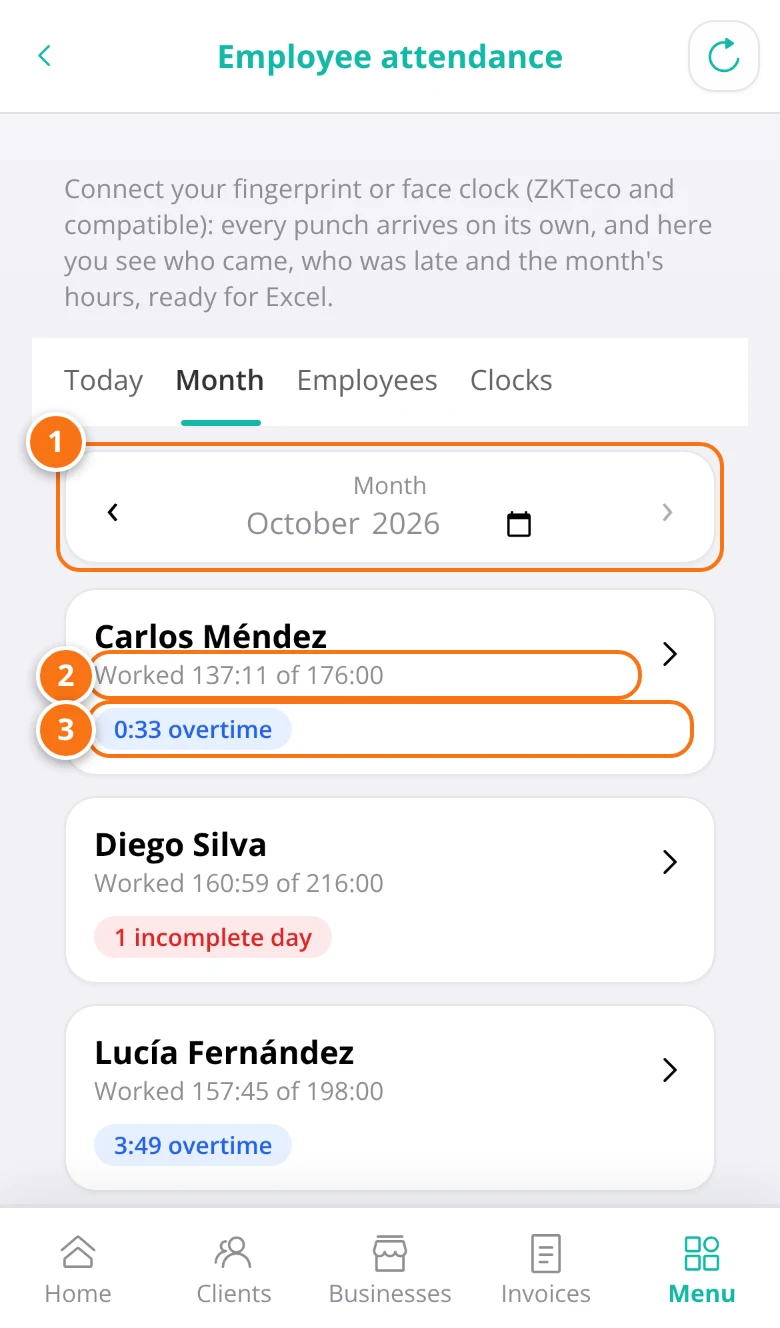
- The month: change it with the arrows
- Hours: worked against scheduled
- Exceptions: overtime, late arrivals, absences and incomplete days
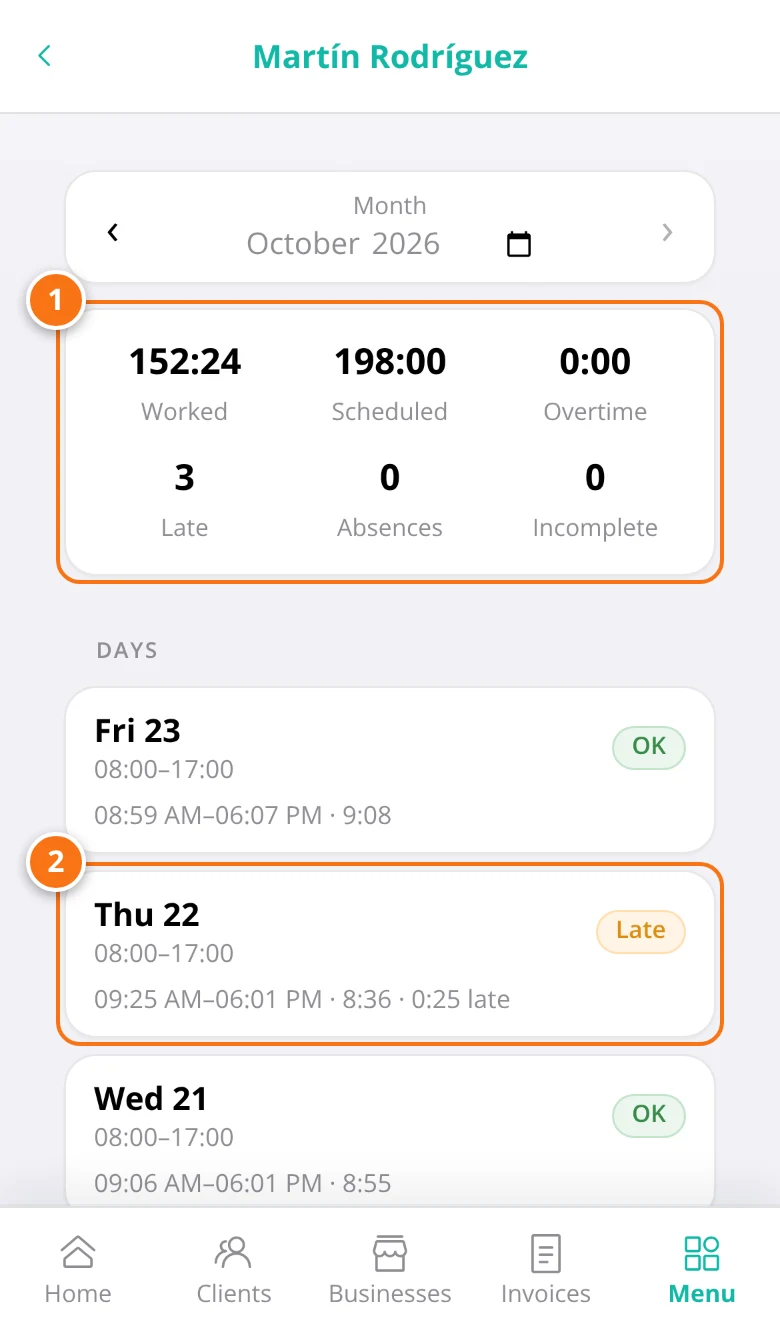
- The month in words: hours worked against the schedule and what needs review (unpaired punches, absences, late arrivals); tap each one to see those days
- Each day: when they came in and left, how long they worked and what happened; tap it to see its punches
- Today: at the top, how many came in out of those expected, how many are working, how many were late and how many are absent. Below, each employee with their schedule, when they came in and left, and their status: OK, Late, Absent, Working or Missing a punch (an in without an out).
- Month: hours worked against scheduled hours, overtime, late arrivals, absences and vacation, leave or holiday days for each employee. Choose the period: Whole month, 1st to 15th, 16th to month end, This week, Last week or Other dates (up to two months), to pay by month, fortnight or week. Download Excel gets that period: the first sheet, Summary, has one row per employee with their totals for payroll; the second, Detail, one row per employee per day. Hours are numbers (8.5 = 8 hours 30 minutes) so you can add them up.
- PDF cards: in Month, PDF cards downloads one card per employee for the chosen period, with every day, the totals, the vacation balance and room for signatures. On the employee's page, PDF card downloads theirs.
- Punches without an employee: Today shows each clock number that punched and is not an employee yet, with how many punches it has. Tap Add to open the new employee form with that number: their punches, old ones included, are assigned automatically. If the clock already had its people loaded, the name they have on the clock shows next to the number and Add fills it in: only the schedule is missing. Names arrive on their own when the clock is connected; to ask again, tap Get the employees from the clock under Clocks.
- Photo when punching: if the clock takes a photo when someone punches, the photo shows next to that punch on the employee's page; tap it to see it larger. Only people who can see Attendance can see it.
Vacation, leave and holidays
- Vacation, leave and sick leave: in the employee's page, under Vacation and leave, choose the type (Vacation, Leave or Sick leave), from, to and an optional note, and tap Add.
- Holidays: under Attendance → Employees, in Company holidays, add the day. It applies to every employee.
- Vacation balance: with the employee's hire date, their page shows how many days they are entitled to by seniority under Mexico's Federal Labor Law (12 the first year, 2 more per year up to 20 in the fifth, then 2 more every 5 years), how many they used in the service year and how many are left. In other countries it shows the days used.
Workdays covered by an absence do not count as absences: they show what they were (for example Vacation or Holiday), the month counts them separately and the Excel says what each day was. If the employee came anyway, the hours they worked count.
WhatsApp alerts
In Attendance → Clocks, under WhatsApp alerts, choose what we should tell you (who was late, who did not clock in, who left early, who did not clock out and the daily summary, at the time you choose), enter up to 3 numbers comma-separated and tap Save.
- Late: clocked in after their schedule plus the tolerance. The alert says when they clocked in and how many minutes late.
- Did not clock in: their start time plus the tolerance went by with no punch at all.
- Left early: clocked out before their schedule, beyond the tolerance. The alert says when they left and how many minutes early.
- Did not clock out: an hour went by after their end time and the day is still open.
- Daily summary: at the time you choose, how many came in out of those expected, and how many were late, absent, did not clock out or were excused.
If you tick Also email, the same alerts and the daily summary, with a table of every employee, are emailed to whoever can see attendance.
We check every 5 minutes, so the alert arrives at most 5 minutes later, and only one of each kind goes out per employee per day. Each message counts toward your monthly usage. If the screen says it is not available yet, WhatsApp is reviewing the alert message: you can save the numbers now.
4. Correct
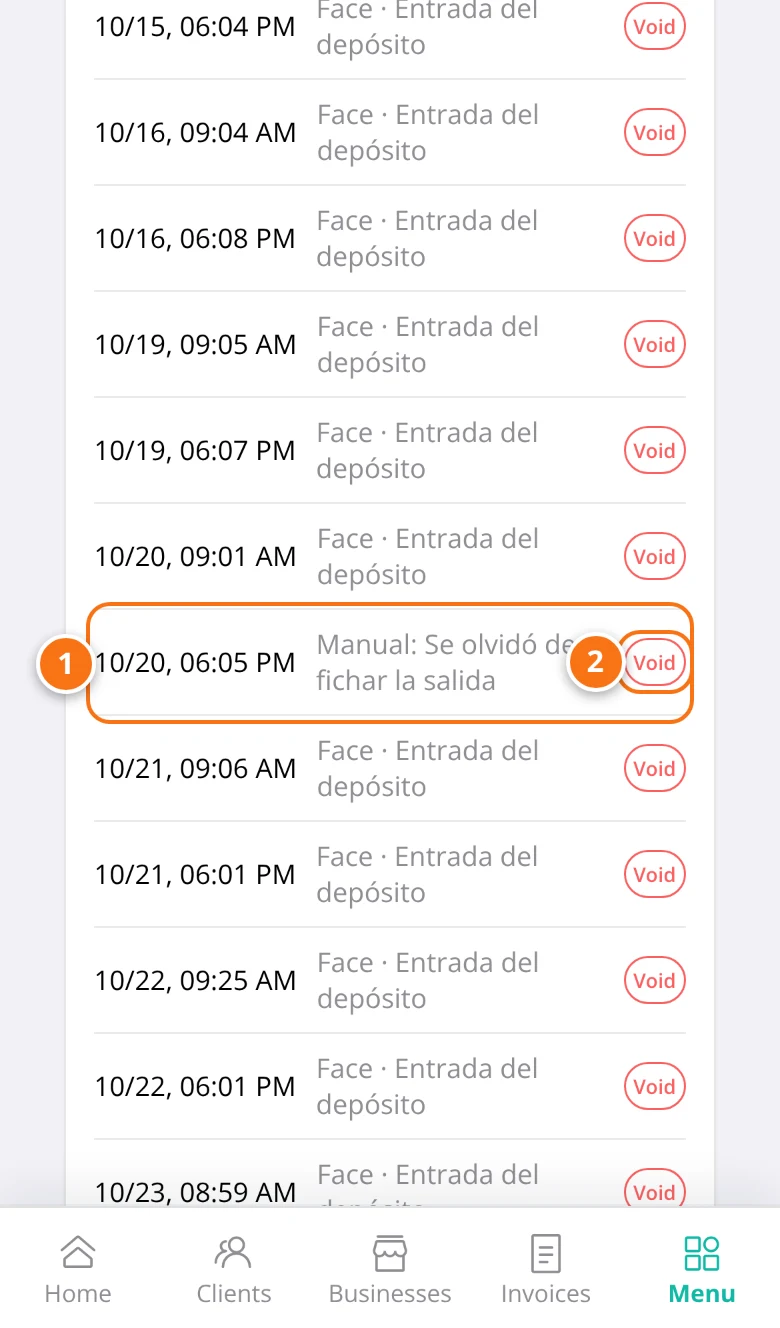
- Manual punch: with the reason; who added it is recorded
- Void: strike it through with a reason, without deleting it
If someone forgot to punch, open their page and tap To review: only the days missing a punch remain. Open the day and tap Add the missing punch (it suggests the scheduled time) with the reason. If a punch is wrong, open the day and tap Void with the reason. Nothing is deleted: the voided punch stays struck through with the reason, and the activity log records who made each change.
If many days show a single punch even though staff punched correctly, tap Fetch the punches again under Clocks: it asks the clock for everything it stored and recovers the ones that had not arrived, without duplicating those already there.
How hours are counted
- Punches are taken in pairs: in and out. Two punches less than two minutes apart count as one.
- In and out keys: if staff mark In or Out with the clock keys, turn on Staff mark in and out with the clock keys in Clocks and shifts are built from that mark: two ins in a row leave the first one without an out, and an out on its own shows as clock-in missing. Leave it off if they do not use the keys: many clocks change the mark on their own by the time of day.
- A night shift counts on the day it started.
- Unpunched lunch: if you enter the lunch minutes on the employee and they only clock in and out, they are deducted from days of 5 hours or more (and from their schedule), so lunch does not count as worked time or overtime. If they punch out and back in for lunch, nothing is deducted.
- Double and triple overtime (Mexico): the first 9 overtime hours of each week count double and the rest triple. They show in the month, on the employee's page and in the Excel.
- Overtime is time worked beyond the schedule, if it exceeds the grace period. Working on a day off counts entirely as overtime.
{info} EzDIS is a time control and calculation tool. Legal requirements for time records vary by country: check with your accountant or labor advisor.
Which time clocks work and how to connect them, on one page: Free time clock software.