Record payments
- On this page
- Where to record a payment
- Payment types
- Partial payment
- Full payment
- Paying with a credit balance
- Several invoices at once
- Customer account
- Online payments
Where to record a payment
You can record payments from:
- the invoice view;
- the collections screen;
- the store or client record, by opening their pending invoices;
- To collect, for several invoices at once (see below).
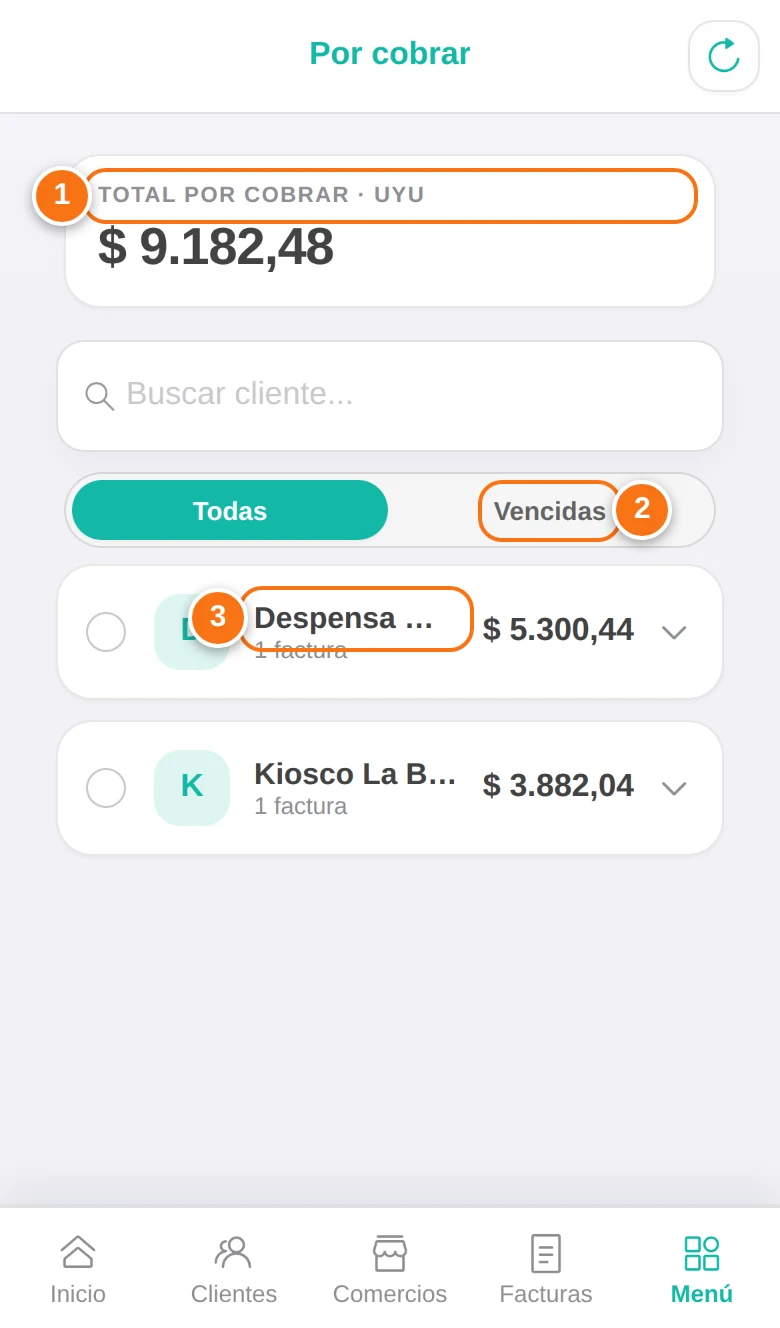
- Total to collect in each currency.
- See All or only Overdue.
- Store with how many invoices it owes and the total. Tap the arrow to see its invoices.
Payment types
- cash;
- bank transfer;
- MercadoPago or PayPal;
- credit balance.
Partial payment
If the store pays only part:
- Open the invoice.
- Tap Record payment.
- Enter an amount lower than the balance.
- Save.
The invoice stays pending with the updated balance.
Full payment
If the payment covers the whole balance, the invoice becomes paid.
Paying with a credit balance
If the client or store has a balance available, the Balance option appears in Payment type. When you save it, the app records the payment on the invoice and deducts that amount from the credit balance.
If you record a payment larger than the invoice’s outstanding balance, the app applies what is needed to the invoice and keeps the surplus as a credit balance for future sales. On a walk-in invoice there is no client to keep that balance: the app warns you and you record only what is owed.
Several invoices at once
In To collect you see what each client or store owes, overdue first. Tick the invoices (or the whole client) and tap Collect: choose the method and the date, and what is left to pay on each one is recorded. You can also notify them all at once.
Customer account
Each payment reduces the store’s debt. The store record shows the history of invoices, payments and the current balance.
Online payments
If MercadoPago or PayPal are set up and the webhook works, approved payments can be recorded on the invoice.