Invoicing
- On this page
- What invoices include
- Status
- Notes
- Tips
- Merge a client's invoices
- Notices to the client
- If you edit an invoice that was already notified
- Did they read it?
- Title and line detail
- Notices for this invoice
Invoices register sales, debts and fiscal documents in EzDIS.
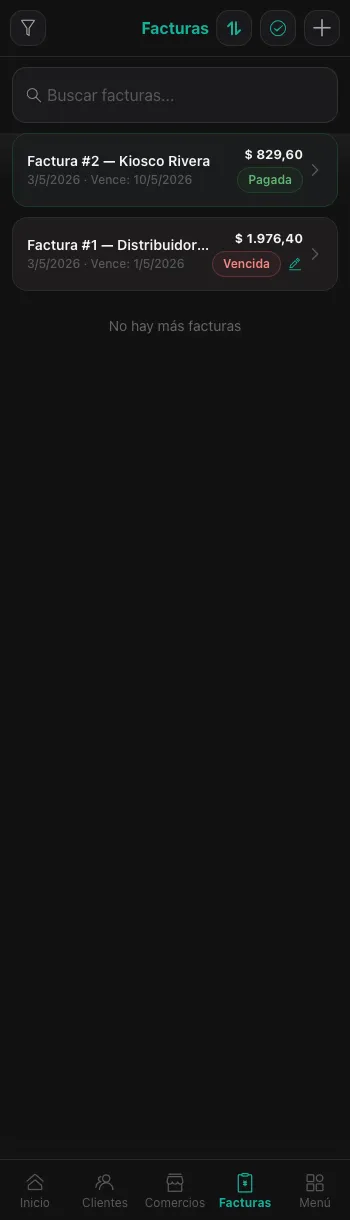
What invoices include
- store or client;
- invoice type;
- products and quantities;
- taxes;
- currency;
- totals;
- due date;
- declaration status;
- payment status.
Status
- Pending: not fully paid.
- Paid: fully collected.
- Overdue: pending after due date.
- Declared: sent and accepted by DGI/Biller, ARCA or the corresponding fiscal provider.
Notes
Credit notes and debit notes are used to correct declared documents, returns or differences.
Tips
- Review fiscal data before declaring.
- Use templates to avoid repetitive loading.
- Register payments from the invoice detail to keep the balance clear.
Merge a client's invoices
If a client has several pending invoices and you want to send just one (for example, the previous balance plus this month's fee), you don't need to delete and recreate them:
- In Invoices, tap Select and check that client's invoices.
- Tap Merge. You'll see the total of the new invoice.
- If you want, pick another due date and turn on Add a charge (description, amount before tax and tax).
- Choose whether to notify the client by email or WhatsApp and tap Merge.
The new invoice keeps every line of the originals at the same prices, and its description says which invoices it comes from. The originals are deleted. Only invoices of the same client or business, in the same currency, not declared and without payments can be merged.
If you're paid only part of an invoice, don't delete it: in Register payment change the amount to what you were paid and the invoice keeps the balance.
Notices to the client
Each invoice records whether the client has already been notified and through which channel.
- In the invoice list, on a computer, each row shows ✓ Notified together with the channels it went out through —Email and/or WhatsApp— or Not notified if no notice has gone out yet. Hover over a channel to see the date. On a phone, two icons appear: green if the notice went out through that channel and gray if not.
- In the invoice detail, the Notified by email and Notified by WhatsApp rows show the date or Not notified.
- The mark is set when the message actually goes out. If the email fails, or the client has no email or phone, it stays unmarked. Invoices created before this feature appear as not notified.
- The Client notice filter (All / Notified / Not notified) is in the list filters. On the Home screen, the Invoices not notified shortcut opens the pending invoices the client hasn't received a notice for yet.
If you edit an invoice that was already notified
The client has the notice for the previous version, with the earlier amount or date. That's why, when you open an already-notified invoice to edit it, the screen explains this; and when you save the changes, the marks are cleared: the invoice becomes Not notified until you notify it again.
To notify the new version, turn on Send by email and/or Send by WhatsApp before saving. Each channel is marked again, with the new date, when the message goes out.
If the invoice was generated automatically by a rate and you don't want the next ones to be announced, turn off Notify the invoice on that rate from the client's record (see Automatic invoicing).
Did they read it?
When the notice goes out by WhatsApp, EzDIS shows whether it arrived and whether it was read: on the invoice, under "Notified by WhatsApp" (Read, Delivered or Not delivered), and with two blue ticks in the invoice list and in Receivables. If the person turned off read receipts in WhatsApp, it stays "Delivered" even if they read it. By email we only know it was sent.
Title and line detail
- Title (optional): at the top of the invoice form you can add a title, for example "October 2026 fees". It shows in the list, on the invoice, at the top of the PDF and in the email to the client, and search finds it. Leave it empty and the invoice looks as always.
- Line detail (optional): when adding a product you can add a detail, for example "Payroll tax" with the detail "Domestic service". You keep a single product and clarify on each invoice what it is for. On a declared invoice, the detail travels in the line description.
Notices for this invoice
On each invoice, Notices for this invoice lists every notice sent with the total it had at that moment. If you edited it after notifying, it warns you that the customer has the previous amount. See Latest communications and direct messages.