Logo and appearance
Visual configuration helps the app feel like your distributor.
To open this screen directly, go to the EzDIS Interface and theme settings.
What you can configure
- brand color if enabled;
- public business name;
- visual data used in the application.
Where to upload the logo used on invoices
The invoice logo is not uploaded under Interface and theme. Upload it under Settings → General → Company logo.
- Read the General settings guide, or open the EzDIS settings directly.
- Scroll to Company logo.
- Choose the image file and click Save changes.
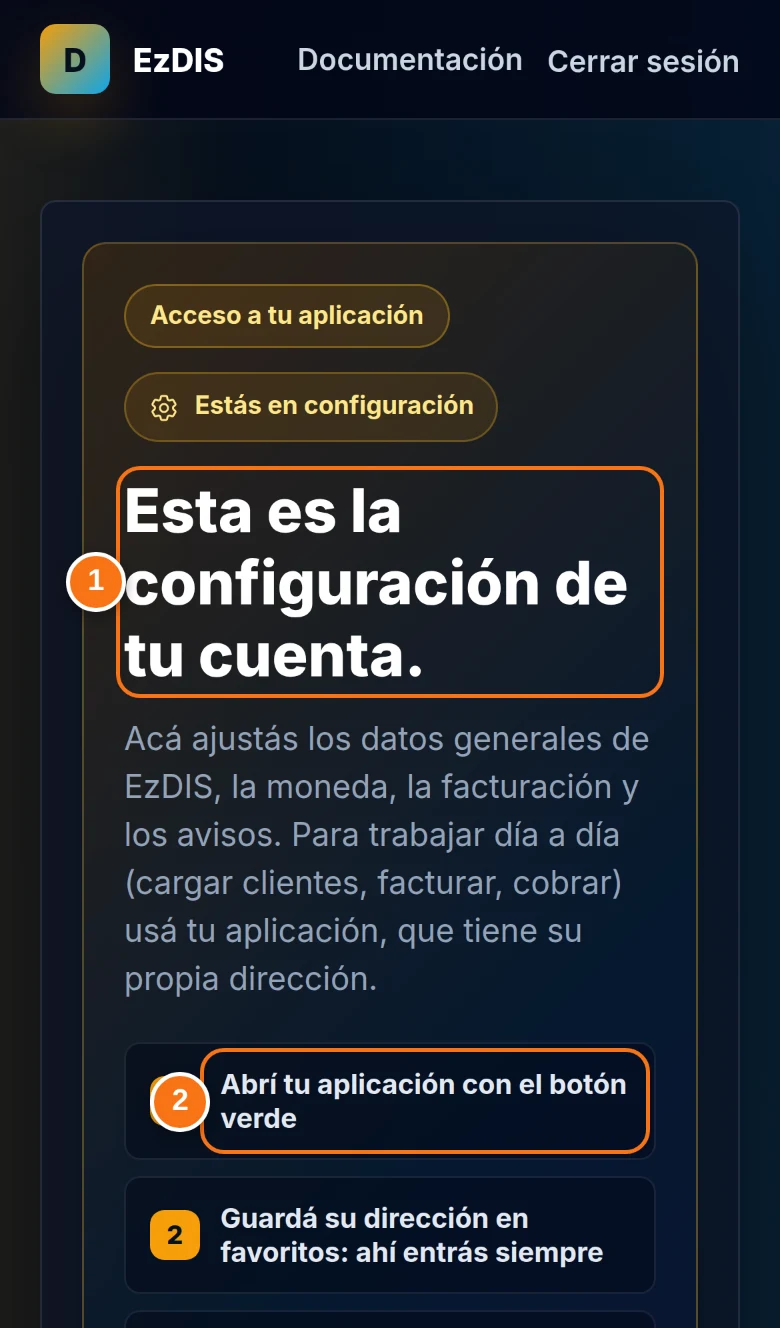
The saved logo is used on invoices and documents generated by EzDIS when their layout includes a logo. Review a generated PDF invoice after saving.
Tips
- Use a horizontal or square logo depending on the available layout.
- Keep the file lightweight.
- Review how it appears on mobile screens and generated documents.
- Replace the logo when the brand changes instead of editing historical invoices manually.