Collections/Payments
Collections/Payments lets you record payments and review outstanding balances.
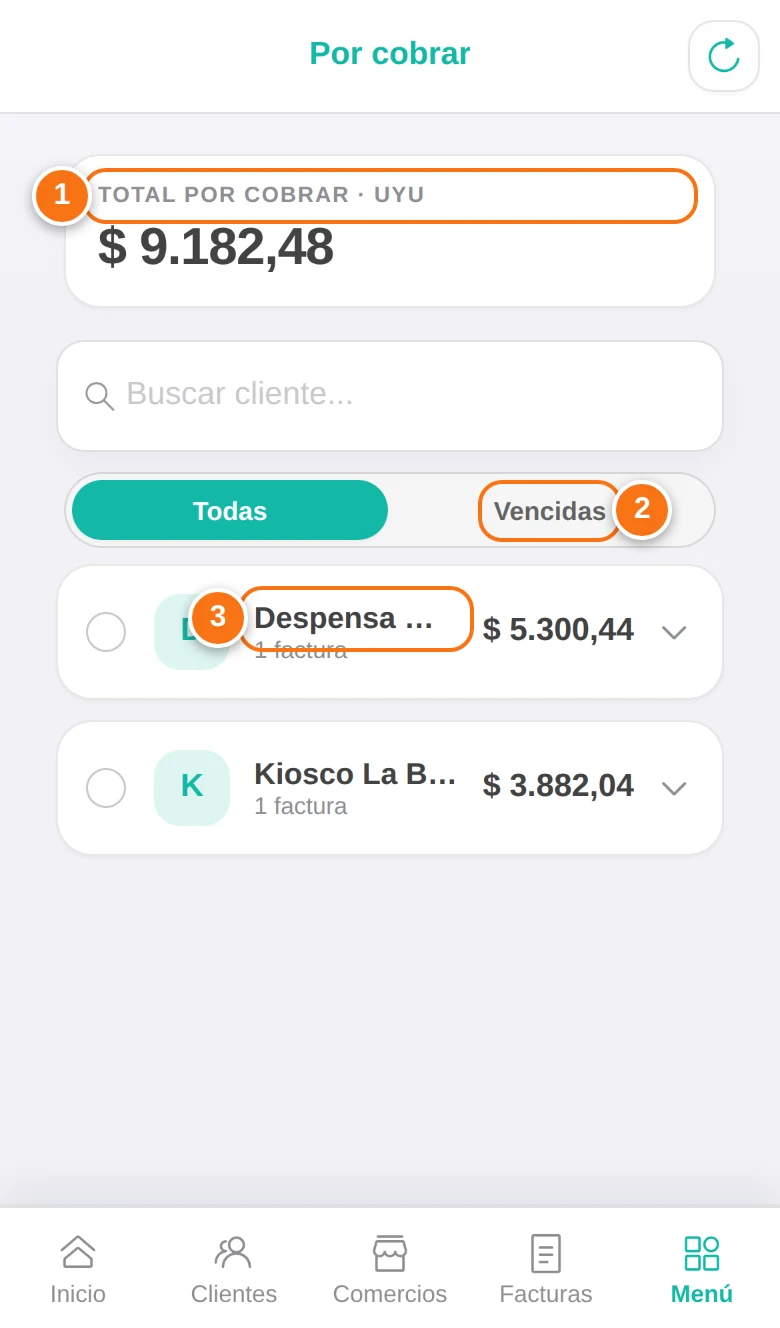
- Total to collect in each currency.
- See All or only Overdue.
- Store with how many invoices it owes and the total. Tap the arrow to see its invoices.
What you can do
- record partial payments;
- record full payments;
- use an available credit balance;
- credit surpluses as a credit balance;
- filter pending invoices;
- see overdue ones;
- review payments from each invoice’s detail;
- tell payment methods apart.
From an invoice
- Open the invoice.
- Tap Record payment.
- Choose the amount, date and method.
- Save.
When collecting several invoices, tick only the ones you are going to record. If the process is interrupted after some payments are recorded, the screen updates the balances: check the remaining invoices before retrying so you don’t record payments that were already processed.
Credit balances
If the client or store has a balance available, you can choose Balance as the payment type. If you record a payment larger than an invoice’s outstanding balance, the surplus can stay as a credit balance for future invoices.
From online payments
If the link and webhook are set up for MercadoPago or PayPal, an approved payment can be recorded on the invoice.
Daily check
At the end of the day, compare:
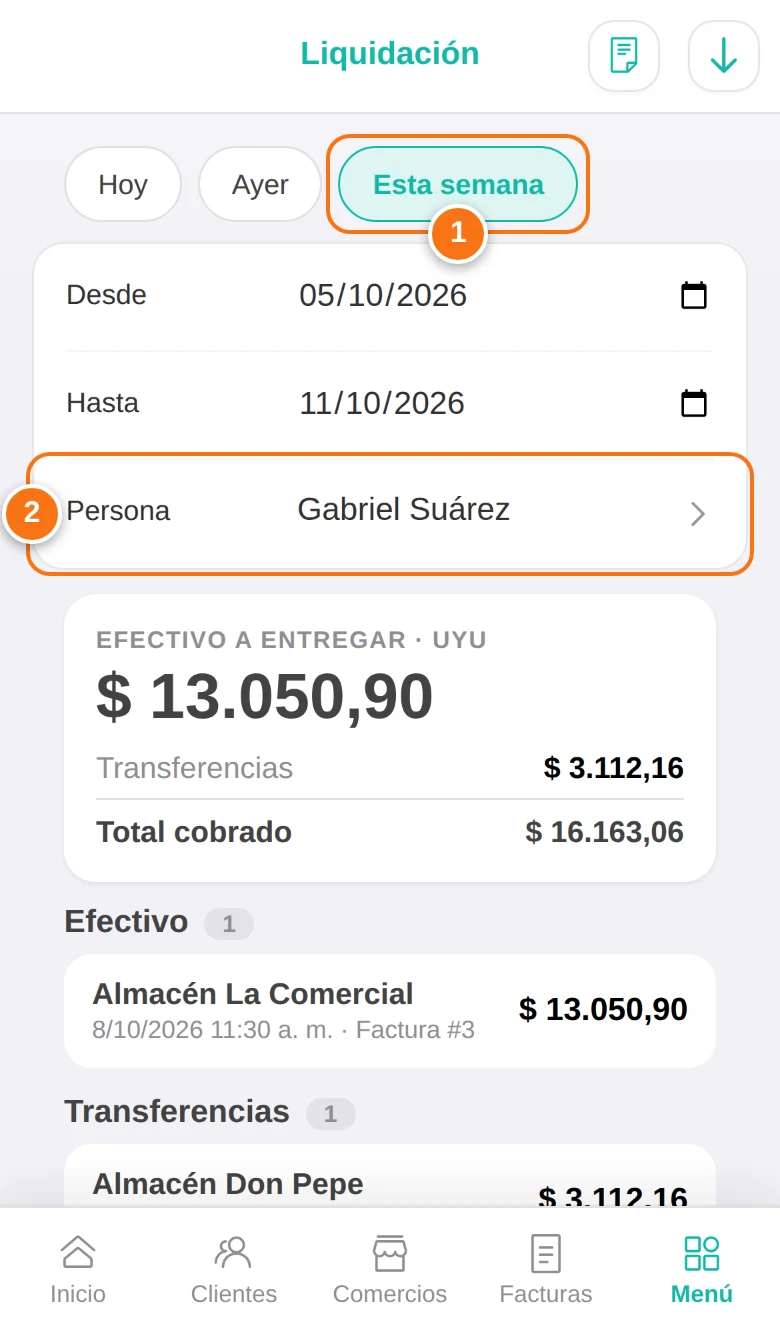
- Period: today, yesterday, this week or the dates you choose.
- Person who collected. Below, the cash they have to hand over, the transfers and each payment.
- cash handed in by each driver;
- transfers received;
- MercadoPago or PayPal payments;
- payments with a credit balance;
- invoices still pending.