How to set up Circutor eNext with EzDIS
1. Create the charger in EzDIS
- Sign in to EzDIS, open EV Chargers and tap Add charger.
- Enter a Name (for example “Bay 1”) and the Max power (kW), then save.
- Connect “Bay 1” opens with the data you will enter in the Circutor eNext:
- Server address (OCPP URL):
ws://devices.ezdis.net:9000/ev4k2p9x7q1m. - Secure address (wss://):
wss://charger.ezdis.net/ev4k2p9x7q1m. Use it if the charger supports a secure connection. - Charger identifier:
ev4k2p9x7q1m. On the charger it may be called ChargeBox ID, Charge Point ID or Identity. - Password, if the charger has that field. It is shown only once.
- Server address (OCPP URL):
If the charger has a separate field for the identifier, fill it in and still paste the full address: EzDIS recognizes the charger even if it adds its identifier or serial number to the end.
The data above is an example: use your charger's own. Each charger has its own identifier.
2. Configure the Circutor eNext
The eNext (Circontrol, part of the Circutor group) is configured from its setup webpage. It ships with DHCP enabled. To connect directly with a cable from a computer, Circontrol uses its IPSetup program, which assigns the charger's IP from its MAC address (printed on the label). If the charger is already on your network, open it at the IP your router gave it.
- Open the setup webpage in the browser, using the charger's IP.
- Under Communications, keep at least one internet link enabled: Ethernet, Wi-Fi or modem.
- Under Integrations, choose OCPP 1.6 and tap Link to open the OCPP settings. It asks for user
adminand password1234.

Source: Circontrol, “Wallbox eNext Elite – Manual de usuario”, p. 44
- In the Charge Box tab, set Id to your identifier, for example
ev4k2p9x7q1m. Leave Energy for Start/Stop transaction at Total.
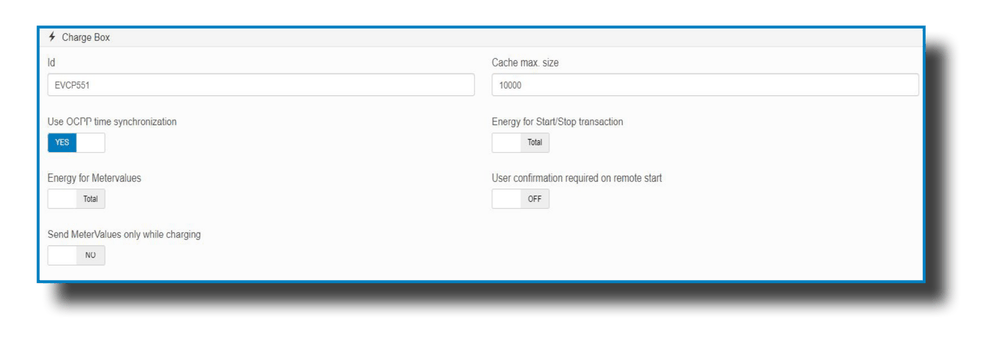
Source: Circontrol, “Wallbox eNext Elite – Manual de usuario”, p. 45
- In the Central System tab, paste the full address into Host URL,
wss://charger.ezdis.net/ev4k2p9x7q1m(orws://devices.ezdis.net:9000/ev4k2p9x7q1m). With wss://, keep Verify the CS certificate on YES. Save.
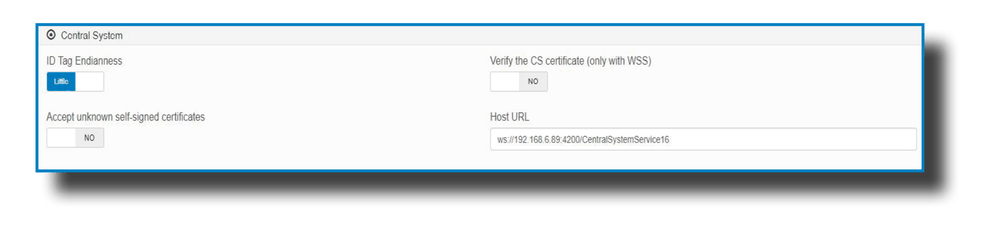
Source: Circontrol, “Wallbox eNext Elite – Manual de usuario”, p. 47
Change the factory credentials: under Security you can turn on a user and password for the setup webpage. Write them down, because there is no way to restore the factory settings.
3. Check the connection
Within a minute or two the charger shows as Available in EzDIS, with its brand, model and firmware.
If it does not connect
- Check that the charger has internet access and that the address is complete, with no spaces.
- If the charger page shows “A charger is trying to connect from your network as…”, tap It is “Bay 1”: your charger uses its serial number as identifier and connects on its next attempt.
- If it says the server rejected it, the password does not match or the charger is not using the secure address (wss://).
Once connected you can start and stop sessions from EzDIS, register RFID cards, charge per kWh and see each person's usage: it is all in the EV chargers manual.
Manuals and documentation
Documentation reviewed on 2026-11-24. Compatibility depends on the variant and firmware.