# Teison OCPP integration
Connect the Teison touchscreen charger to EzDIS over OCPP 1.6J and assign RFID cards.
> {tip} This guide and its photos were made by [Elprosys](https://www.elprosys.com/), an EV charger supplier in Gliwice, Poland, who tested this charger with us. Thank you for sharing it! [Buy the Teison Wallbox Pro-Smart OCPP from Elprosys](https://www.elprosys.com/en/wallbox-pro-smart-ocpp-en.html)
> {info} The document’s steps and all four photos are preserved. [Download the original Word document](/guides/teison/original.docx).
Use the connection details from your own charger page. Identifiers and values in the photos are examples. The photographed screen shows hardware Phase3OCPP512 and software 1.6.13-ThreePhase.
[See the Teison OCPP page and frequently asked questions](/en/free-ocpp-server/teison)
## I. OCPP Configuration – Platform
Create an account at the [free OCPP server](/en/free-ocpp-server). Activate the account and log in. Go to **Menu → EV Chargers → Add charger** and enter **Name**, **Max power**, **Price per kWh: set to 0**, **Require an authorized RFID card: on**. Click **Save**. Click on the charger’s name and navigate to the **OCPP 1.6J Connection** section.
Example connection details:
- **OCPP URL (WSS):** `wss://charger.ezdis.net/ev212345`
- **URL (WS):** `ws://devices.ezdis.net:9000/ev212345`
- **ChargeBox ID:** `ev212345`
> {primary} **WSS requires a password. WS does not require a password.** If you enabled secure connections with password only, WS is not accepted. For WSS, use the connection password provided by EzDIS.
## II. Charger Configuration (Teison)
Configuration is performed via the **charger touchscreen**.
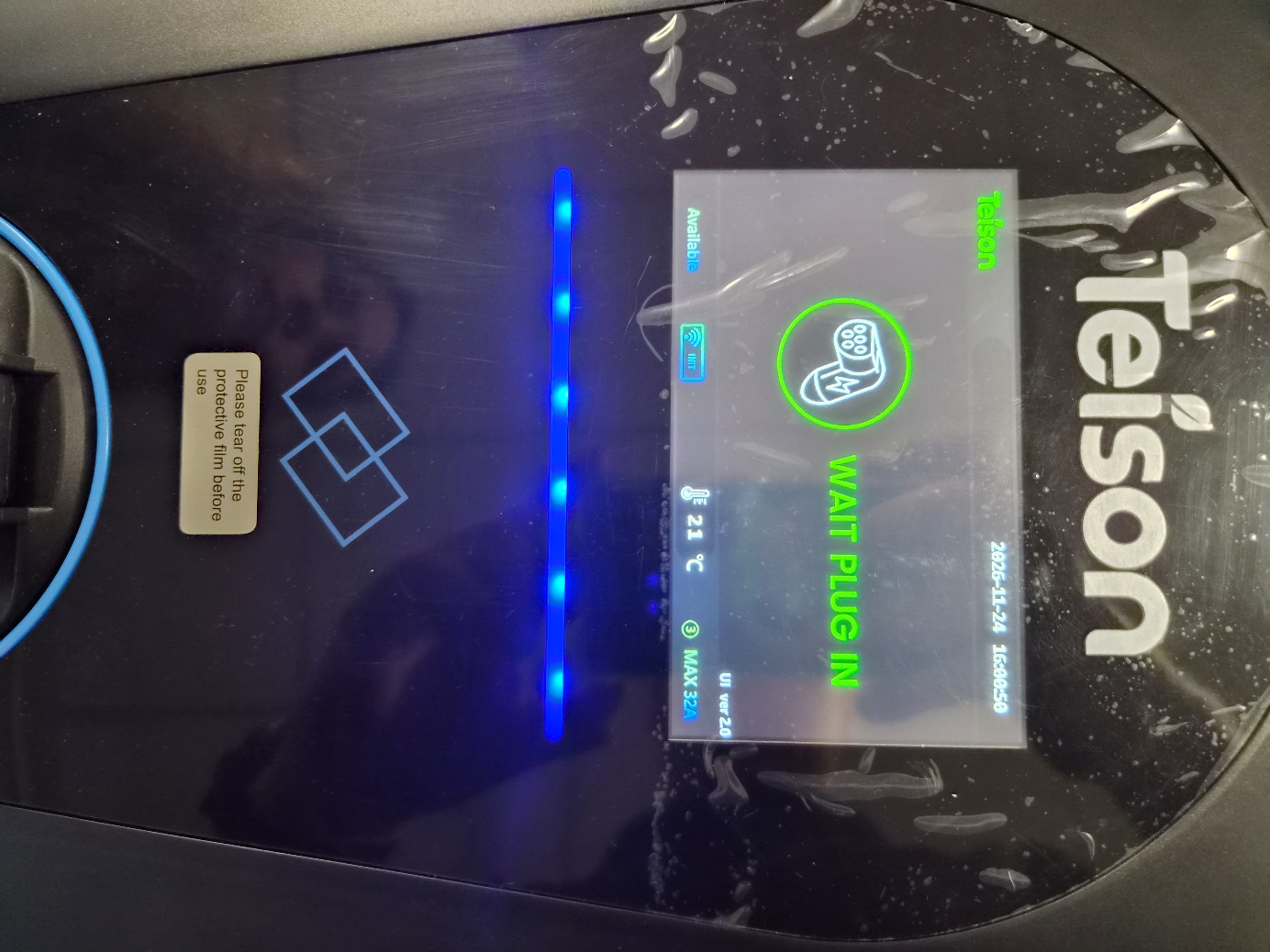
Screenshot provided by Elprosys.
1. Tap the Teison logo at the top left of the touchscreen and enter the installer password (factory default 123456 on the documented unit). Open Network and connect to the internet.
2. In OCPP Settings, enter ws://devices.ezdis.net:9000/ as URL and your ChargeBox ID as DeviceId. For WSS use wss://charger.ezdis.net/ and your EzDIS password. Clear the password field before editing it or using WS.
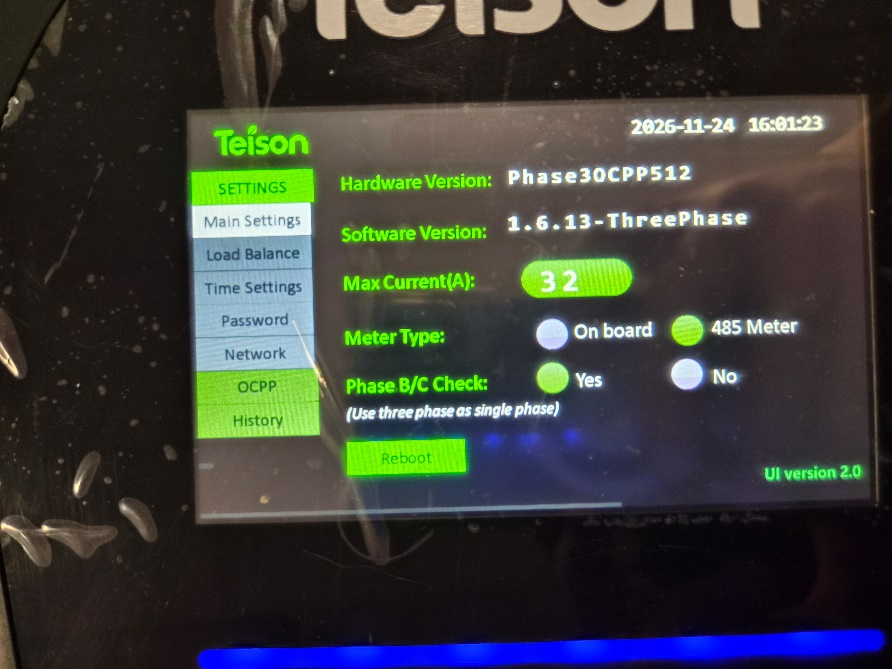
Screenshot provided by Elprosys.
```text
URL: ws://devices.ezdis.net:9000/
ID / DeviceId: ev212345
```
> {warning} The charger ID has to be **separated from the URL address**; the URL address has to end with **/**. Save the changes. Check the connection status. It should display **Connected**. The charger should now be visible on the EzDIS platform.
By default, the “password” field cannot be empty. Before entering a new password, or if using a protocol that does not require a password, **clear the field to be sure**.
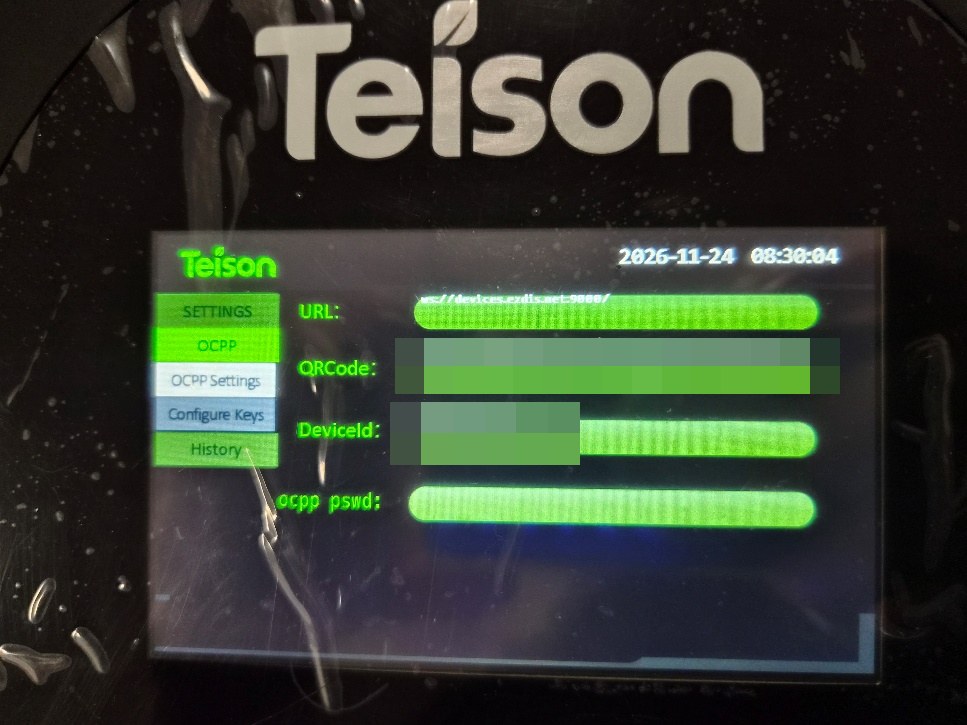
Screenshot provided by Elprosys.
## III. Adding RFID Cards
1. Read the ID of the card; it can be done by plugging the car into the charger (or EV charger tester) and tapping the card to the screen. The ID will be displayed on the screen.
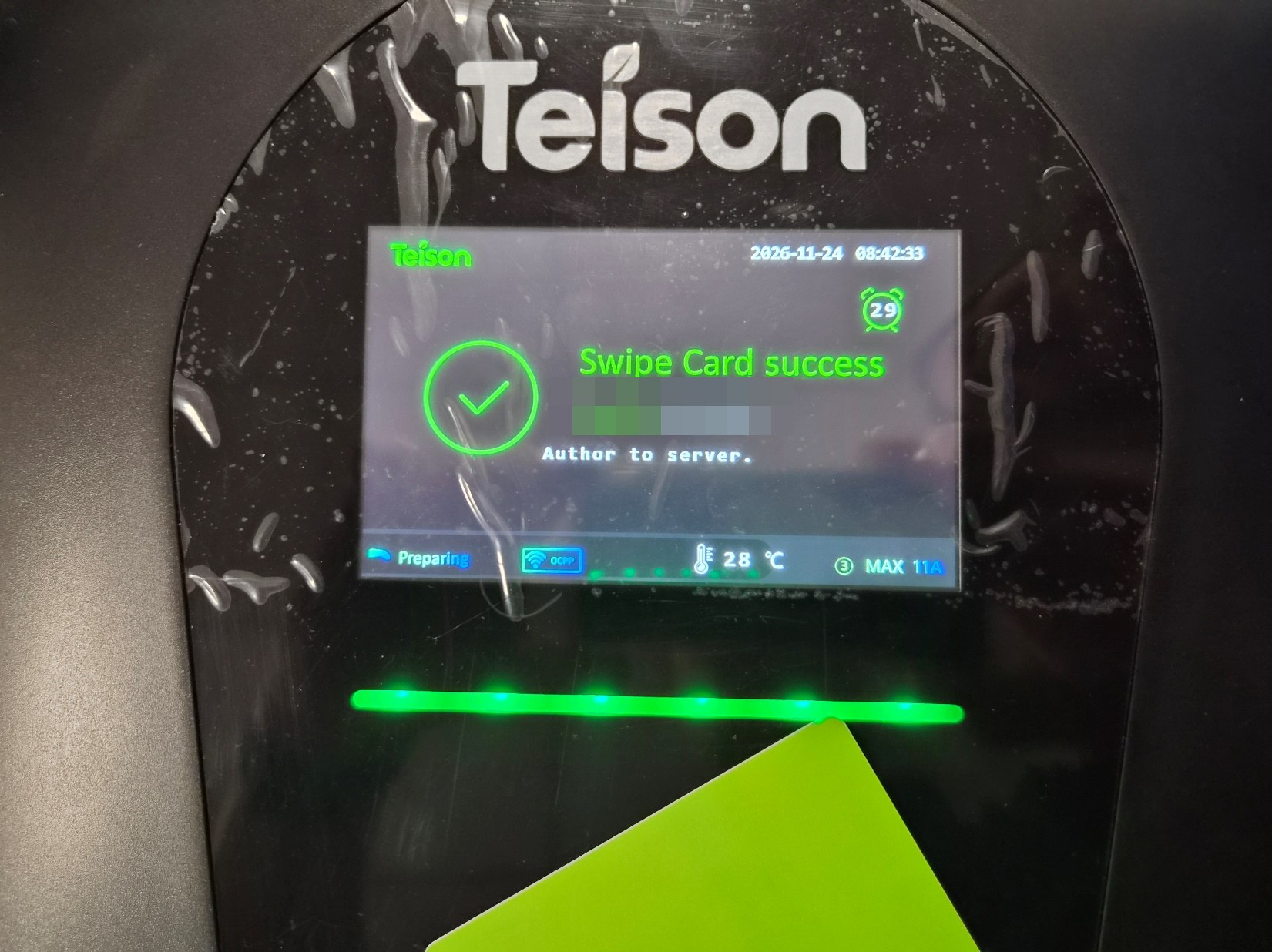
Screenshot provided by Elprosys.
2. On the EzDIS platform, go to **Menu → Clients → New client** and add the required clients.
3. Go to **Menu → EV Chargers**, click on the charger, and scroll to the bottom of the page. Under **RFID Cards**, click **Add card**.
4. In **Code**, enter the card ID exactly as the screen shows it, letters and numbers (for example `04A1B2C3`). In **Belongs to**, select the client’s name and save.
> {tip} There is an option to assign an unrecognized card: tap the card, view the alerts in the EzDIS app, and click the option to add or assign it.
See the [electric vehicle chargers](/en/manual/1.0/guides/ev-chargers) guide or the [Teltonika TeltoCharge](/en/manual/1.0/guides/teltocharge) guide.