# Orders over WhatsApp
---
Your customers order the way they already do today: with a **message**, a **voice note** or a **photo of their list**. Your business's WhatsApp assistant understands the order, looks up the products in your catalog and sends the customer a summary with the prices. **Only if the customer confirms** is the order registered, and it then follows its normal path like any other order.
## How to turn it on
It is **off** by default. You turn it on per business in **Configuration → WhatsApp notifications → Take orders over WhatsApp**. It needs the **WhatsApp assistant (staff and clients)** to be on (see [WhatsApp](/en/manual/1.0/config/whatsapp)).
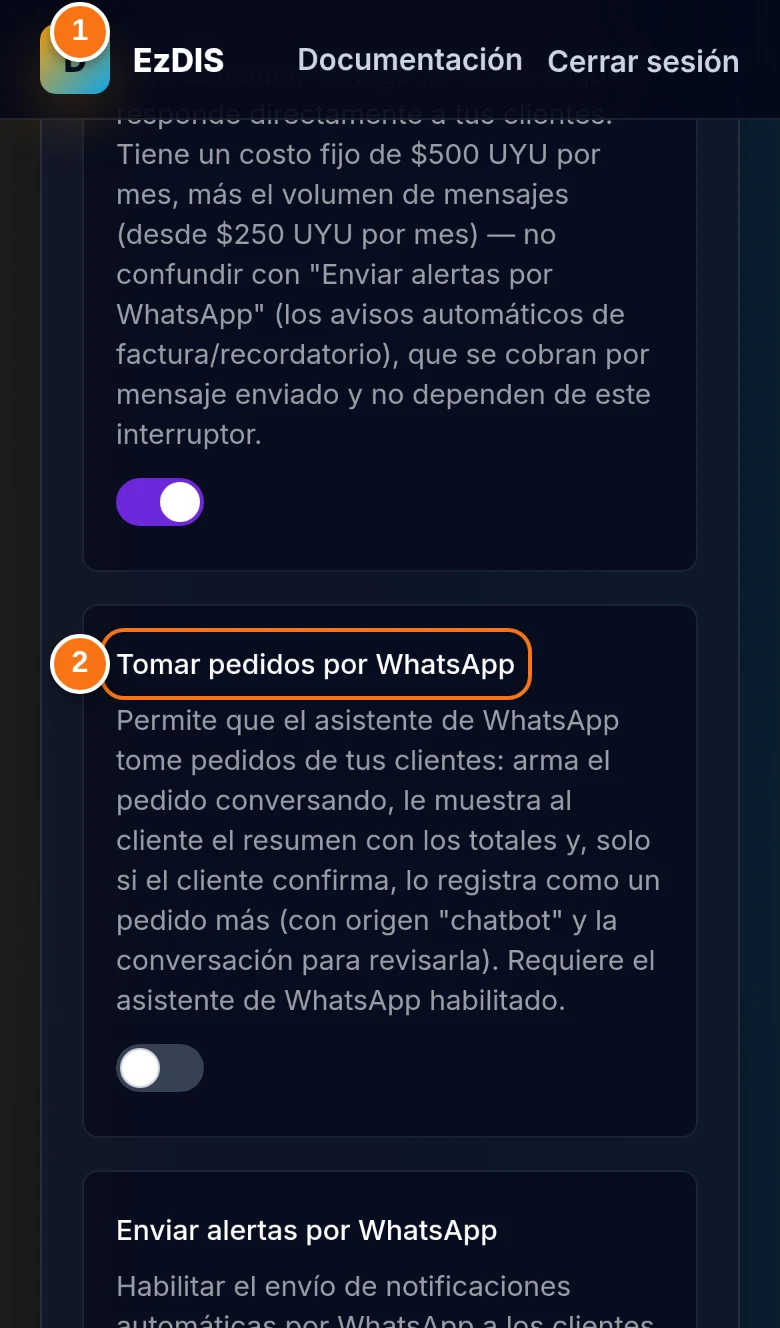
- WhatsApp assistant: answers your team and your customers over WhatsApp.
- Take orders over WhatsApp: the assistant builds the order in the conversation and registers it when the customer confirms.
The assistant recognises who is writing by their phone number, so the phone must be saved on the **customer** record. The first time someone writes, the assistant greets them with your business's name and tells them they can order by writing, with a voice note or with a photo of their list.
## Three ways to order
### With a voice note
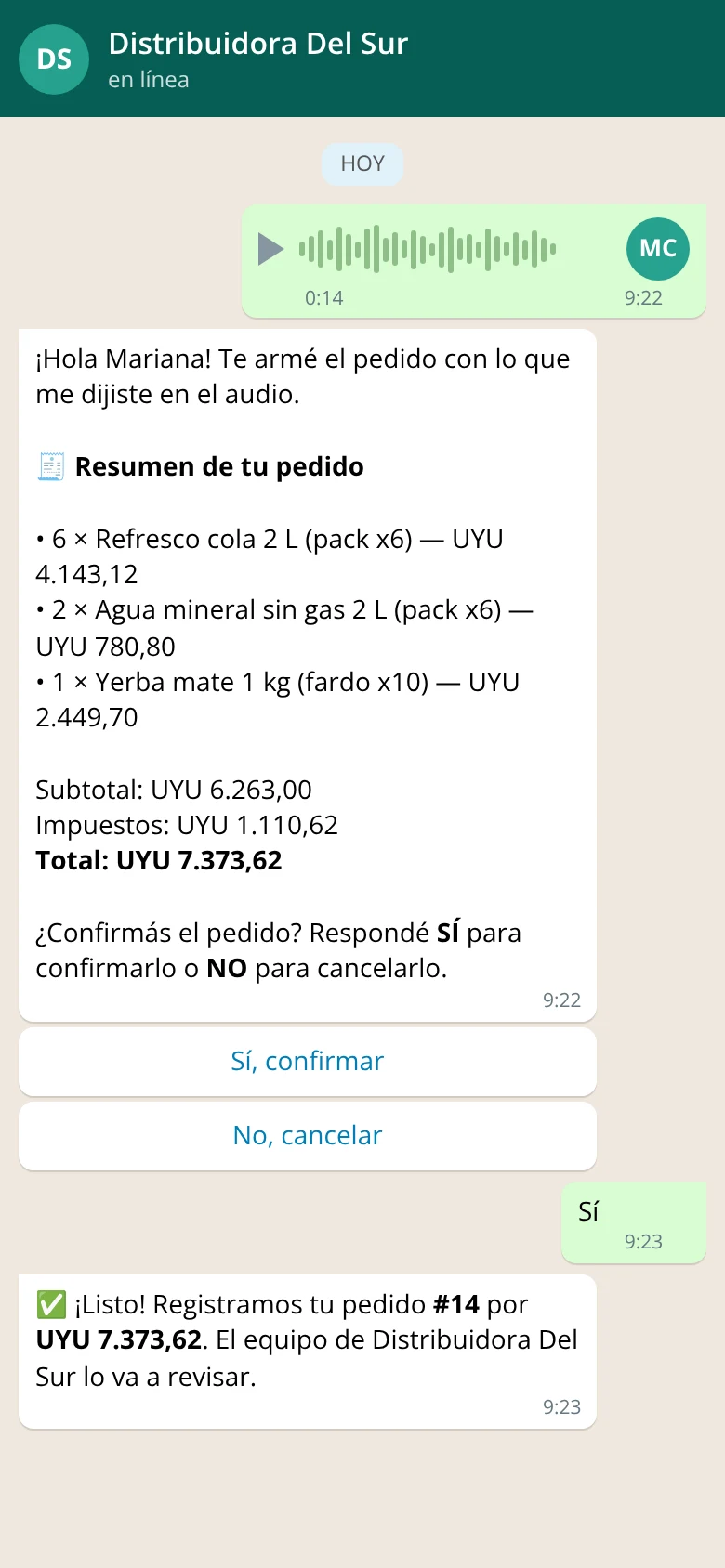
The customer sends a voice note just like they would send it to your sales rep ("six packs of cola, two of still water and a bale of yerba"). The system turns the audio into text in your business's language and with the names of your products, so it gets brands and pack sizes right, and the assistant builds the order from it.
### With a photo of the list
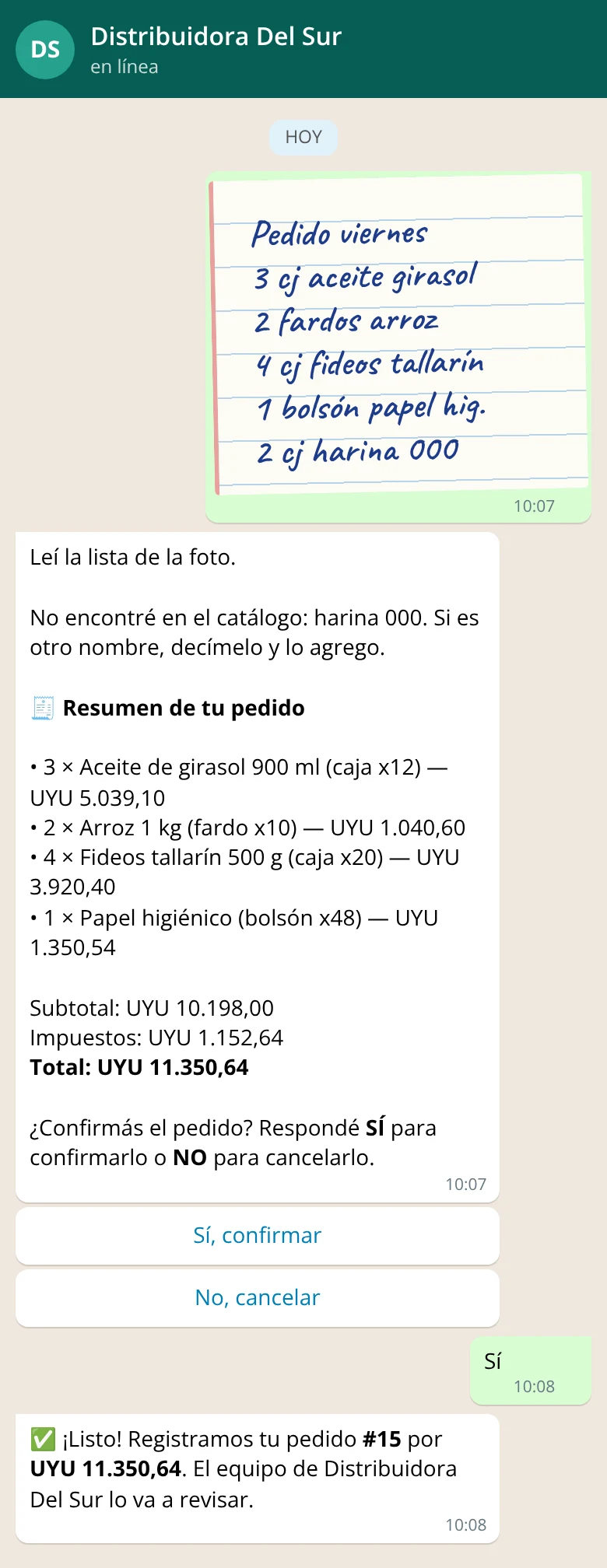
The customer takes a photo of a handwritten list, a printed sheet or a screenshot. The system reads each line with its quantity and the assistant builds the order. If a product on the list is not in your catalog, it builds the order with the rest and tells the customer which one it did not find, so they can clarify.
If the photo is not an order list (for example, a photo of a product), the assistant asks the customer to write what they need or to send a voice note.
### With a message
The customer writes what they want and how many. They do not need to use the exact catalog names: the assistant finds the product even if they do not write the full name or the pack size.
## How the conversation works
1. The assistant looks up the products in your catalog, with the prices you have set. If a product has versions (for example a size), it asks which one. **It never makes up quantities**: if it is not clear how many the customer wants, it asks.
2. Once it has everything, the system sends **Your order summary**: each product with its quantity and amount, the subtotal, the taxes and the **total**. The system builds the summary with your catalog prices; the assistant does not calculate or make up amounts.
3. If something is not in your catalog, the summary comes with **I couldn't find in the catalog** and those products, so the customer can say if it has another name.
4. The customer answers **YES** or **NO** (or taps the **Yes, confirm** and **No, cancel** buttons).
- **YES** registers the order and tells them its number.
- **NO** (or "better not", "cancel it") cancels it and nothing is registered.
- If instead of confirming they change something ("take out the water", "make it 10"), the assistant updates the order and shows the full summary again. A number on its own is taken as the new quantity, not as a yes or a no.
5. If the customer does not confirm within **30 minutes**, the proposal expires. If a price or the stock changed between the summary and the YES, the order is not registered and the customer is asked to build it again.
## Repeat the usual order
The customer can write "same as last time" or "repeat my last order". The assistant sees their latest orders and proposes the same one, at today's prices, for them to confirm or change.
## Payment receipts
If the customer sends a photo of a transfer or deposit, the assistant recognises it as a receipt: it thanks them and emails your team with the image attached and the amount it reads, so you can register the payment. The receipt does **not** register the payment on its own.
## What can be ordered
Whole quantities from 1 to 999 and up to 30 products per order. Products sold [by measure](/en/manual/1.0/features/product-variants) (kilos), products in a currency other than your business's, products without a price and products out of stock cannot be ordered over WhatsApp. In those cases the assistant tells the customer to contact the business. It does not promise discounts or delivery dates either: you handle that.
## What you see
Every time an order comes in, your **team gets an email** with the customer, the products, the total and the link to the order. It goes to the active [WhatsApp support contacts](/en/manual/1.0/config/whatsapp); if you have not added any, to the users who can see orders.
In [Orders](/en/manual/1.0/features/orders), the **WhatsApp, to review** filter gathers the orders that came in through the assistant and nobody has reviewed yet.
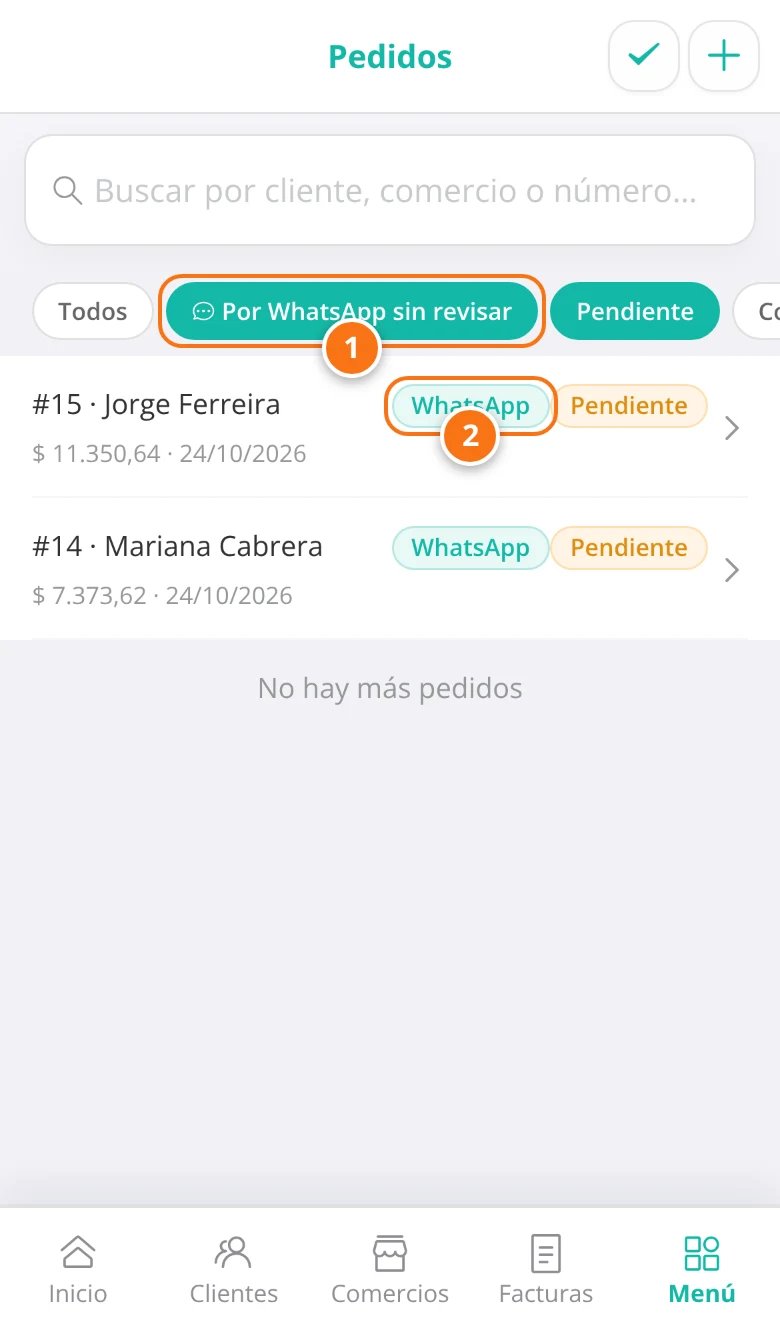
- WhatsApp, to review: the orders the assistant took that are still pending.
- WhatsApp: the tag that marks orders that came in through the assistant.
The order stays **Pending** and follows the same path as any other: confirm, prepare, convert to invoice and deliver.
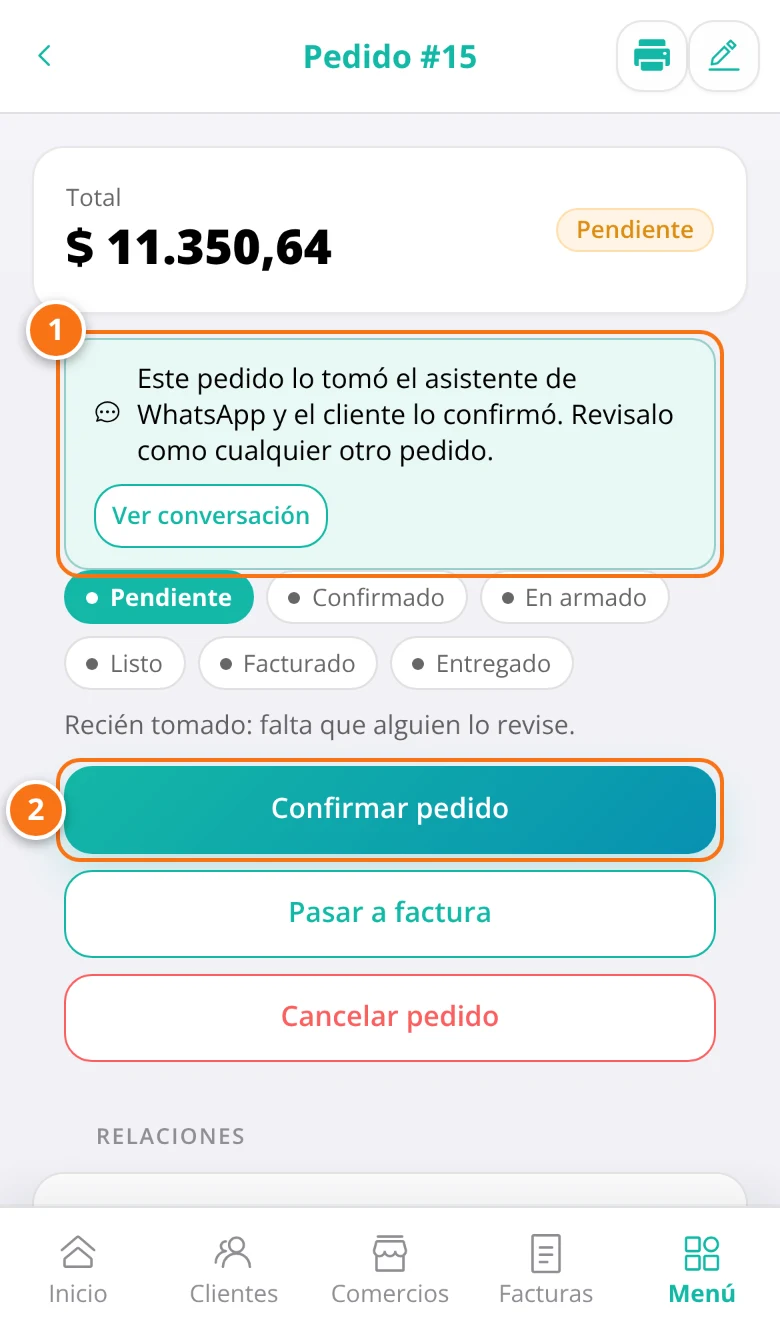
- View conversation: the notice that the assistant took it and the button to open the chat.
- Confirm order: once you review it, you confirm it and it leaves WhatsApp, to review.
**View conversation** opens the whole chat: what the customer sent (voice notes already turned into text and photos as the list that was read), what the assistant answered, the summary that was shown and the confirmation. Use it to check whether the assistant understood what the customer asked for.
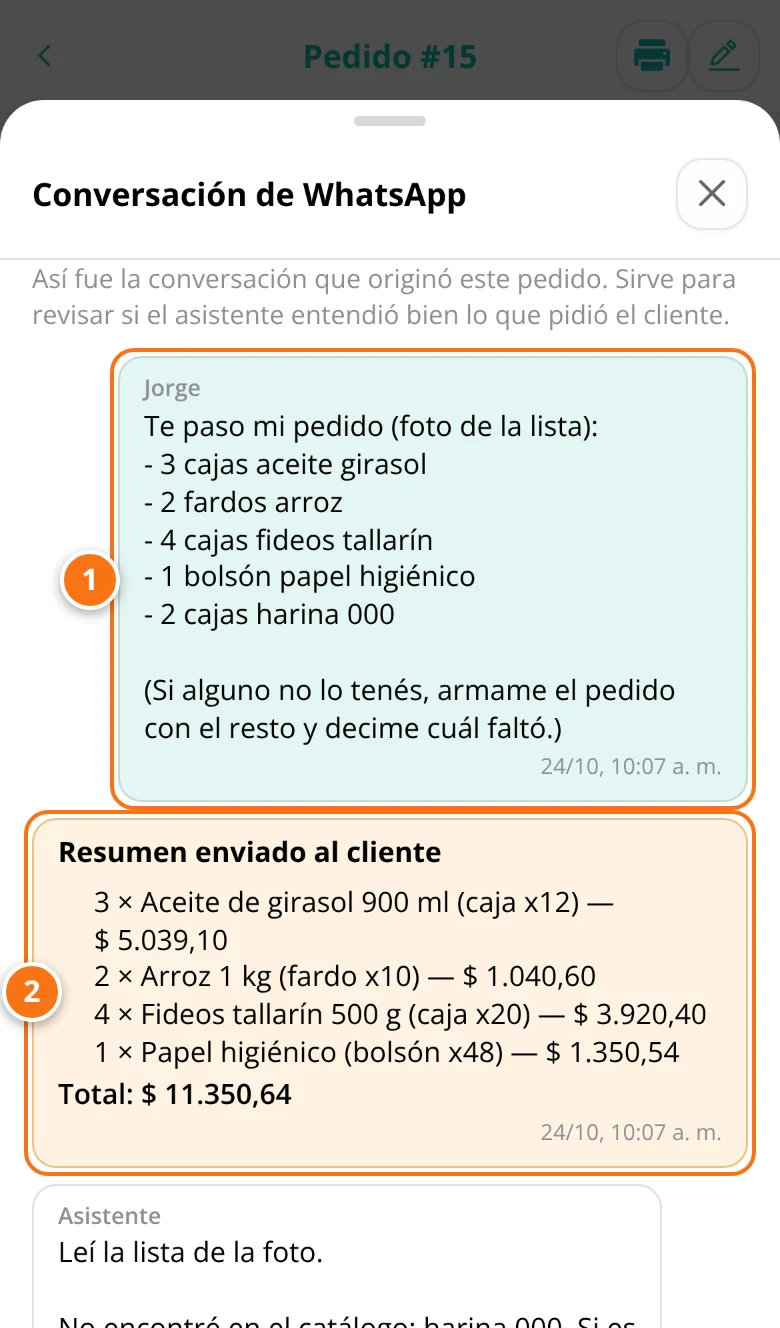
- What the customer sent: here, the list read from the photo.
- Summary sent to the customer: the products, quantities and total they confirmed.
## Cost
Each message the assistant sends counts toward your [monthly WhatsApp usage](/en/manual/1.0/config/whatsapp); the confirmation buttons are one more message.