# Versions and sale by measure
---
EzDIS lets you sell a product in two ways that are often confused:
- **by versions:** the product has specific options, like a black T-shirt in size M;
- **by measure:** the client says how much they take, like 1.5 kg of meat.
The **category defines which attribute exists** and the **product defines its price**. The category doesn’t store the price per kilo or the price of a version: those values are entered on each product.
## What each attribute type means
In the category, under **Product versions**, you can add an attribute and choose its type:
| Type | What it’s for | Example | Use it as a version? |
| --- | --- | --- | --- |
| **Dropdown list** | Pick one option from a fixed list. | Color: Black, White. | Yes, when each option has its own stock or price. |
| **Decimal number** | Enter quantities with decimals. | Kilos, liters, meters. | Yes, to sell by measure. |
| **Whole number** | Enter quantities without decimals. | Units per pack, numeric size. | Yes, if the value defines a version or a whole measure. |
| **Text** | Store a short free-text value. | Material: Cotton. | Only to tell versions apart; it doesn’t calculate prices per option. |
| **Long text** | Store a long description. | Composition or care. | Usually not a version. |
| **Boolean** | Yes/no. | Is it customized? | Only if that difference changes the item or its price. |
| **Date** | Store a date. | Expiry or harvest. | Usually not a version. |
Tick **Tells versions apart** only when that value changes the stock, the price or how the item is chosen. The **Show in lists and invoices** option shows the value in lists and on invoices; it doesn’t replace the SKU or the price setup.
## 1. Define the attribute in the category
1. Go to **Menu → Categories** and open an existing category or create a new one.
2. Scroll down to **Product versions**.
3. Tap **Add what tells versions apart**.
4. Type the name, choose the type and turn on **Tells versions apart**.
5. If you choose **Dropdown list**, add each option and its value. Use clear, distinct values.
6. Save the category.
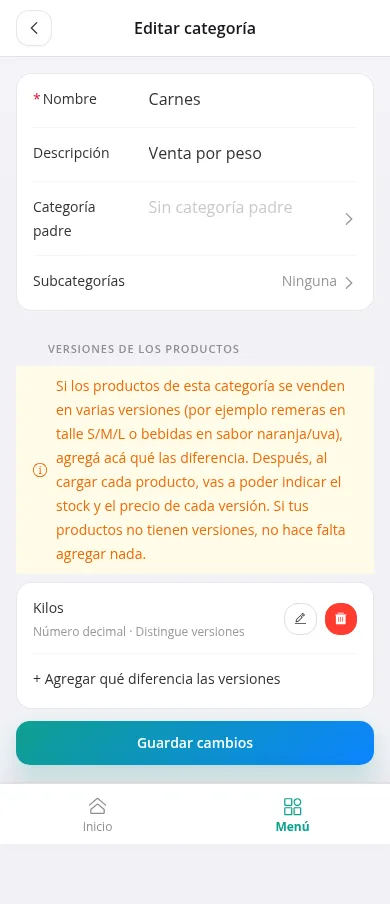
- Product versions. The category only defines which value will be asked for.
- Kilos. A numeric attribute that lets you ask for a quantity when selling.
- Add what tells versions apart. This is where you add Color, Size, Kilos or other attributes.
### How to name a measure
The unit must be in the attribute name: use Kilos, Liters, Grams or Meters. That name is shown when selling and can appear in the line description, for example Kilos: 1.5.
Don’t use a dropdown list with 0.5, 1, 1.5 and 2 to represent kilos: that creates fixed options and doesn’t let you sell any quantity. Use **Decimal number** for that.
## 2. Add the product and its price
Go to **Menu → Products**, open a product or create a new one and choose the category before filling in the versions.
In **Price by this feature** you enter the amount for each option or each unit of measure:
- **Dropdown list:** enter how much each option adds. The final price is the base price plus the option’s extra.
- **Decimal or whole number:** enter the price per unit. For example, 120 means $120 per kilo if the attribute is called Kilos.
- **Price before VAT / Price with VAT:** you can type either; EzDIS calculates the other with the product’s VAT rate and stores the price before VAT.
- **Base price:** leave it at 0 if the whole price is in the attribute. If the product costs $450 and an option adds $50, enter $450 as the base and $50 as the extra.
- **Price without tax (overrides product price):** if a version has its own exact price, that price replaces the base price plus extras.
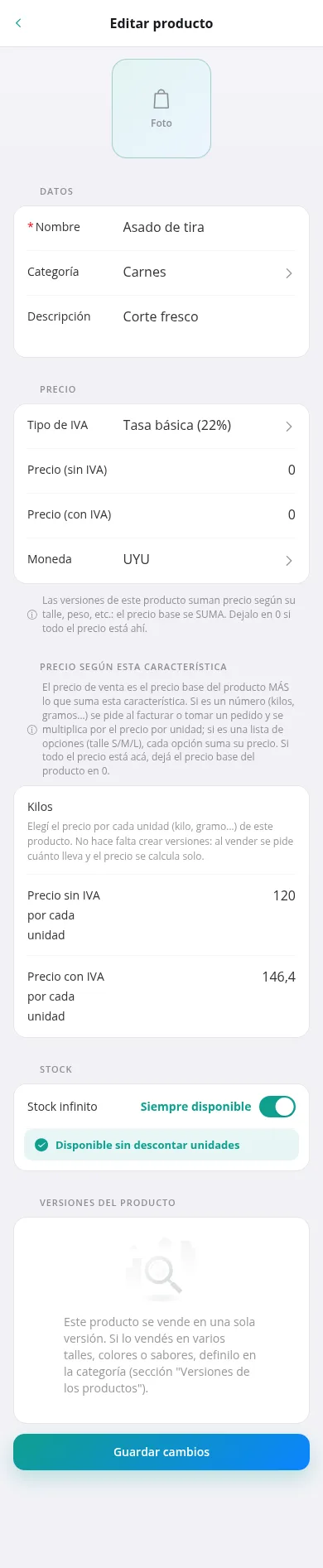
- Base price. In this example it is 0 because the whole value is in the kilo.
- Price by this feature. The section appears because the category has the Kilos attribute.
- Price per unit. $120 before VAT per kilo; EzDIS also shows the amount with VAT.
- Infinite stock. The recommended option for a measure that is set at the time of sale.
## 3. Use case: butcher shop selling by the kilo
### The idea, in one line
The product is **Short ribs**, the price is **$120 per kilo** and, when the client buys, the seller types **how many kilos they take**.
### Setup
Do exactly this:
| Screen | What to type or choose |
| --- | --- |
| **Category → Name** | Meats |
| **Category → Add attribute → Name** | Kilos |
| **Category → Type** | Decimal number |
| **Category → Tells versions apart** | On |
| **Product → Name** | Short ribs |
| **Product → Category** | Meats |
| **Product → Price before VAT** | 0 |
| **Product → Price by this feature → Price without tax per unit** | 120 |
| **Product → Infinite stock** | On |
**Very important:** on the product you type 120, because it’s $120 per kilo. Don’t type 1.5 there: 1.5 is the quantity that will be asked for later, when you sell.
Infinite stock is the most practical option when the exact quantity is decided when cutting and selling. If you need to track available kilos, use your business’s stock process; don’t create a version for every possible weight.
### Sale
When the client buys:
1. Open an invoice or an order.
2. Add the product **Short ribs**.
3. In the **Sell Short ribs** window, find **Kilos**.
4. Type 1.5.
5. Tap **Add**.
EzDIS shows:
1.5 kg × $120 = $180 before VAT
$180 × 1.22 = $219.60 with 22% VAT
Then, on the order or invoice line, the **quantity** says how many times that measure is repeated. A quantity of 2 means:
2 × 1.5 kg = 3 kg
The subtotal before VAT will be 2 × $180 = $360.
Each cut can be a different product with its own price per kilo: **Short ribs**, **Rump tail** and **Breaded cutlet** don’t share the price even if they are in the same category.
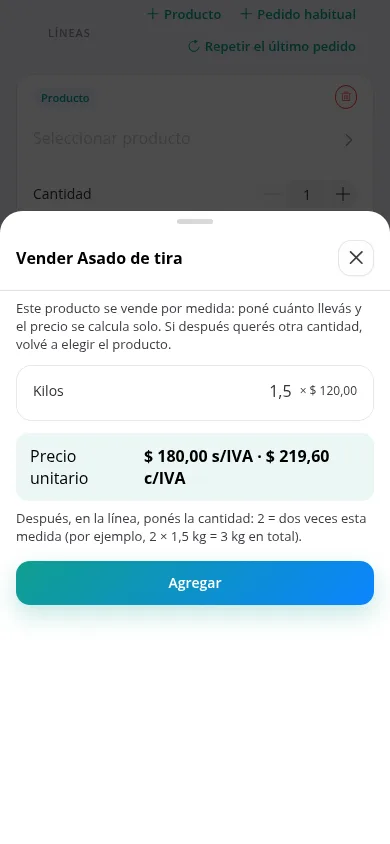
- Measure. The seller types how much the client takes, for example 1.5 kilos.
- Unit price. EzDIS calculates the amount before and with VAT using the product’s price per kilo.
- Add. Confirms the measure and adds it to the order or invoice line.
## 4. Use case: T-shirt shop by color and size
### The idea, in one line
The T-shirt has two attributes: **Color** and **Size**. Each combination is a different item: Black / M doesn’t share stock with White / M.
### Setup
Do exactly this:
| Screen | What to type or choose |
| --- | --- |
| **Category → Name** | T-shirts |
| **Attribute 1 → Name** | Color |
| **Attribute 1 → Type** | Dropdown list |
| **Attribute 1 → Options** | Black, White |
| **Attribute 2 → Name** | Size |
| **Attribute 2 → Type** | Dropdown list |
| **Attribute 2 → Options** | S, M, L |
| **Color and Size → Tells versions apart** | On |
| **Product → Name** | Basic T-shirt |
| **Product → Category** | T-shirts |
| **Product → Price before VAT** | 450 |
Then:
1. Scroll down to **Product versions**.
2. Tap **Generate all combinations**.
3. EzDIS creates six versions: Black/S, Black/M, Black/L, White/S, White/M and White/L.
4. For each version, enter its **SKU** and **Initial stock**.
5. If a version has a different price, type it in **Price without tax (overrides product price)**.
6. Save the product.
You don’t need six separate products. You create one product (**Basic T-shirt**) with six versions.

- Price by feature. You can enter extras for each color or size.
- Generate all combinations. Creates one version per combination of options.
- SKU, stock and price. Each version can have its own code, stock and price.
- Version price. EzDIS shows the calculated price; the override field lets you set another one.
### Sale
When you add the **Basic T-shirt** to an invoice or order, you pick the exact version, for example **Black / M**. Stock is deducted from that combination and not from the other sizes or colors.
## What your team sees when selling
- A product sold by measure shows as **By measure** in the list, because you still need to enter how many kilos, liters or meters the client takes.
- A product with versions shows **From** and the lowest available price.
- On an invoice or order, you pick the version or measure first and then the quantity.
- The order keeps the agreed price and quantity. When you turn it into an invoice, those values don’t change even if you later change the product’s price.
Sale by measure works when invoicing, when [taking an order](/en/manual/1.0/features/orders) and in [usual orders](/en/manual/1.0/features/order-templates). Products sold by measure can’t be added from a WhatsApp order, because the measured quantity needs to be confirmed in the app.
## Common mistakes
- **Entering the price per kilo in the category:** the price goes on each product, because each cut can have a different value.
- **Using a list for kilos:** a list limits the sale to the values entered; use a decimal to accept 1.25, 1.5 or any other valid quantity.
- **Leaving a base price when it doesn’t apply:** if the whole value is per kilo, leave the base price at zero so it isn’t charged twice.
- **Creating versions for a measure:** versions are for finite options like color and size; the measure is asked for when selling.
- **Forgetting stock or SKU on a combination:** each T-shirt version can have different stock and codes.
## The price is kept end to end
Once a version or a measure is added to an order, EzDIS keeps that line’s price and quantity. When you turn the order into an invoice or edit the invoice later, those values aren’t recalculated by later catalog changes.