# How to set up WEG WEMOB Parking with EzDIS
Documentation reviewed on 2026-11-24. Compatibility depends on the variant and firmware.
## Before configuring the charger
On the WEMOB, join the “WEG-EVSE-…” Wi-Fi and open the commissioning page. In OCPP Config, write the server in “Server URL”. WEG fills in “Charge Box ID” at the factory and advises against editing it, and its OCPP password must be 32 to 40 hexadecimal characters, a format the EzDIS password does not follow. So enter ws://devices.ezdis.net:9000/ without a password and, when the charger page in EzDIS shows a charger trying to connect with another identifier, tap “It is …”. Set “Charging Authorization” to “Authorized by OCPP Server” so EzDIS validates the RFID cards.
## 1. Create the charger in EzDIS
1. Sign in to EzDIS, open **EV Chargers** and tap **Add charger**.
2. Enter a **Name** (for example “Bay 1”) and the **Max power (kW)**, then save.
3. **Connect “Bay 1”** opens with the data you will enter in the WEG WEMOB Parking:
- **Server address (OCPP URL)**: `ws://devices.ezdis.net:9000/ev4k2p9x7q1m`.
- **Secure address (wss://)**: `wss://charger.ezdis.net/ev4k2p9x7q1m`. Use it if the charger supports a secure connection.
- **Charger identifier**: `ev4k2p9x7q1m`. On the charger it may be called ChargeBox ID, Charge Point ID or Identity.
- **Password**, if the charger has that field. It is shown only once.
If the charger has a separate field for the identifier, fill it in and still paste the full address: EzDIS recognizes the charger even if it adds its identifier or serial number to the end.
The data above is an example: use your charger's own. Each charger has its own identifier.
## 2. Configure the WEG WEMOB Parking
The WEMOB is commissioned from its setup page, over the charger's own Wi-Fi. That network only appears for the first 10 minutes after power-up and turns off once commissioning is done. To change anything later you need the factory reset described in the WEG guide.
1. Power the charger on. Within 10 minutes, connect your phone or computer to the **WEG-EVSE-xxx** network. The key is on the yellow label inside (8 digits); if there is no label, use the **SERIAL** from the product label (10 digits), or `password` on older units. Turn off the phone's mobile data.
2. Open `http://setup.com` (or `http://10.10.10.1`).
3. Under **Connectivity**, choose how it reaches the internet: **WiFi**, **Cellular** (with the SIM's APN) or **Ethernet**.

Source: WEG, “WEMOB-WALL / PARKING – Guía de conectividad (EN/ES/PT)”, p. 3
4. Under **OCPP**, fill in:
- **Server URL**: the full address, `wss://charger.ezdis.net/ev4k2p9x7q1m` (or `ws://devices.ezdis.net:9000/ev4k2p9x7q1m`).
- **Chargebox ID**: keep the factory value. WEG advises against changing it; EzDIS recognizes the charger by the identifier in the address.
- **Password**: leave it empty. WEG only accepts passwords of 32 to 40 hexadecimal characters, and the EzDIS password does not have that format.
- **Charging Authorization**: **Authorized by OCPP Server**, so EzDIS validates the RFID cards.
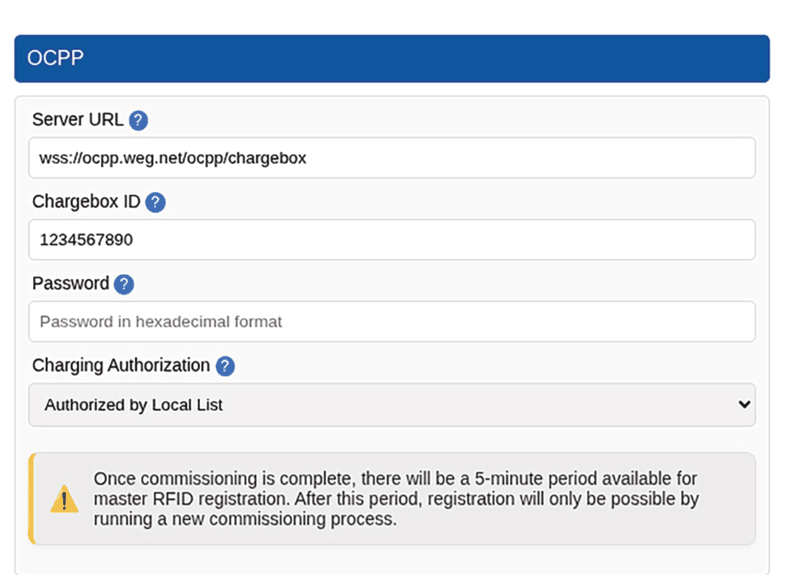
Source: WEG, “WEMOB-WALL / PARKING – Guía de conectividad (EN/ES/PT)”, p. 3
5. Tap **Send**. If you chose Wi-Fi, pick your network on the next page (2.4 GHz, WPA2), enter its key and tap **Save & Continue**. When done, it shows “Configuration saved and setup finished”.
## 3. Check the connection
Within a minute or two the charger shows as **Available** in EzDIS. If your site network is managed, the charger needs outbound ports 53, 80 and 443, plus 9000 if you use ws://.
## If it does not connect
- Check that the charger has internet access and that the address is complete, with no spaces.
- If the charger page shows “A charger is trying to connect from your network as…”, tap **It is “Bay 1”**: your charger uses its serial number as identifier and connects on its next attempt.
- If it says the server rejected it, the password does not match or the charger is not using the secure address (wss://).
Once connected you can start and stop sessions from EzDIS, register RFID cards, charge per kWh and see each person's usage: it is all in the [EV chargers manual](https://www.ezdis.net/en/manual/1.0/guides/ev-chargers).
## Manuals and documentation
- [User and installation manual](https://static.weg.net/medias/downloadcenter/he6/h31/WEG_10013258419_WEMOB-WALL_PARKING_Instalattion_Guide_EN_ES_PT.pdf) — PDF
[Download the PDF tutorial](https://www.ezdis.net/en/free-ocpp-server/weg-wemob-parking/tutorial.pdf)