# How to set up Wallbox Pulsar Max with EzDIS
Documentation reviewed on 2026-11-24. Compatibility depends on the variant and firmware.
## Before configuring the charger
In the Wallbox app open the charger and tap Settings (gear) → External Management → OCPP. If EzDIS is not in the list, enter the URL by hand: wss://charger.ezdis.net/ (or ws://devices.ezdis.net:9000/), then the Charge Point ID (your ev… identifier) and the EzDIS password, accept the terms and save: the charger restarts by itself. The myWallbox portal has the same settings in the charger’s OCPP tab. If OCPP does not appear, that unit does not support it: older units only have OCPP when their part number includes it.
## 1. Create the charger in EzDIS
1. Sign in to EzDIS, open **EV Chargers** and tap **Add charger**.
2. Enter a **Name** (for example “Bay 1”) and the **Max power (kW)**, then save.
3. **Connect “Bay 1”** opens with the data you will enter in the Wallbox Pulsar Max:
- **Server address (OCPP URL)**: `ws://devices.ezdis.net:9000/ev4k2p9x7q1m`.
- **Secure address (wss://)**: `wss://charger.ezdis.net/ev4k2p9x7q1m`. Use it if the charger supports a secure connection.
- **Charger identifier**: `ev4k2p9x7q1m`. On the charger it may be called ChargeBox ID, Charge Point ID or Identity.
- **Password**, if the charger has that field. It is shown only once.
If the charger has a separate field for the identifier, fill it in and still paste the full address: EzDIS recognizes the charger even if it adds its identifier or serial number to the end.
The data above is an example: use your charger's own. Each charger has its own identifier.
## 2. Configure the Wallbox Pulsar Max
New Wallbox chargers include OCPP 1.6J. On older models it is included only if it appears in the part number: if the OCPP menu does not show up, that unit does not have it.
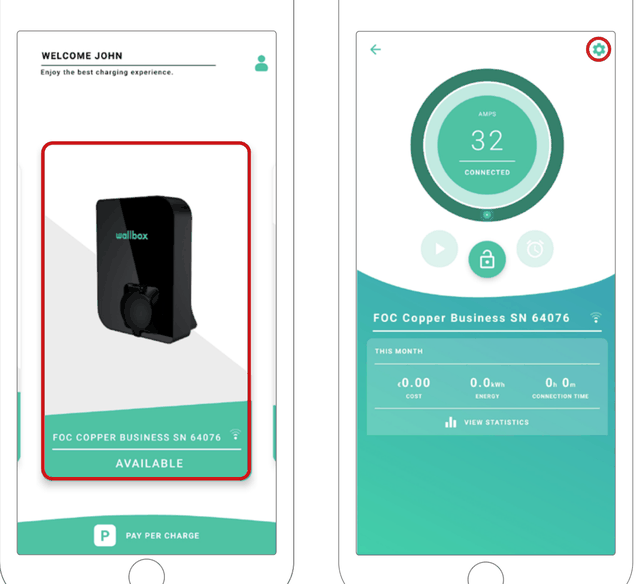
1. Connect the charger to the internet (Wi-Fi, Ethernet or mobile data, depending on the model) and open the **Wallbox** app.
2. Select the charger and check that it shows as connected.
3. Tap **Settings** (the cogwheel) and, under **External Management**, choose **OCPP**.
Source: Wallbox, “OCPP Activation and Setup Guide (2021)”, p. 6
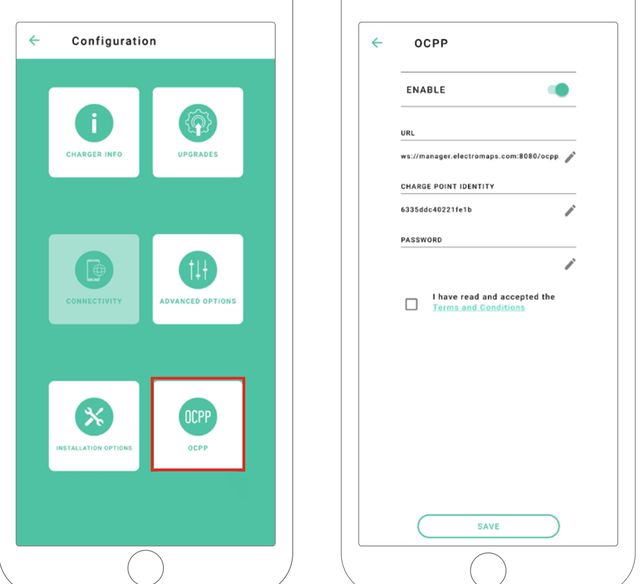
4. Turn OCPP on (**Enable**) and fill in:
- **URL**: the full address, `wss://charger.ezdis.net/ev4k2p9x7q1m` (or the unencrypted one, `ws://devices.ezdis.net:9000/ev4k2p9x7q1m`). EzDIS is not in the provider list: type it in.
- **Charge Point Identity**: your identifier, for example `ev4k2p9x7q1m`.
- **Password**: the EzDIS password.
5. Accept the terms and conditions and tap **Save**. The charger restarts by itself and applies the settings.
Source: Wallbox, “OCPP Activation and Setup Guide (2021)”, p. 7
The screenshots come from the 2021 OCPP guide. In the current app the menu is under Settings → External Management → OCPP, with the same fields.
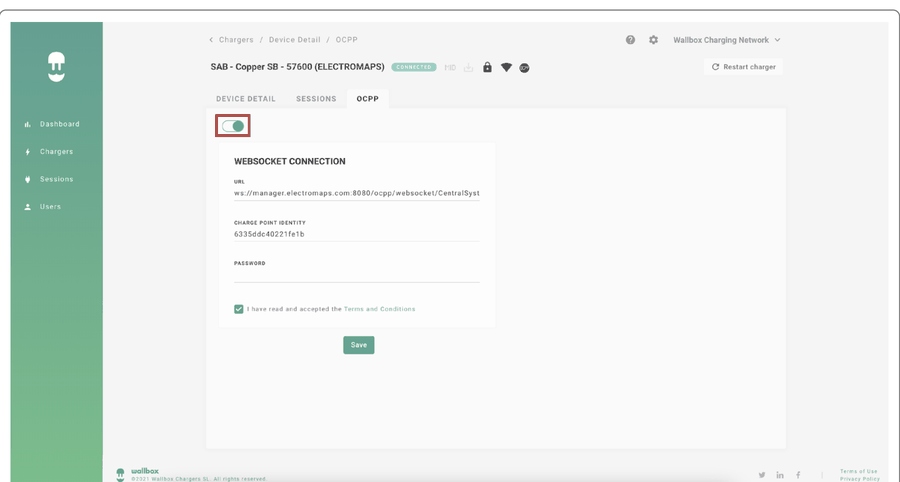
The myWallbox portal has the same fields in the charger's **OCPP** tab.
Source: Wallbox, “OCPP Activation and Setup Guide (2021)”, p. 9
## 3. Check the connection
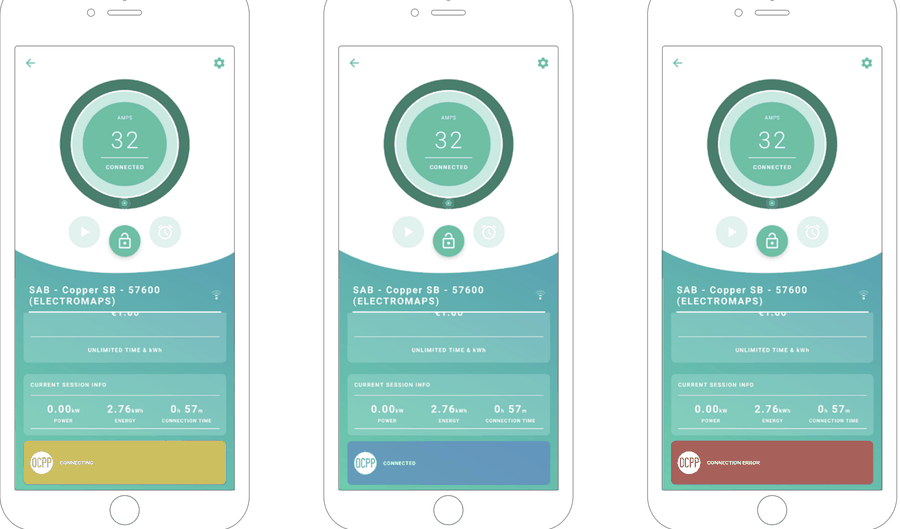
The Wallbox app and portal show the OCPP status: **Connecting** while it tries, **Connected** once it talks to EzDIS and **Connection error** if it cannot reach it. In EzDIS, the charger turns **Available** within a minute or two.
Source: Wallbox, “OCPP Activation and Setup Guide (2021)”, p. 10
For RFID cards, Wallbox sends the number in hexadecimal, reversed (little-endian) and without separators. The easiest way is to tap the card and register it from the unknown card alert in EzDIS.
## If it does not connect
- Check that the charger has internet access and that the address is complete, with no spaces.
- If the charger page shows “A charger is trying to connect from your network as…”, tap **It is “Bay 1”**: your charger uses its serial number as identifier and connects on its next attempt.
- If it says the server rejected it, the password does not match or the charger is not using the secure address (wss://).
Once connected you can start and stop sessions from EzDIS, register RFID cards, charge per kWh and see each person's usage: it is all in the [EV chargers manual](https://www.ezdis.net/en/manual/1.0/guides/ev-chargers).
## Manuals and documentation
- [Configuration guide](https://support.wallbox.com/en/knowledge-base/ocpp-activation-and-setup-guide/) — WEB
- [User and installation manual](https://support.wallbox.com/wp-content/uploads/2021/10/EN_ACTIVATION_GUIDE_OCPP.pdf) — PDF · EN · OCPP · 2021
- [Device datasheet](https://support.wallbox.com/en/knowledge-base/pulsar-max-products-overview/) — WEB · EN · Wallbox Pulsar Max
[Download the PDF tutorial](https://www.ezdis.net/en/free-ocpp-server/wallbox-pulsar-max/tutorial.pdf)